
Create an AI troubleshooting agent
This workflow gives your team a troubleshooting assistant for every WordPress site you manage. A developer can paste in a site URL and ask a simple question, such as “Why is this site slow?” or “What changed before it went down?”
You can customize the agent around the way your team works. It can use more than 100 WP Remote API endpoints to check recent activity, updates, backups, performance, security events, and other site data. It then connects the relevant details and explains what most likely happened.
This guide shows you how to set up the workflow in Codex. You can also adapt it for Claude Code, Google Antigravity, and other AI agents.
Read how Freshy, a US agency, set it up for their team.
1. Download the workflow
Download the WP Remote Codex workflow ZIP, then unzip it on your Mac.
2. Add it to Codex
Start a new Codex window and attach the downloaded ZIP. Open CODEX-SETUP-PROMPT.txt from the unzipped folder, then copy its complete contents into the same window.
Codex will install the workflow and run an offline validation. It will stop when it needs your WP Remote API key.
3. Generate your WP Remote API token
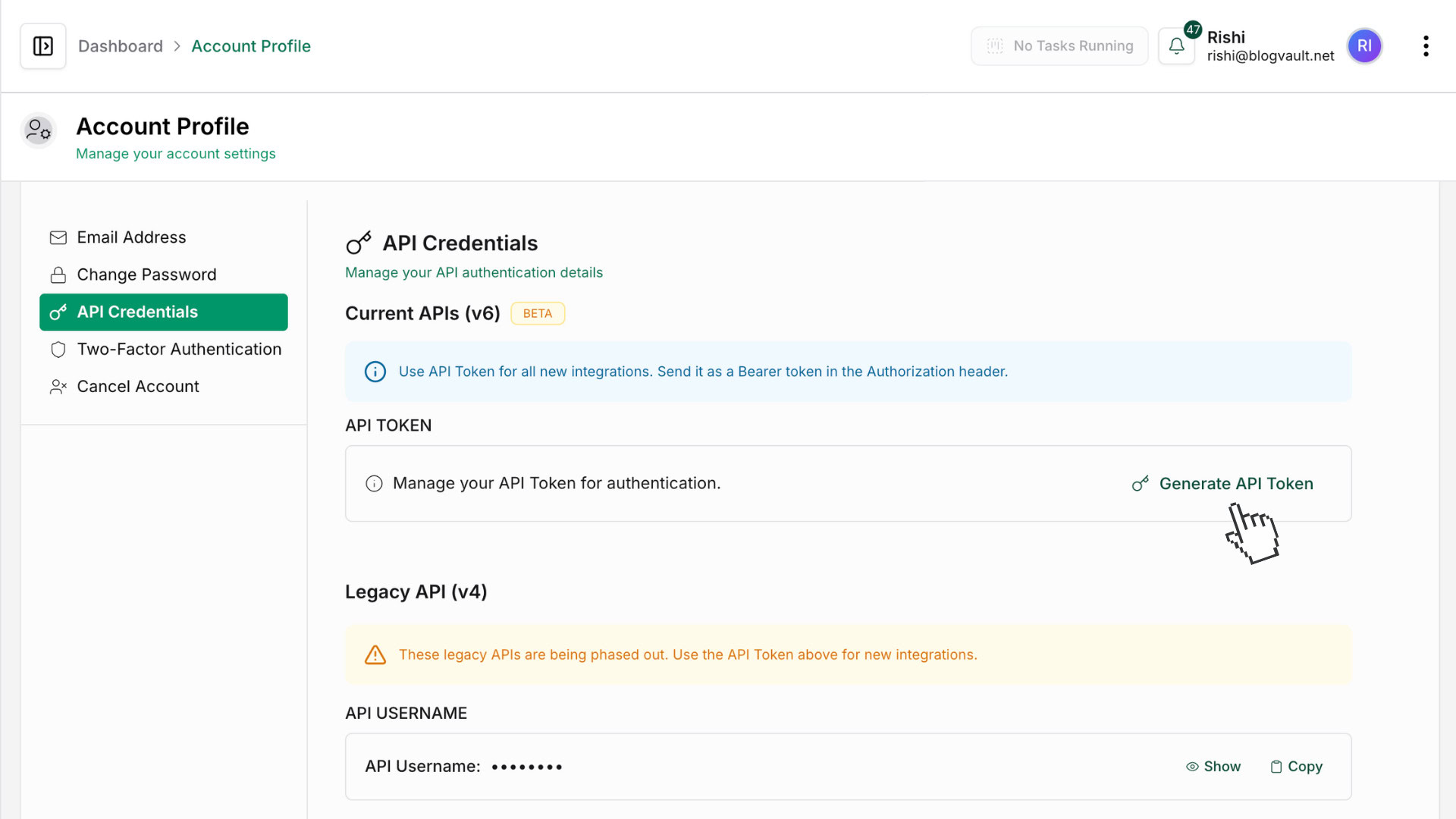
In WP Remote, open Account Profile → API Credentials. Under Current APIs (v6), select Generate API Token. Do not use the legacy v4 credentials.
4. Save the key privately
Open Terminal on your Mac and run:
read -s "wp_remote_key?Paste your WP Remote API key: " && launchctl setenv WP_REMOTE_API_KEY "$wp_remote_key" && unset wp_remote_key
⚠️ Note: Copy the complete command into Terminal and press Return. When Terminal displays
Paste your WP Remote API key:, paste the key and press Return again. Do not replace any text inside the command. The key will not appear while you paste it.
Close and reopen Codex so it can read the environment variable.
5. Test the connection
Send this message to Codex:
The WP_REMOTE_API_KEY environment variable is set. Run the read-only connection test.
The setup is complete when Codex validates the workflow and listSites returns your sites or a valid empty list.
Try the workflow
These examples ask the agent to investigate and explain. They do not approve changes, retries, or messages to clients.
Find out why a site went down
https://example.com went down after an update. Tell me what changed and the most likely cause, but do not make any changes.
Investigate slow performance
https://example.com has become slow. Check recent activity, updates, tasks, and performance data, then tell me the most likely cause. Do not make any changes.
Find an unexpected page change
The homepage on https://example.com changed unexpectedly. Tell me what changed, when it changed, and which user or update may have caused it. Do not make any changes.
Diagnose a failed update or task
A plugin update or background task failed on https://example.com. Show me what failed and what happened immediately before and after it. Do not retry anything.
Review security events across your sites
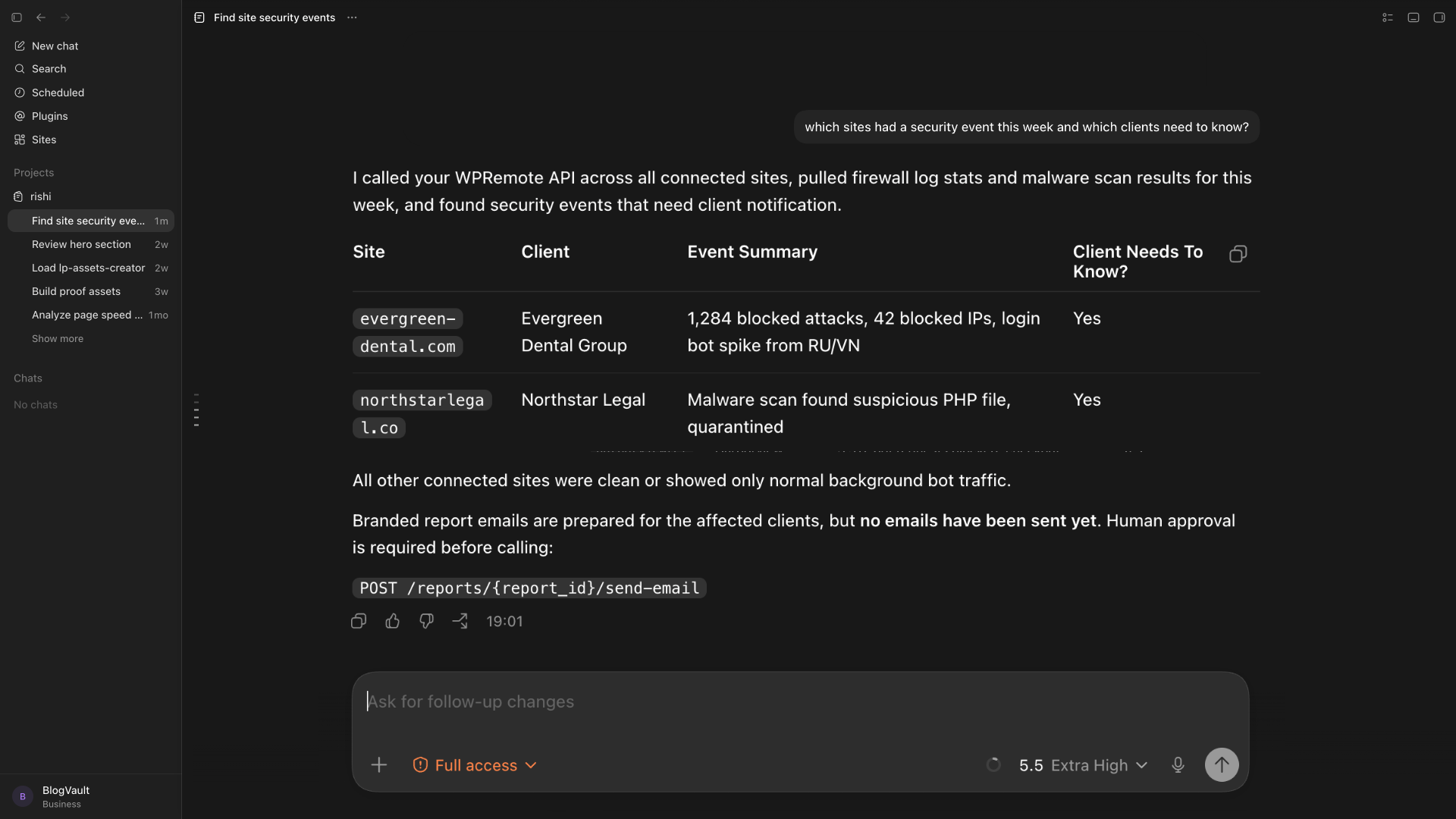
Which sites had security events this week, and which clients may need to know? Summarize the evidence, but do not send any emails or make any changes.
Check a failed backup
Tell me why the latest backup for https://example.com failed and suggest the safest next step. Do not retry the backup or make any changes.
Replace https://example.com with the site you want to investigate. The agent will build an evidence timeline before suggesting the safest next step.