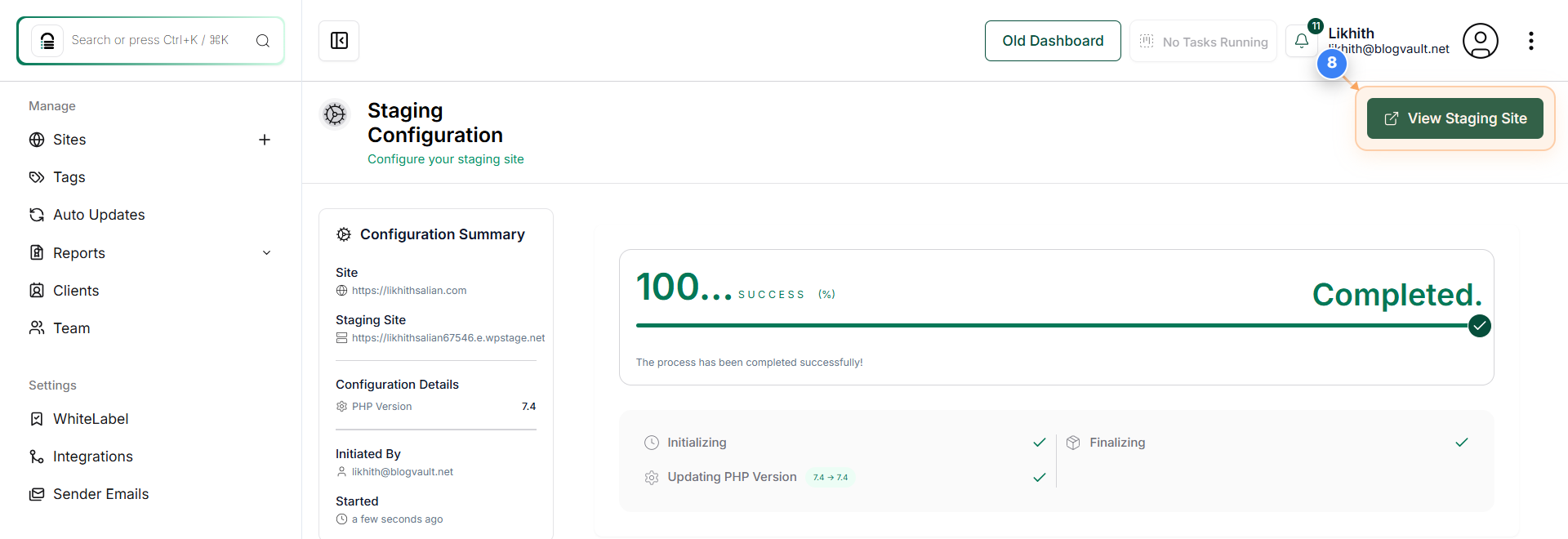
How to Change the PHP Version for a Staging Site.
Step 1 of 8
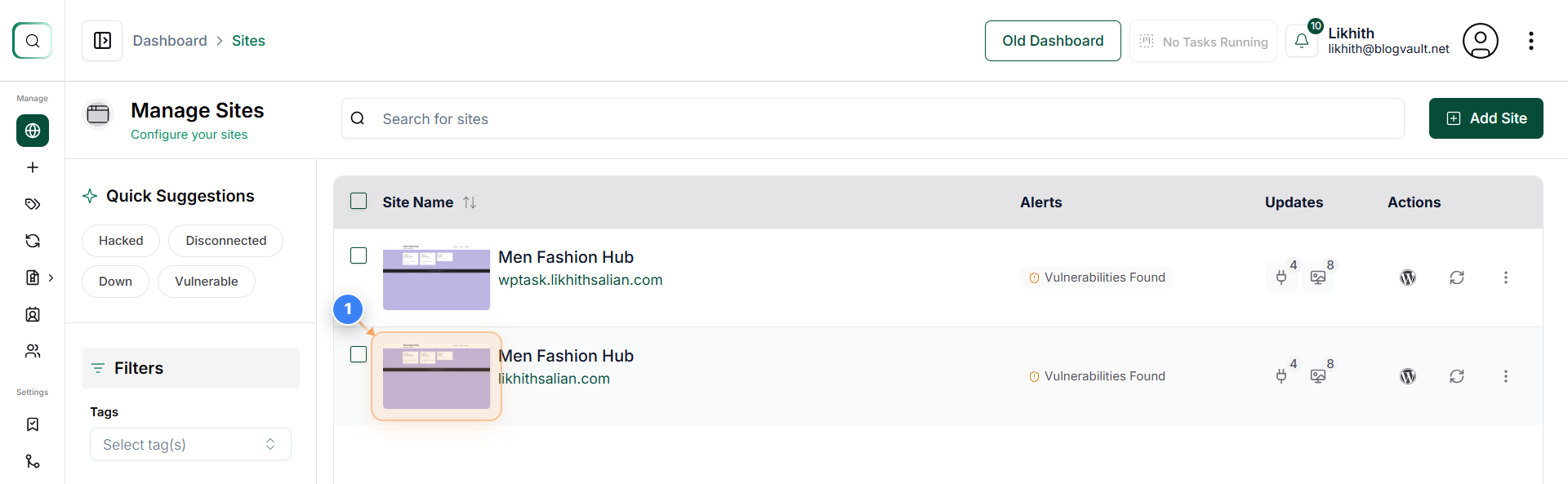
Open Site Management Panel
Click on your site thumbnail in the Sites Dashboard to open its management options.
Note: This allows you to access all settings, staging, and backup tools for the selected website.
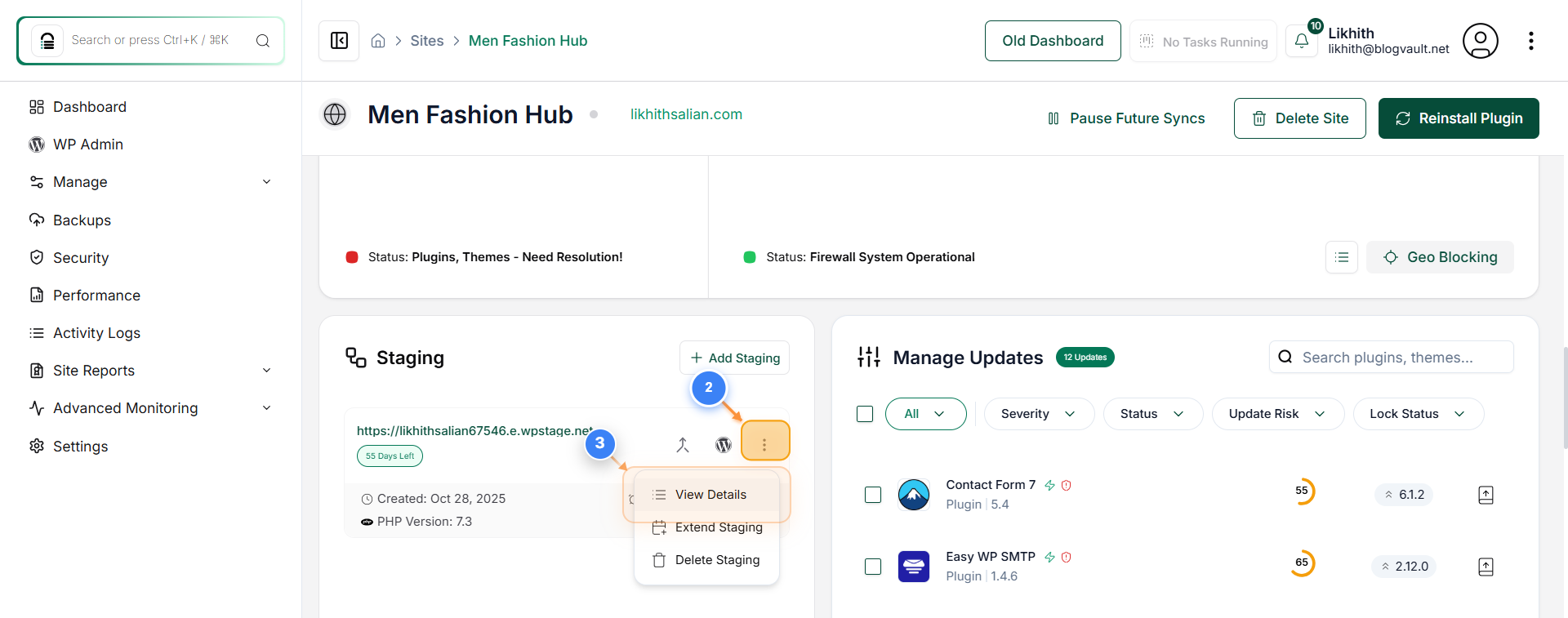
Steps 2 and 3 of 8
View Staging Site Details
Click on three dot button. Step 3- Click the 'View Details' option under the staging section to open detailed information about the staging environment.
Note: This opens detailed controls for your staging environment, including PHP version and site management tools.
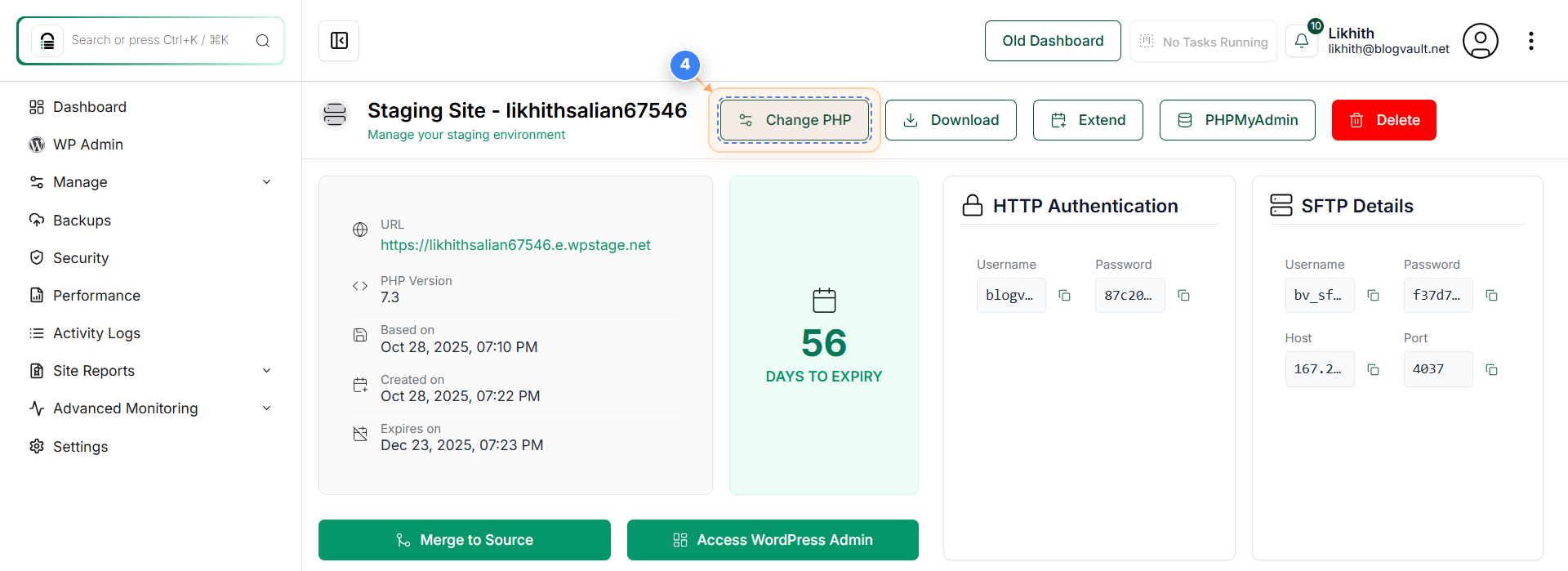
Step 4 of 7
Open PHP Version Settings
Click the 'Change PHP' button at the top of the Staging Site page to access PHP versions
Note: This section lets you select and switch to a different PHP version for your staging site.
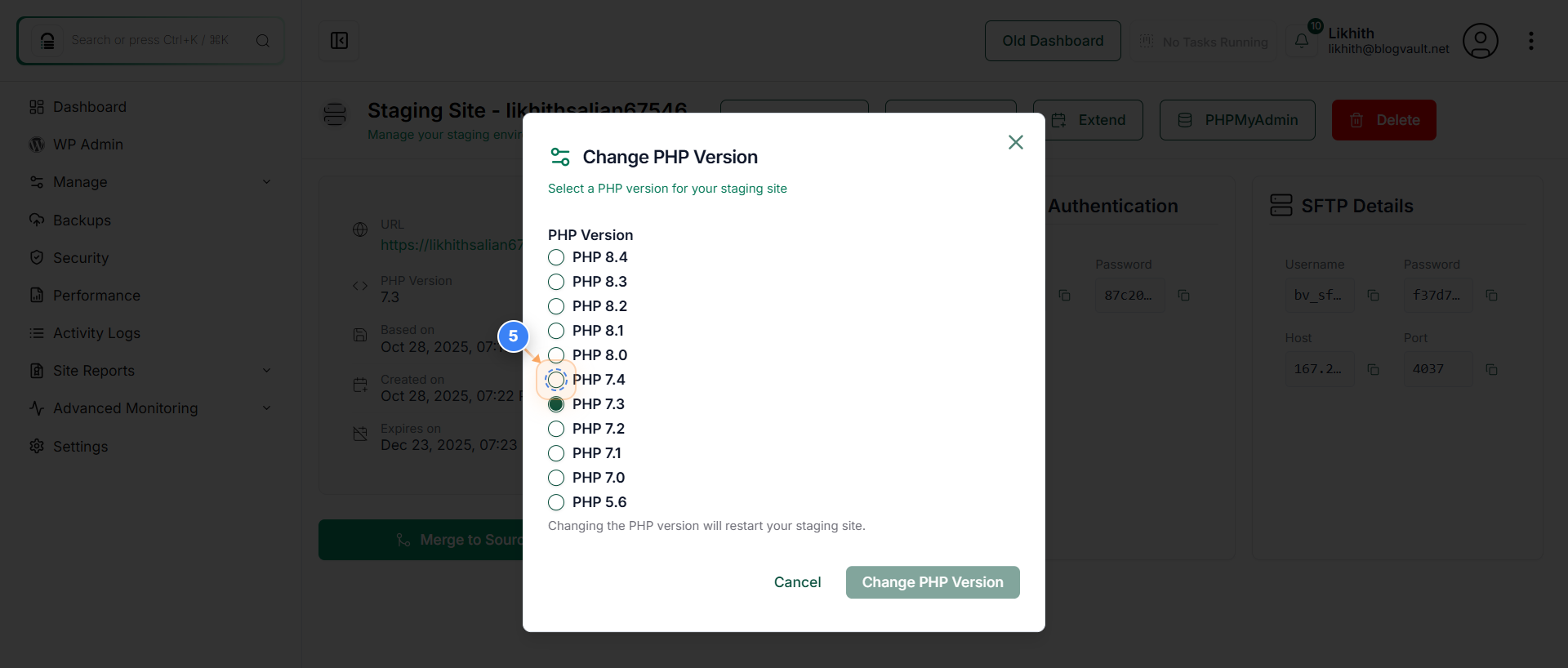
Step 5 of 8
Select Desired PHP Version
Click the PHP version option (e.g., 7.4) from the list to choose the version you want to apply.
Note: Ensure that your site and plugins are compatible with the selected PHP version before proceeding.
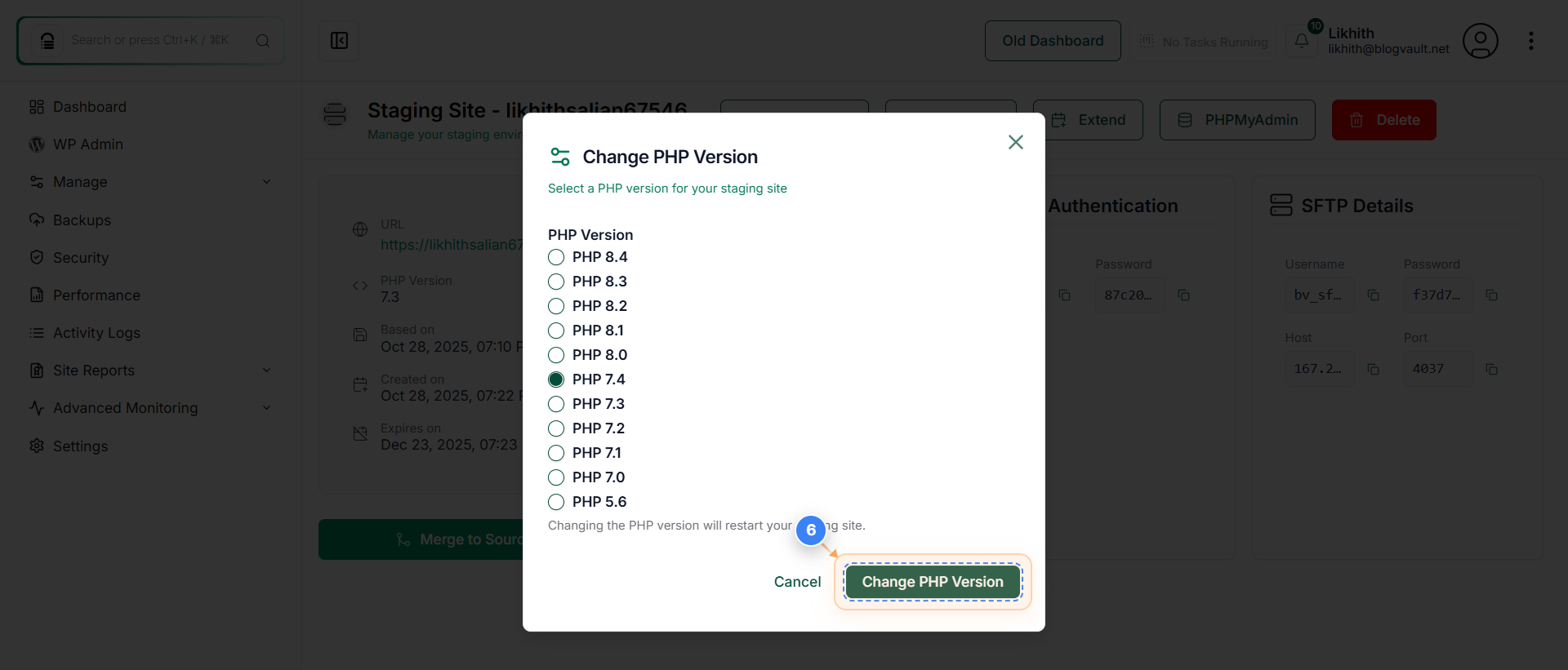
Step 6 of 8
Apply PHP Version Change
Click the 'Change PHP Version' button at the bottom of the dialog to confirm your selection.
Note: This will trigger a version update process for your staging site.
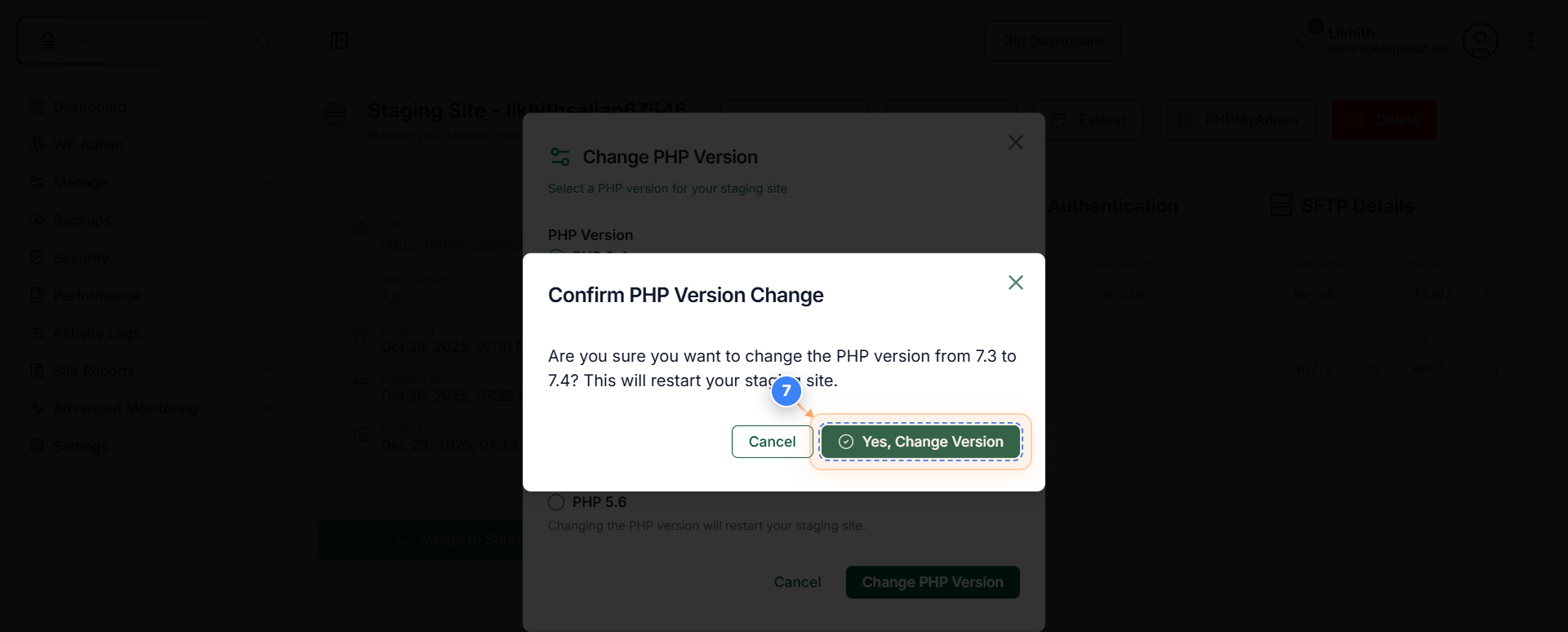
Step 7 of 8
Confirm PHP Update
Click 'Yes, Change Version' when prompted to confirm the PHP version update for your staging site.
Note: Your staging site will restart automatically once the PHP version change is applied.
Step 8 of 8
View Updated Staging Site
Once the process is completed. Click the 'View Staging Site' button at the top-right of the page to open your staging site in a new tab.
Note: Use this step to verify that your site is running smoothly on the new PHP version.