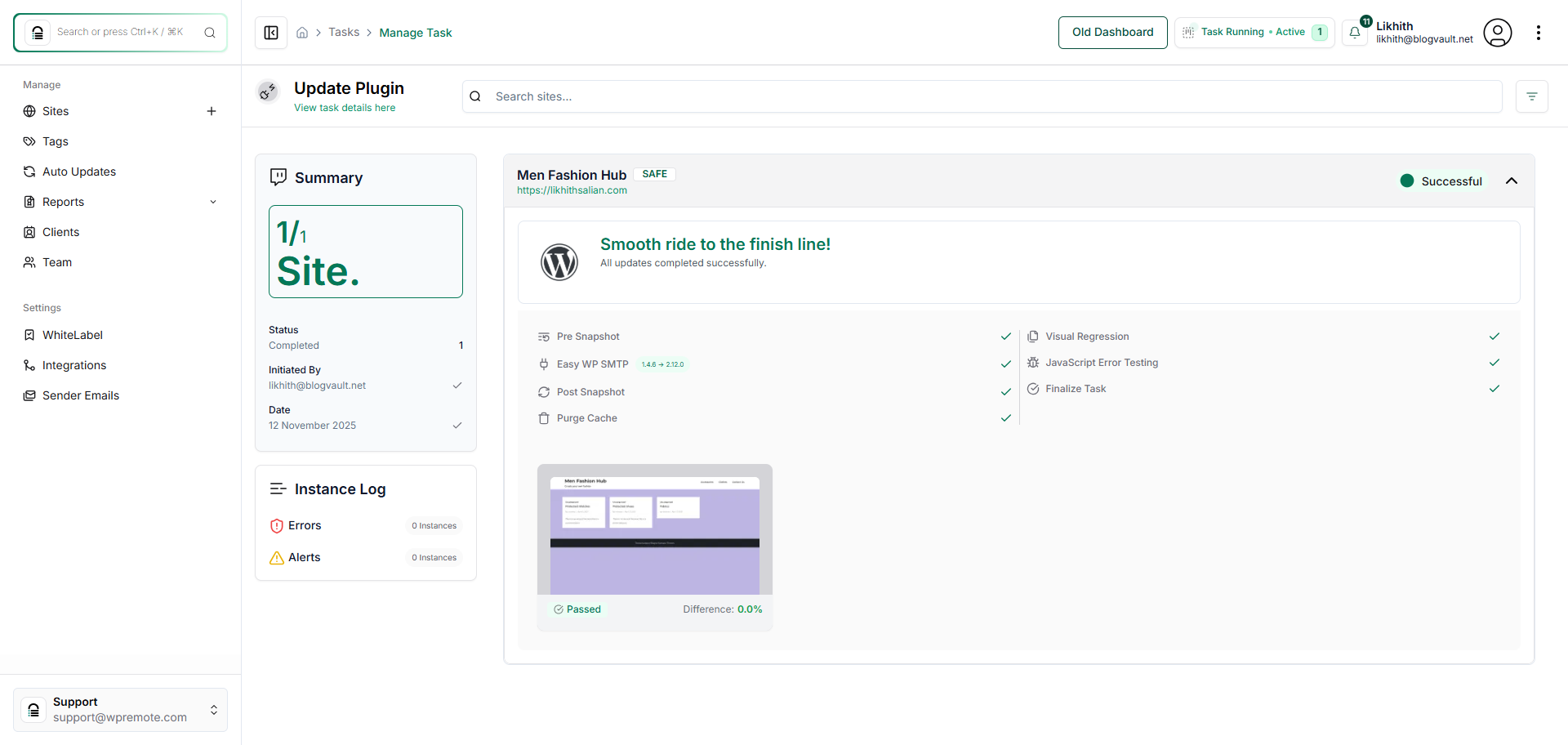
How Do I Update Plugins?
Step 1 of 9
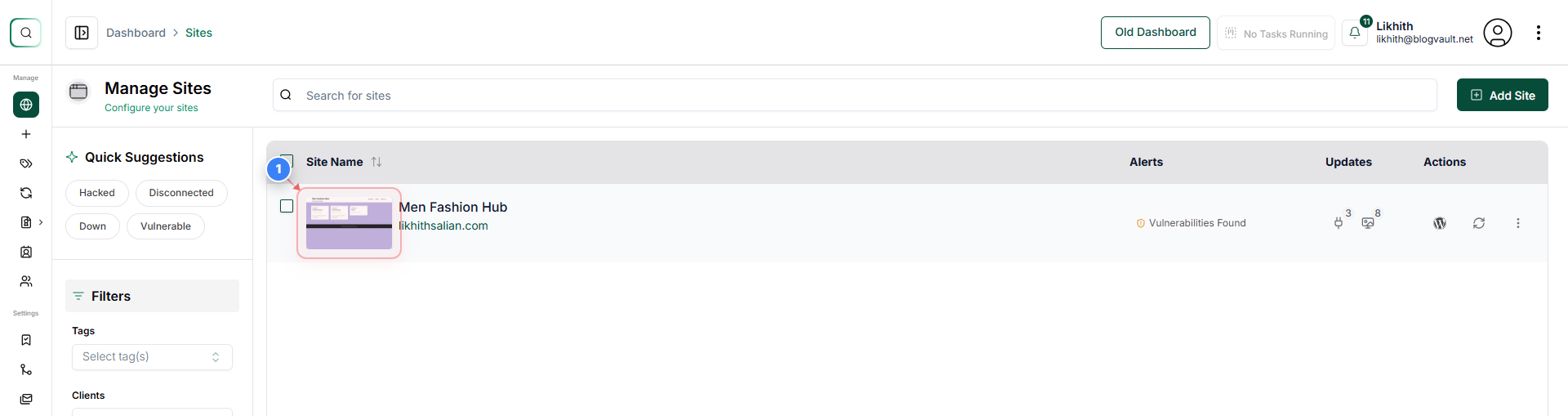
Open Your Site Dashboard
Click on your site in the Sites section to open its management dashboard.
Note: You can identify your site by its name or domain displayed in the center of the page.
Step 2 of 9
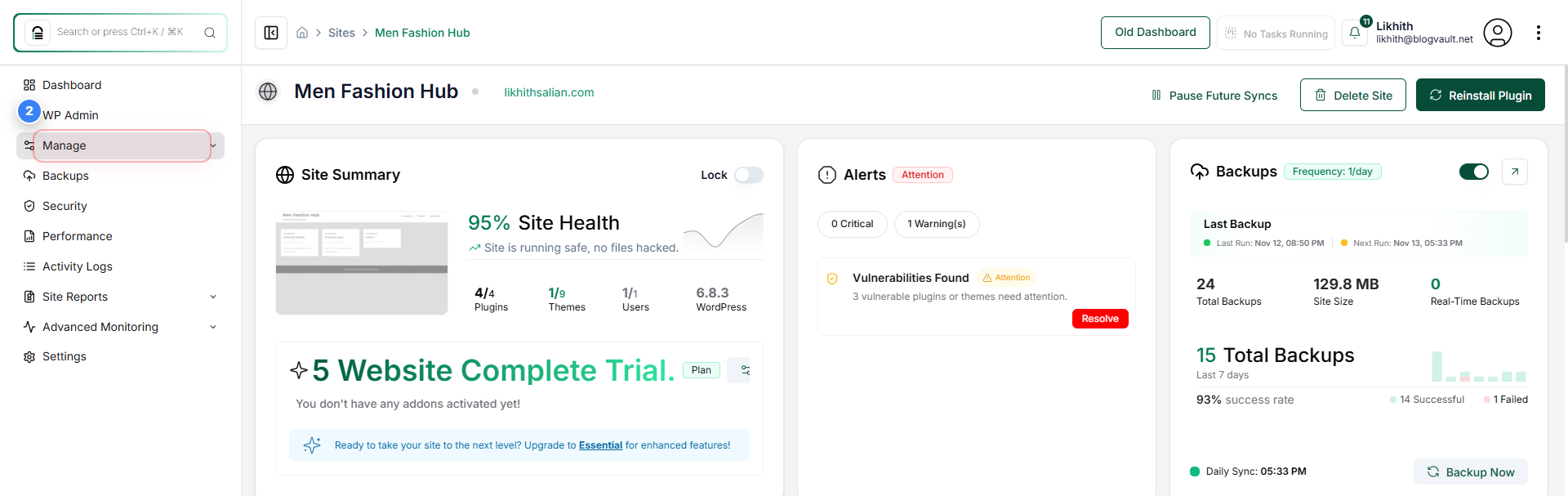
Access the Manage Section
Click on the 'Manage' option in the top-left area of the site overview page to access management tools.
Note: This section allows you to manage updates, plugins, themes, and backups for your selected site.
Step 3 of 9
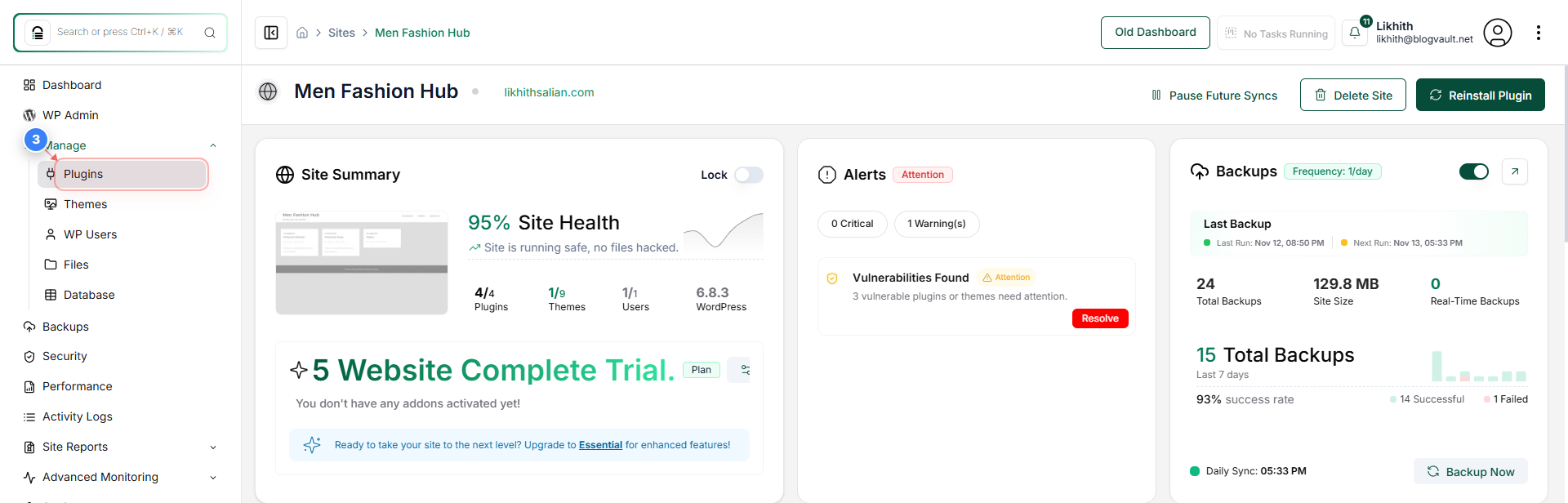
Open the Plugins Page
Click on 'Plugins' under the Manage section in the left sidebar to view all installed plugins on your site.
Note: The Plugins section lists both active and inactive plugins, along with version details and update status.
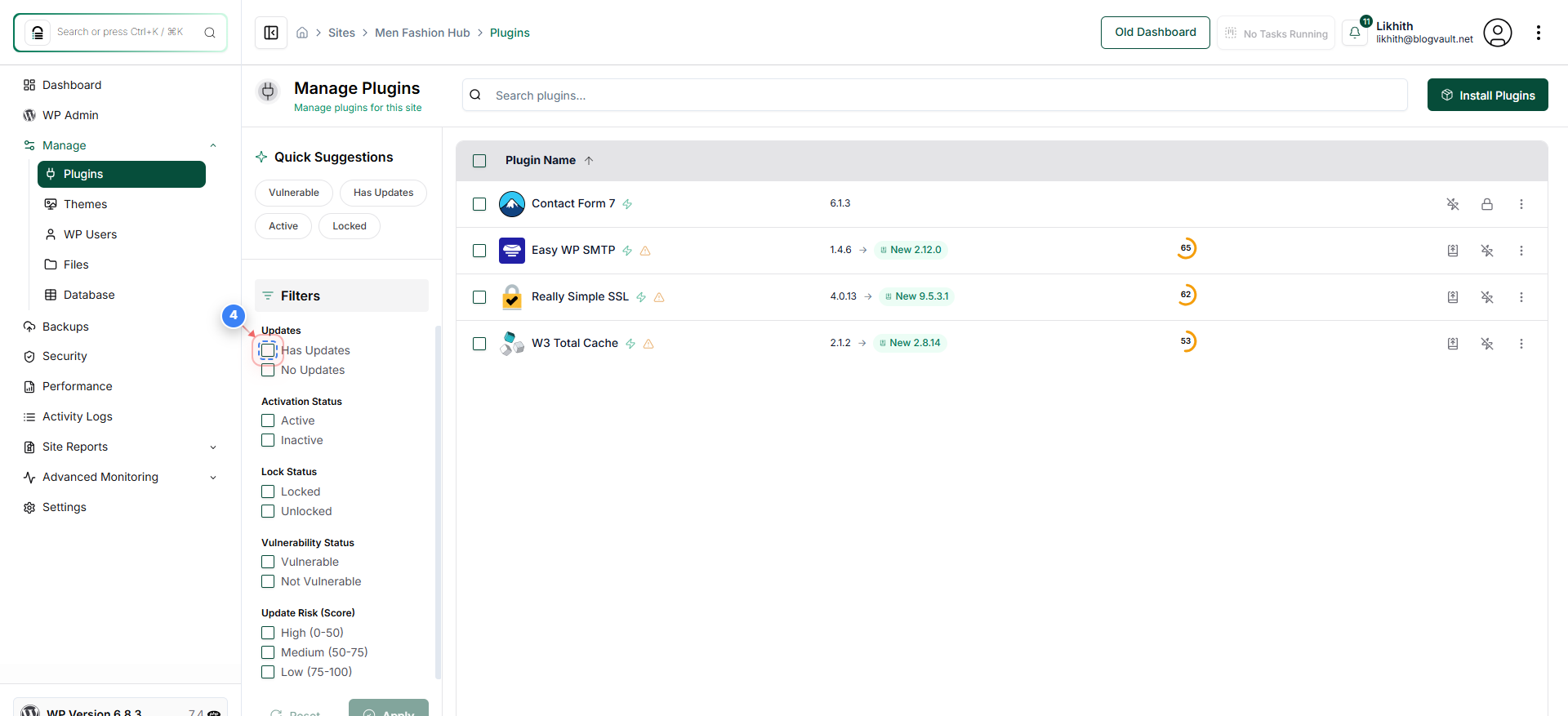
Step 4 of 9
Filter Plugins with Available Updates
Select the 'Has Updates' checkbox under Filters to show only plugins that have updates available.
Note: This helps you quickly locate plugins that require version updates without scrolling through the full list.
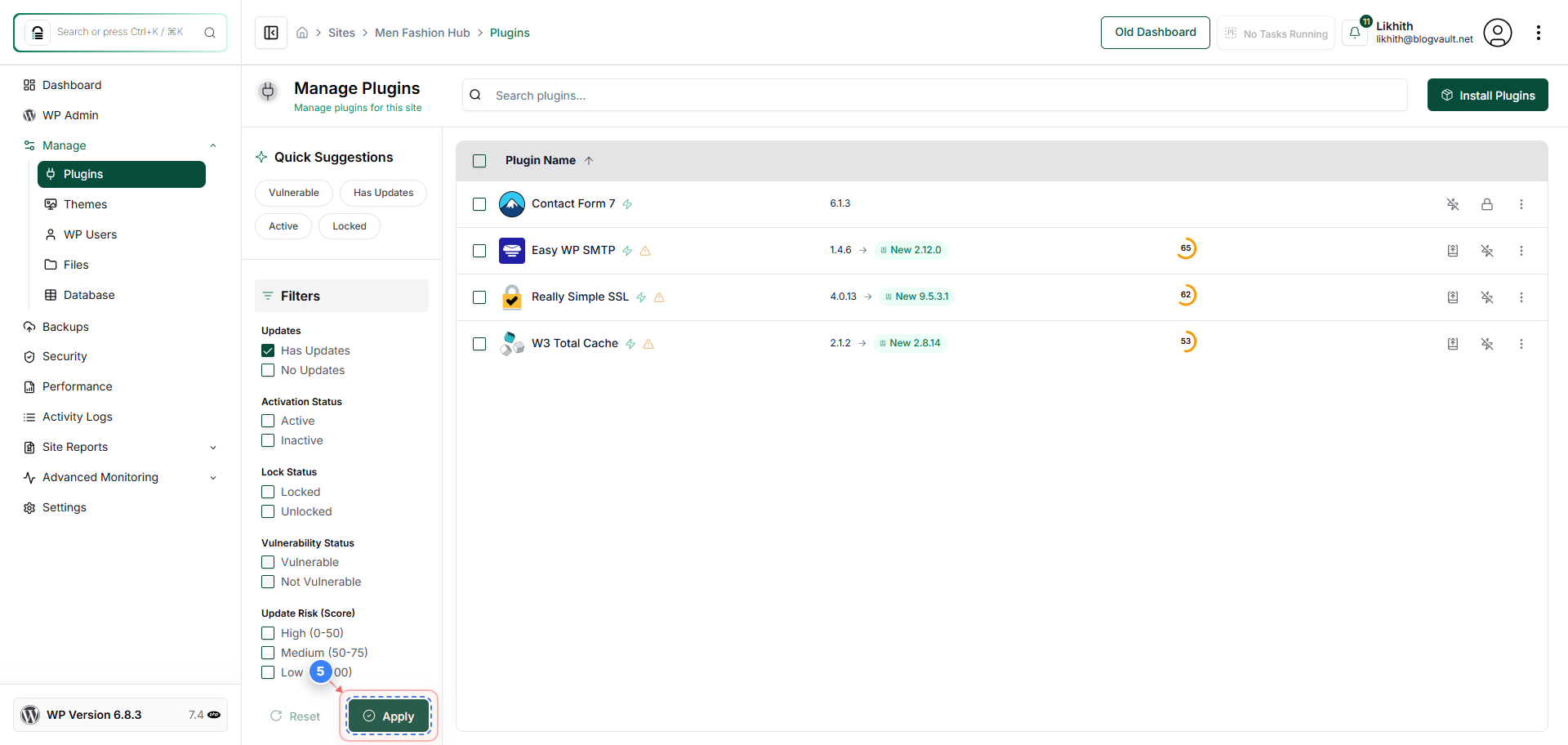
Step 5 of 9
Apply the Filter
Click the 'Apply' button at the bottom-left of the filter panel to display only plugins with pending updates.
Note: After applying the filter, you'll see a refined list showing only outdated plugins.
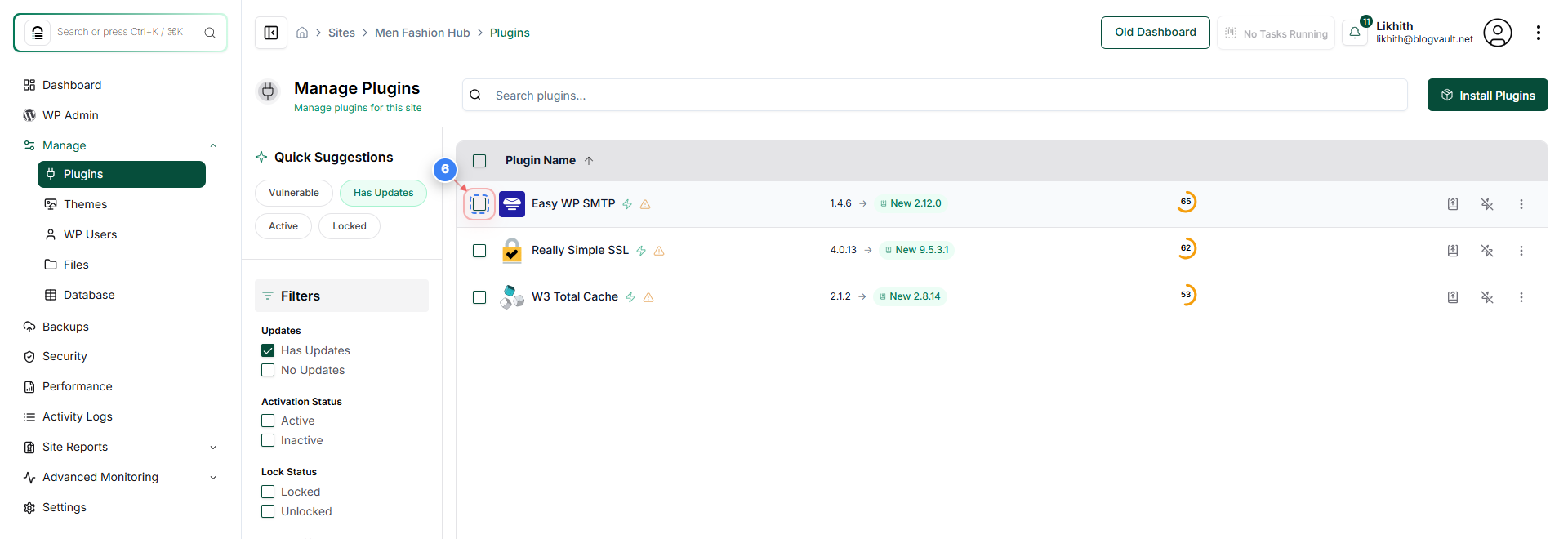
Step 6 of 9
Select the Plugin to Update
From the filtered list, check the box next to the plugin you want to update (for example, 'Easy WP SMTP').
Note: You can also select multiple plugins if you wish to update several at once.
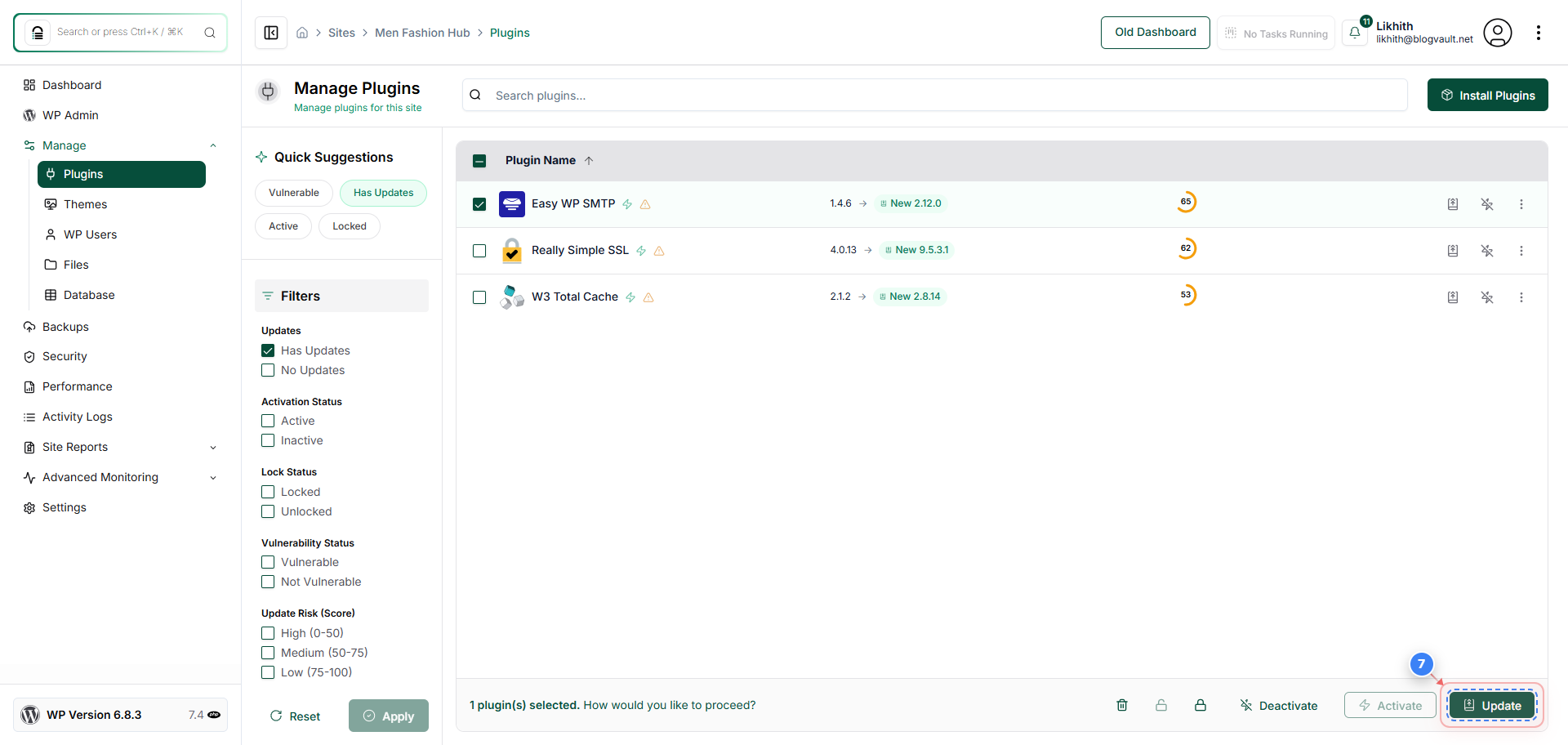
Step 7 of 9
Start the Update
Click the 'Update' button located at the bottom-right corner of the page to begin the plugin update process.
Note: The update process may take a few moments depending on plugin size and server speed.
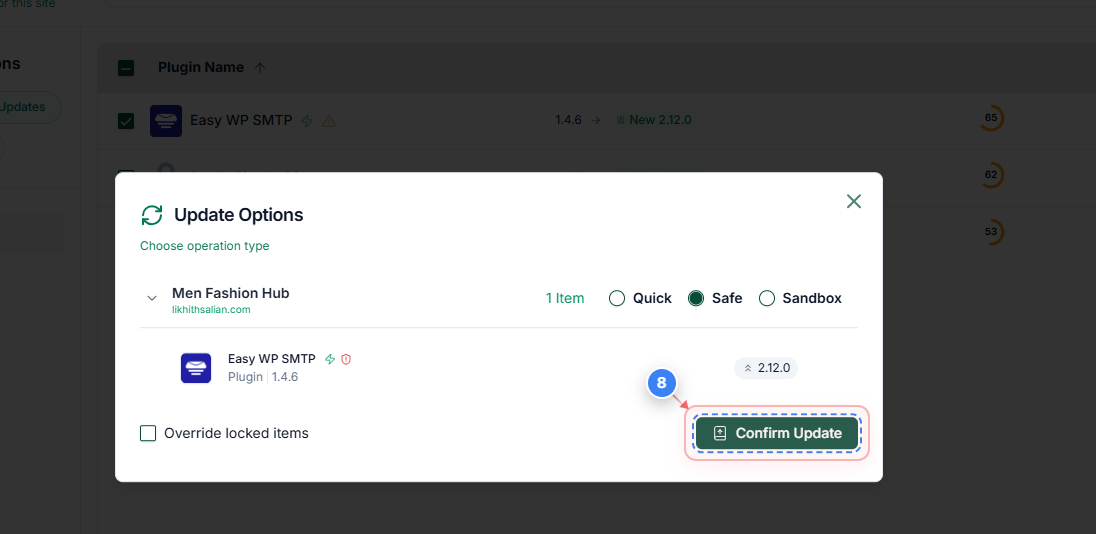
Step 8 of 9
Confirm the Update
In the confirmation dialog, click the 'Confirm Update' button to proceed with updating the selected plugin. Please make sure to choose the update process from Quick Upgrade, Safe Updates and Sandbox update.
Note: Ensure that you do not navigate away from the page until the update confirmation appears.
Step 9 of 9
Verify the Update Status
After completion, review the update summary page to confirm that the plugin was successfully updated.
Note: You'll see a message such as 'All updates completed successfully' along with task logs for verification.