How Do I Manage Plugins and Themes on Multiple Sites?
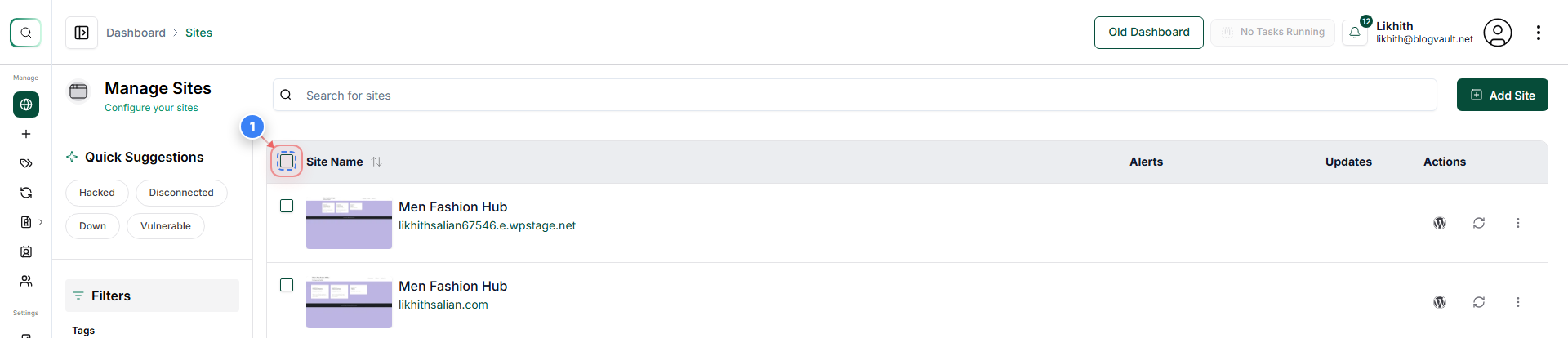
Step 1 of 8
Enable Site Selection
Click on the checkbox in the Sites list to select the sites you want to manage
Note: Selecting this checkbox allows you to apply actions like plugin or theme updates to multiple sites at once
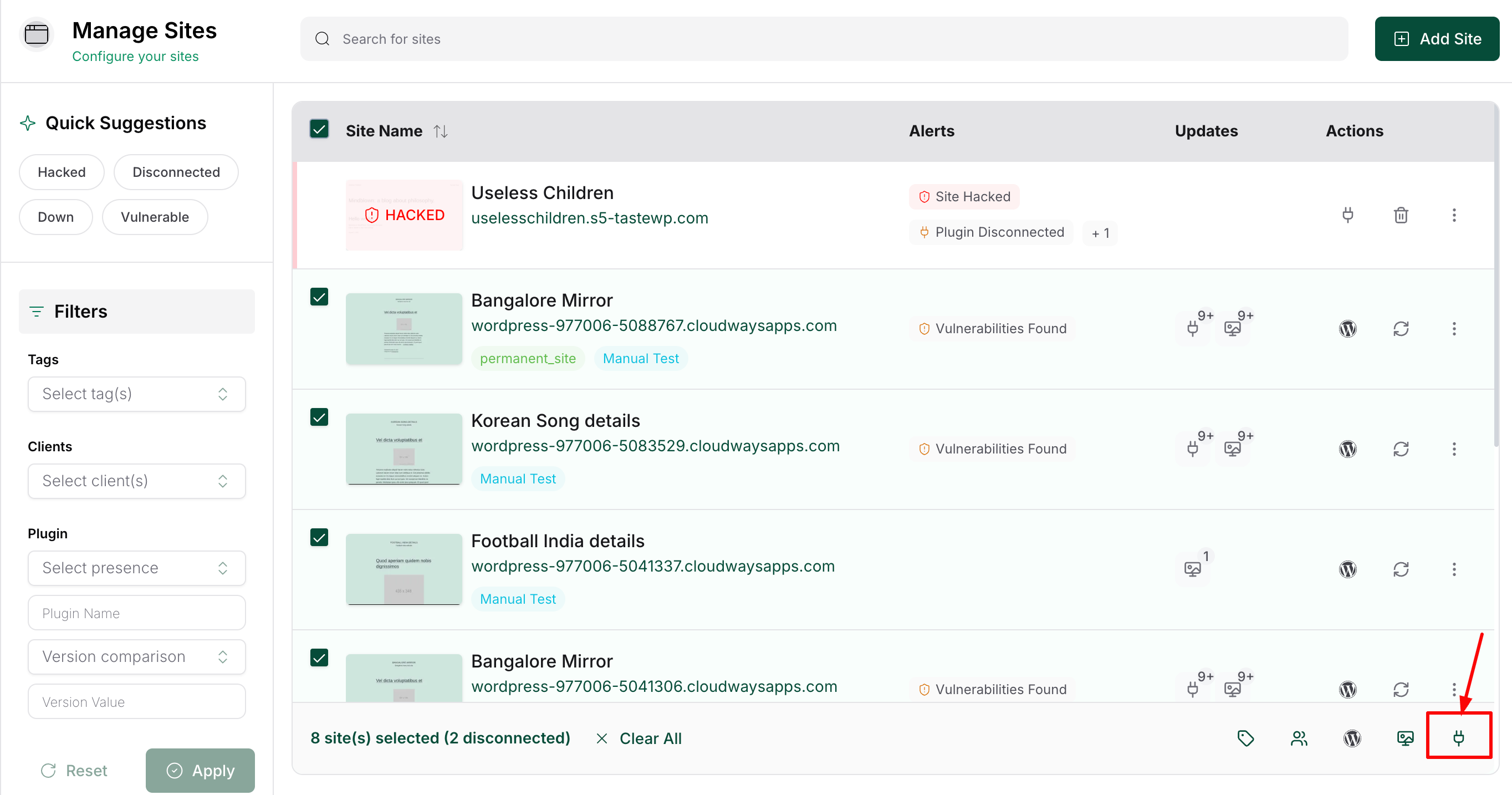
Step 2 of 8
Open Plugin Management
Click the 'Manage Plugins' button at the bottom-right of the page to access plugin settings for the selected sites
Note: This opens a panel where you can activate, deactivate, or update plugins across selected sites
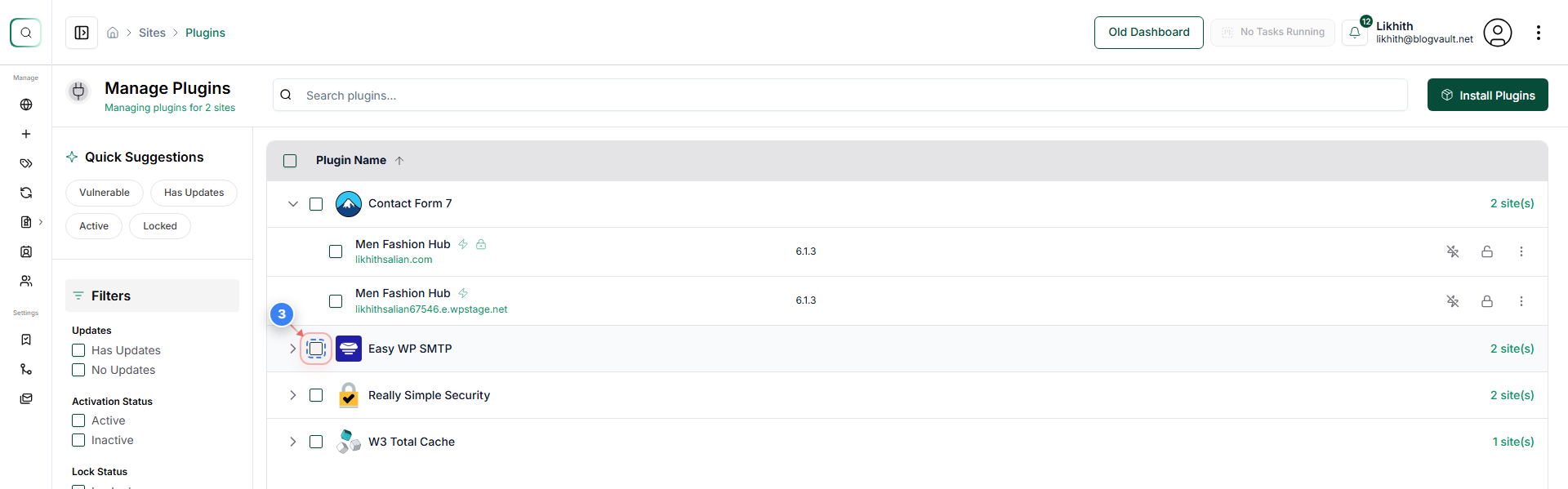
Step 3 of 8
Select the Plugin you want to manage
Click the checkbox next to the plugin name in the plugin list to manage it for the selected sites
Note: Ensure you select only the plugins you intend to manage; changes will affect all selected sites
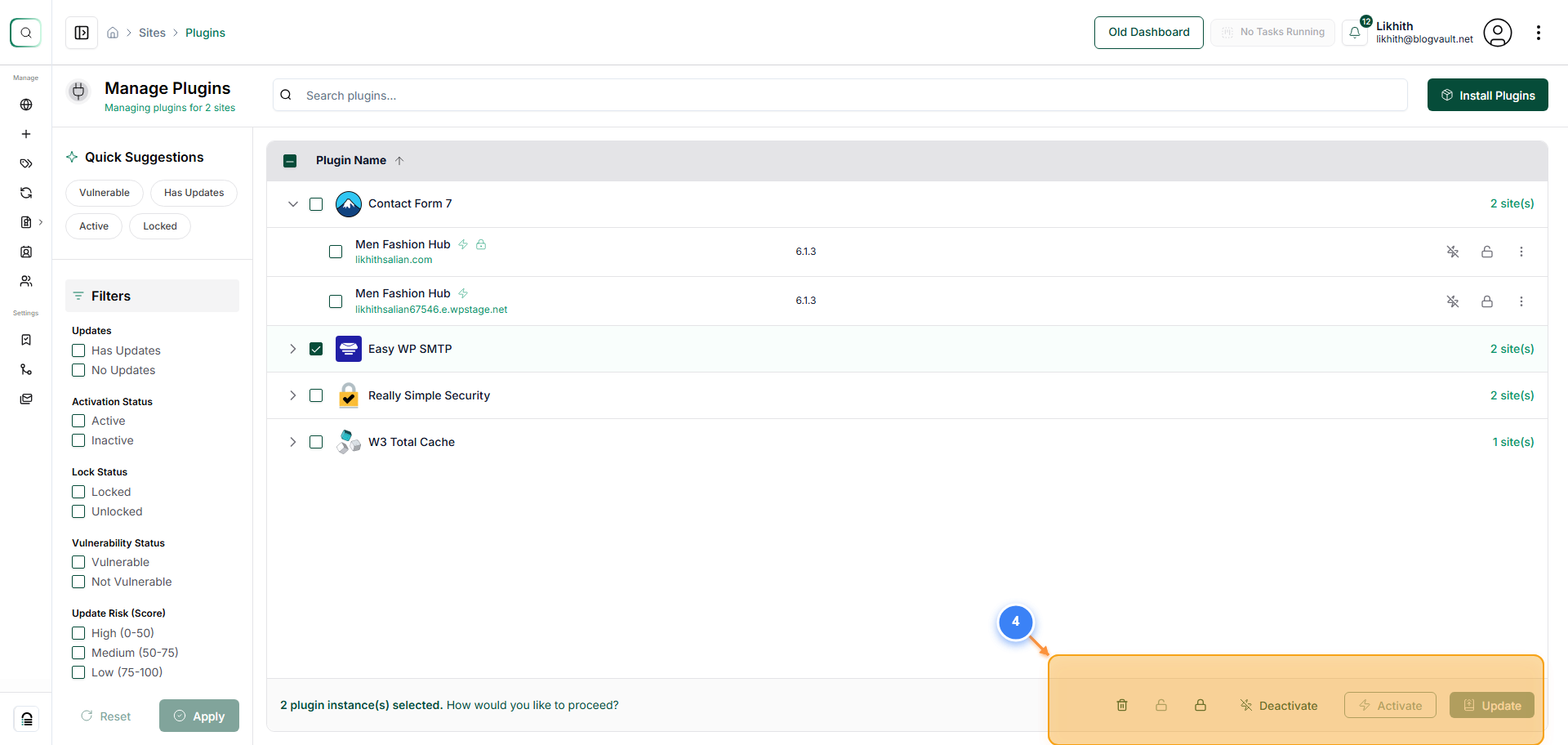
Step 4 of 8
Review Plugin Management Page
On the Manage Plugins page, review the table showing plugin names, activation status, and available updates for the selected sites.
Note: On this page, you can activate, deactivate, or update plugins across selected sites.
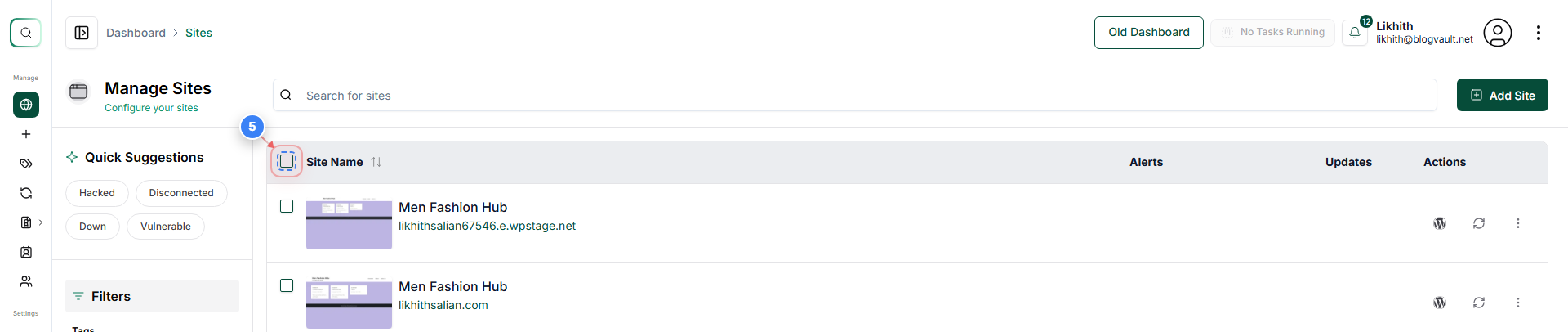
Step 5 of 8
Enable Site Selection
Click on the checkbox in the Sites list to select the sites you want to manage
Note: Selecting this checkbox allows you to apply actions like theme updates or activation to multiple sites at once
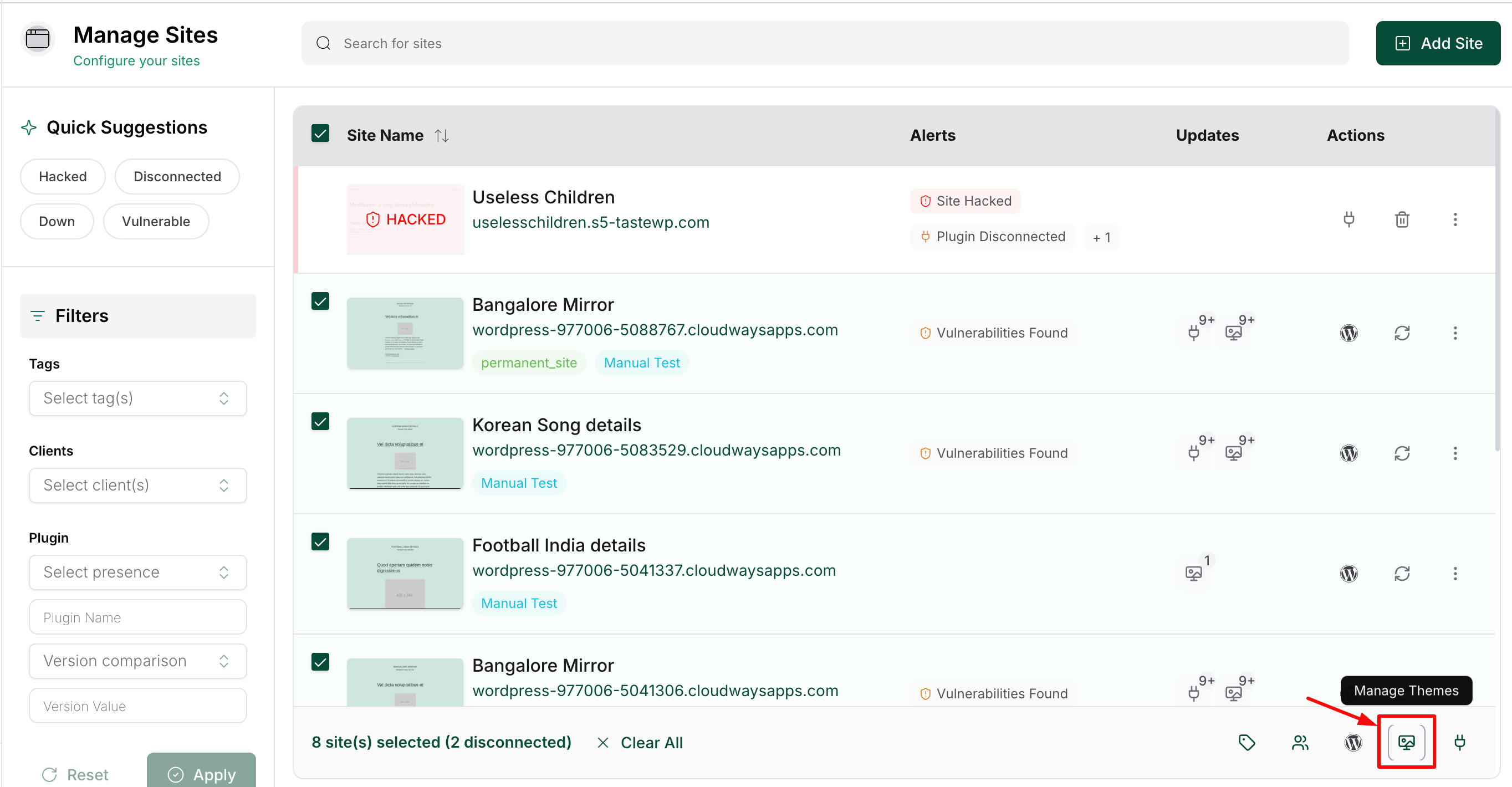
Step 6 of 8
Open Theme Management
Click the 'Manage Themes' button at the bottom-right of the page to access theme settings for the selected sites
Note: This opens a panel where you can activate, lock, or update themes across selected sites
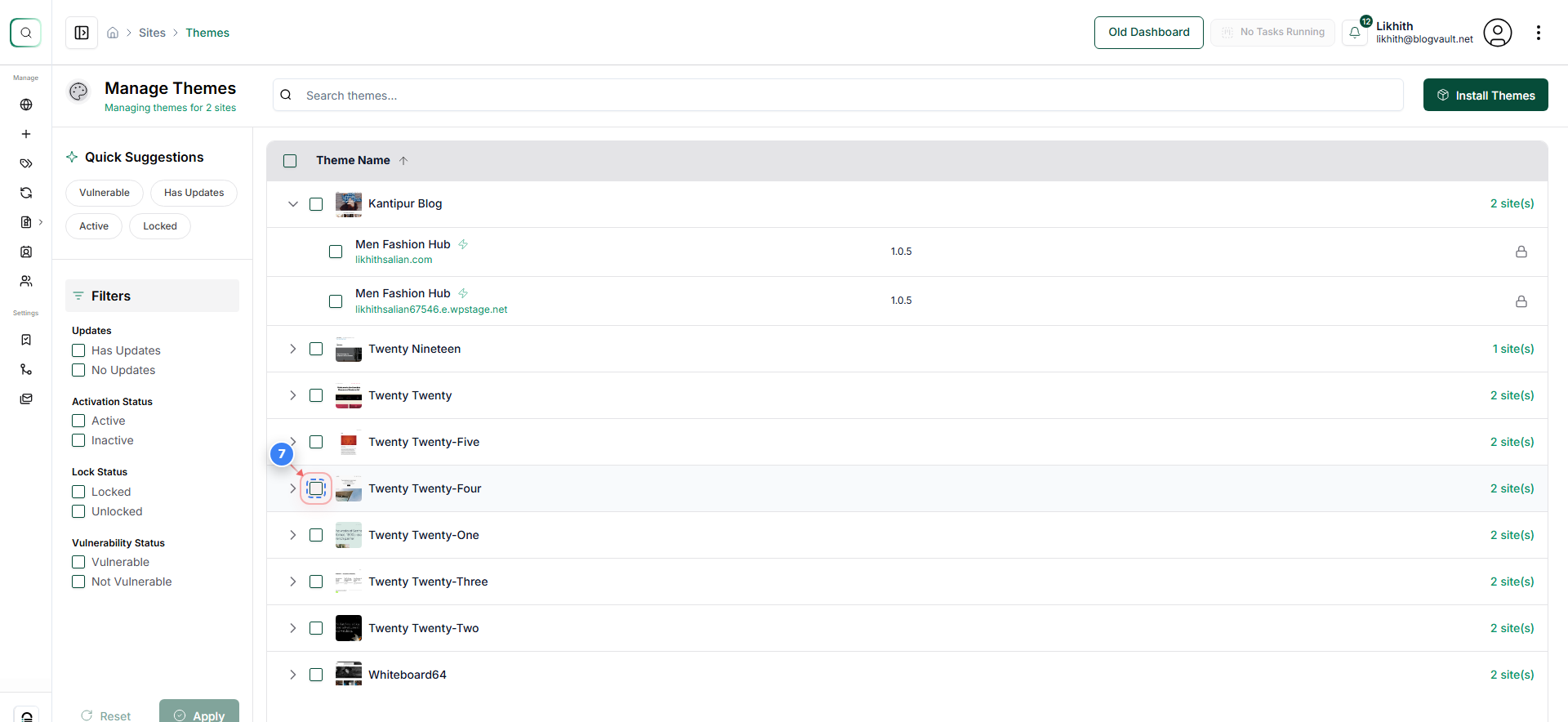
Step 7 of 8
Select Theme Activation
Click the checkbox next to the theme name in the plugin list to manage it for the selected sites.
Note: Ensure you select only the themes you intend to manage; changes will affect all selected sites.
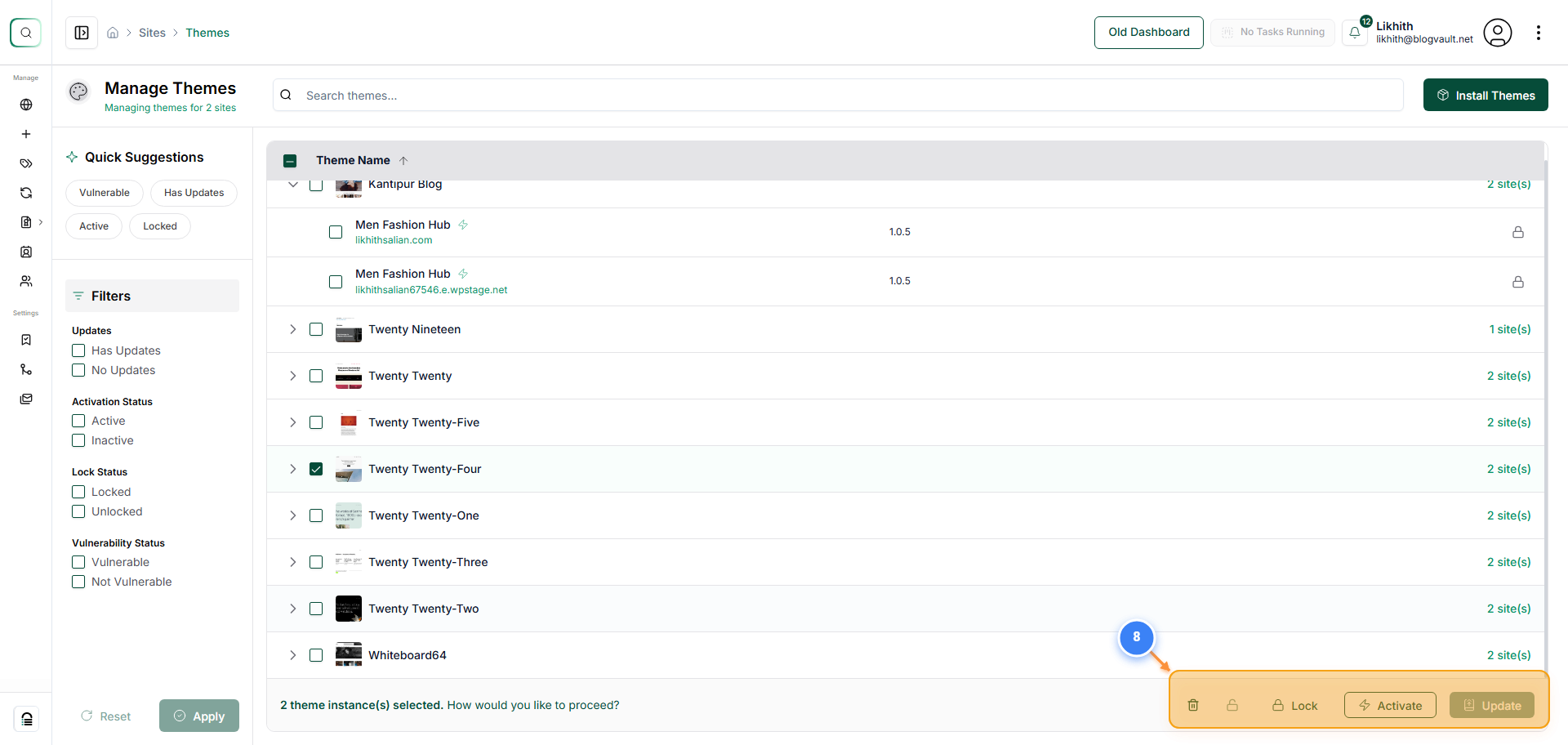
Step 8 of 8
Review Theme Management Page
On the Manage Themes page, review the table showing theme names, activation status, and available updates for the selected sites.
Note: On this page, you can activate, deactivate, or update themes across selected sites.