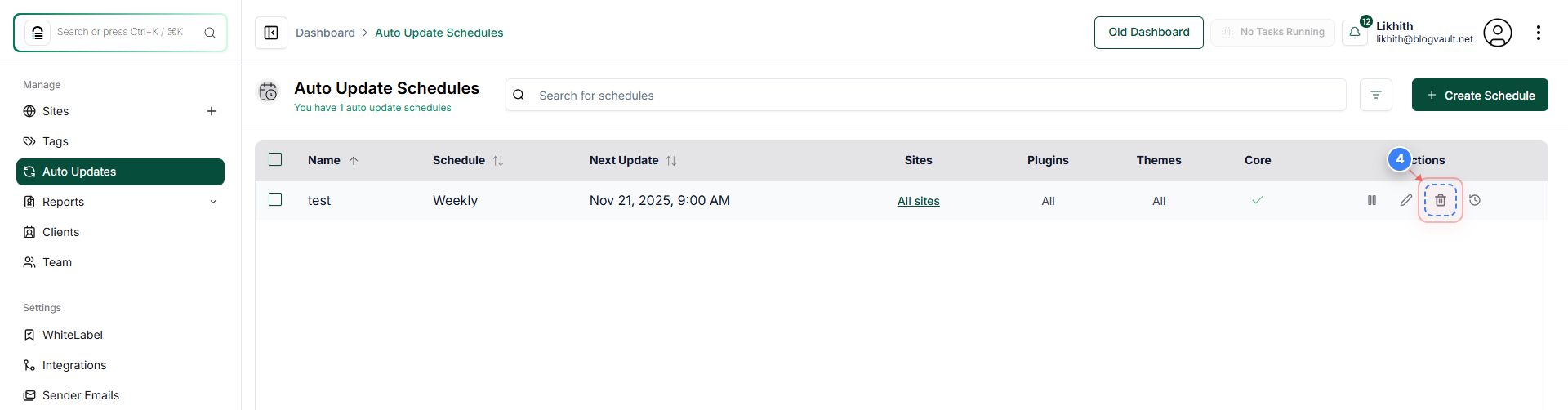
How Do I Delete, or Edit an Existing Scheduled Update?
Step 1 of 4
Open the Dashboard
Click "Dashboard" in the top-left navigation to return to the main overview area.
Note: Use this when you need to navigate back to the central workspace.

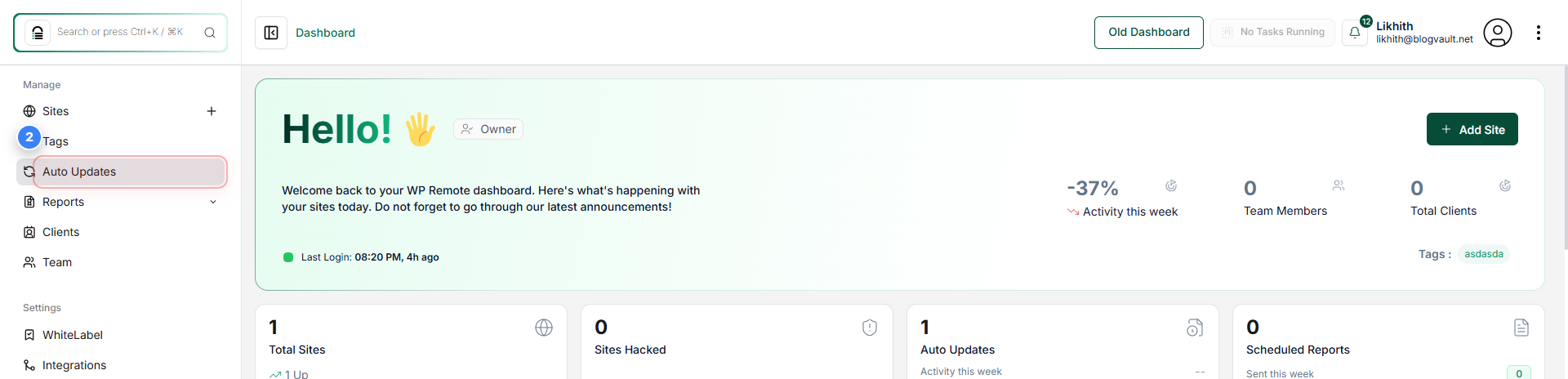
Step 2 of 4
Open Auto Updates
Click "Auto Updates" in the left sidebar to access your site's automatic update settings.
Note: This section lets you manage update automation for plugins, themes, and translations.
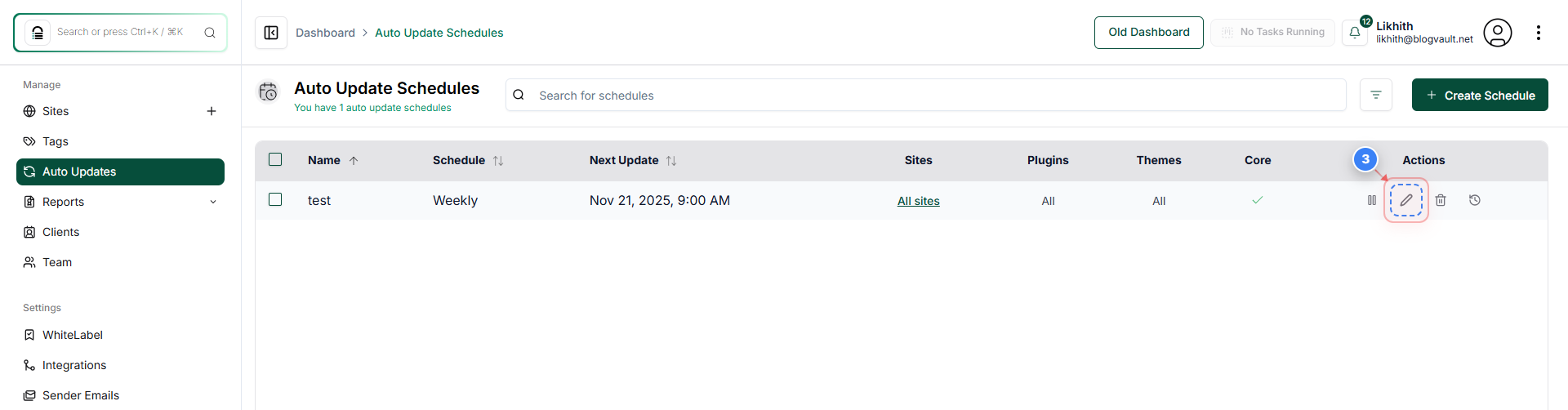
Step 3 of 4
Open Schedule Controls
Click on the Pen icon. This will open the Scheduled Update Details
Note: Use this option to view or modify an existing auto update schedule.
Step 4 of 4
Delete the Scheduled auto updates
Click on the Bin icon, and a pop-up will appear to confirm the deletion of the scheduled update.
Note: Click on Confirm to delete the scheduled Auto update.