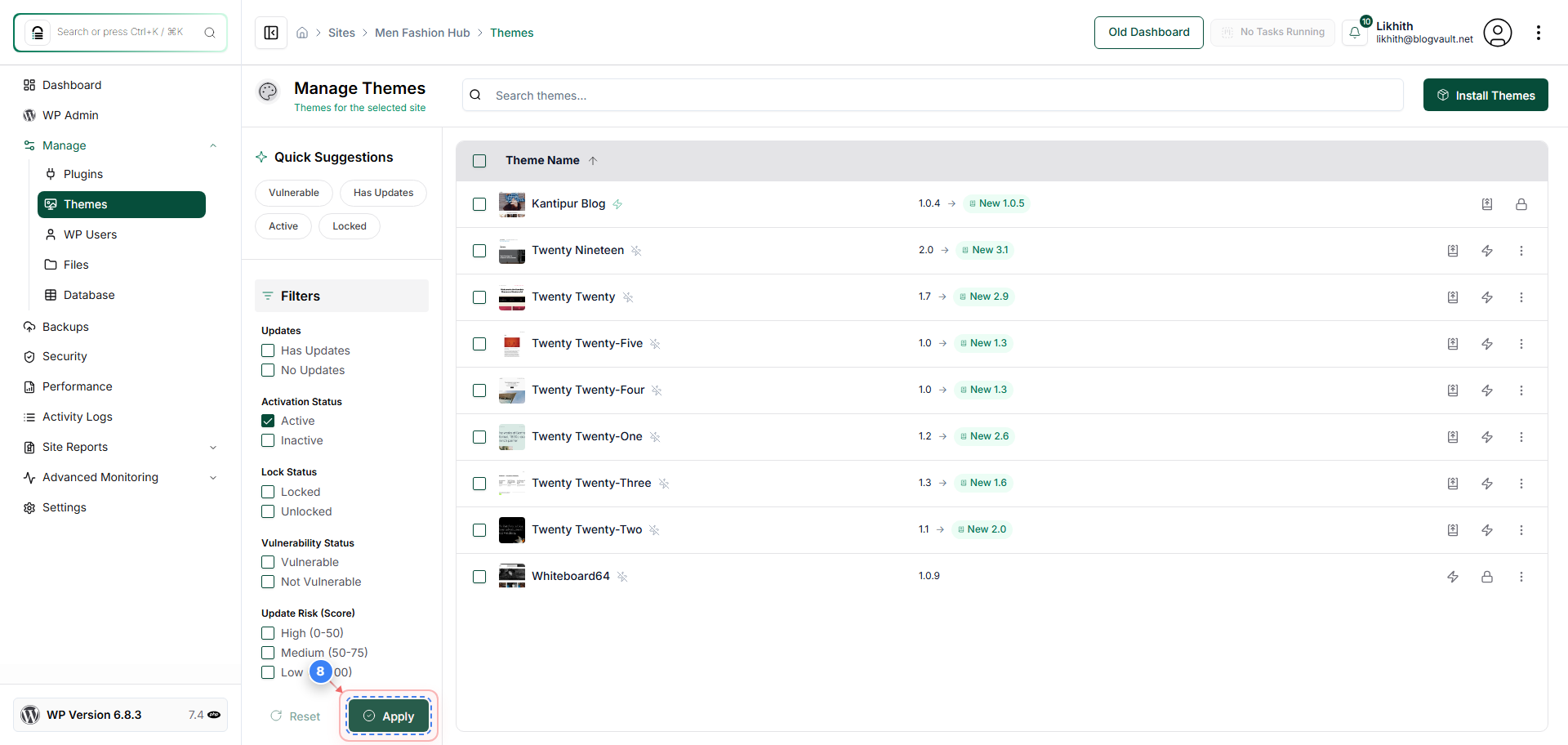
How do I check active plugins or themes?
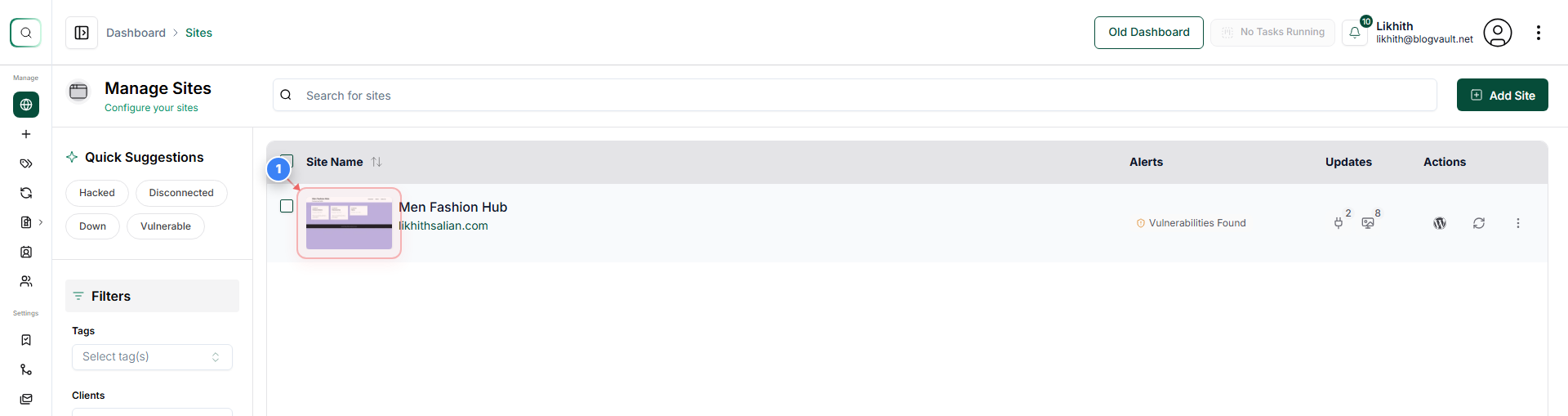
Step 1 of 8
Open the Site Dashboard
Click n your site site to open its management dashboard.
Note: This tile appears on the left side of the Sites page.
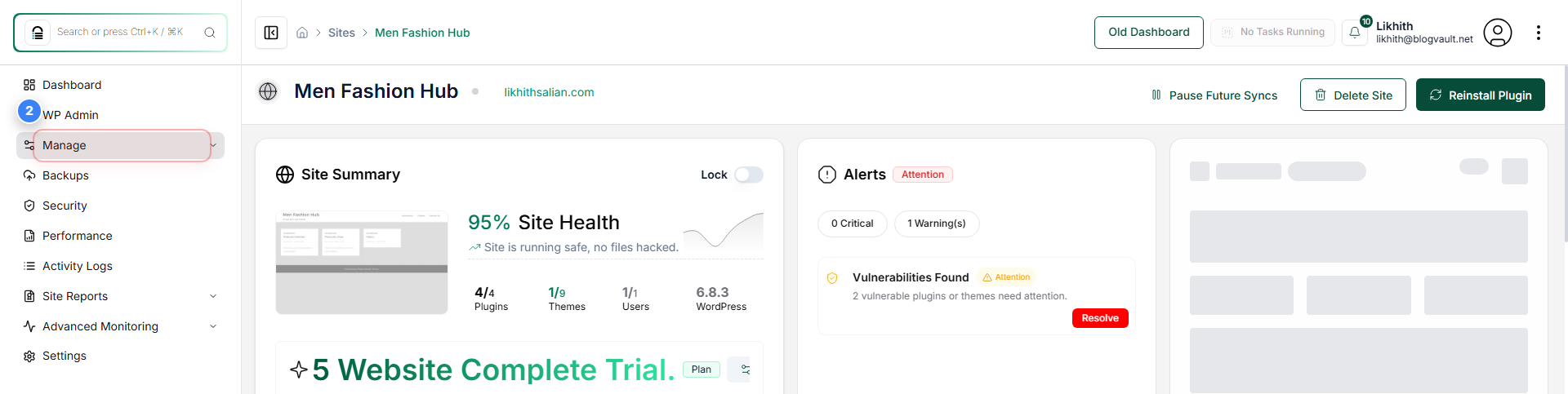
Step 2 of 8
Navigate to Manage
Click **Manage** from the left sidebar to access site management options.
Note: Located in the top-left area of the dashboard sidebar.
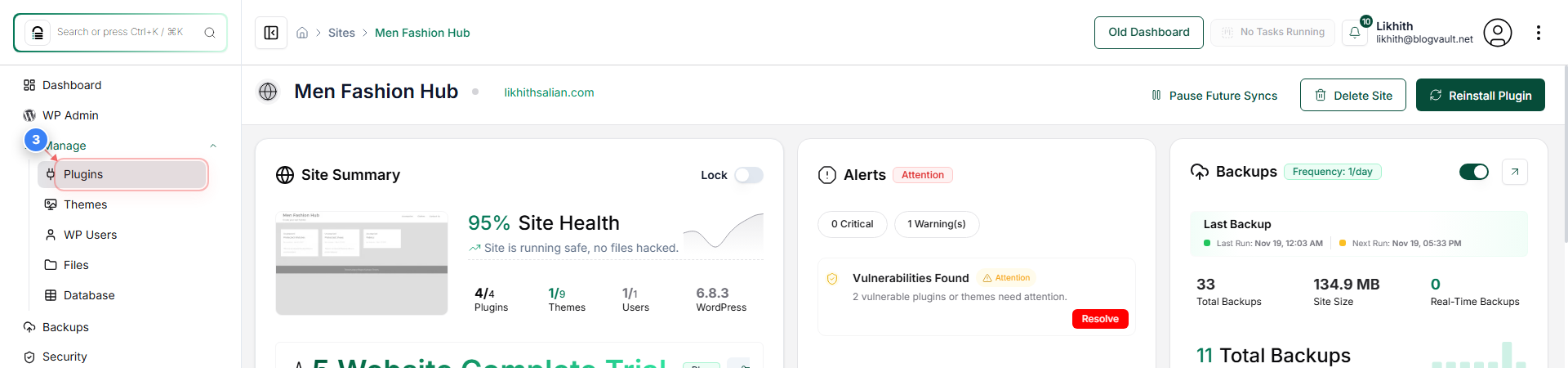
Step 3 of 8
Go to Plugins
Select **Plugins** from the Manage submenu to view installed plugins.
Note: Displays the full list of plugins with management options.
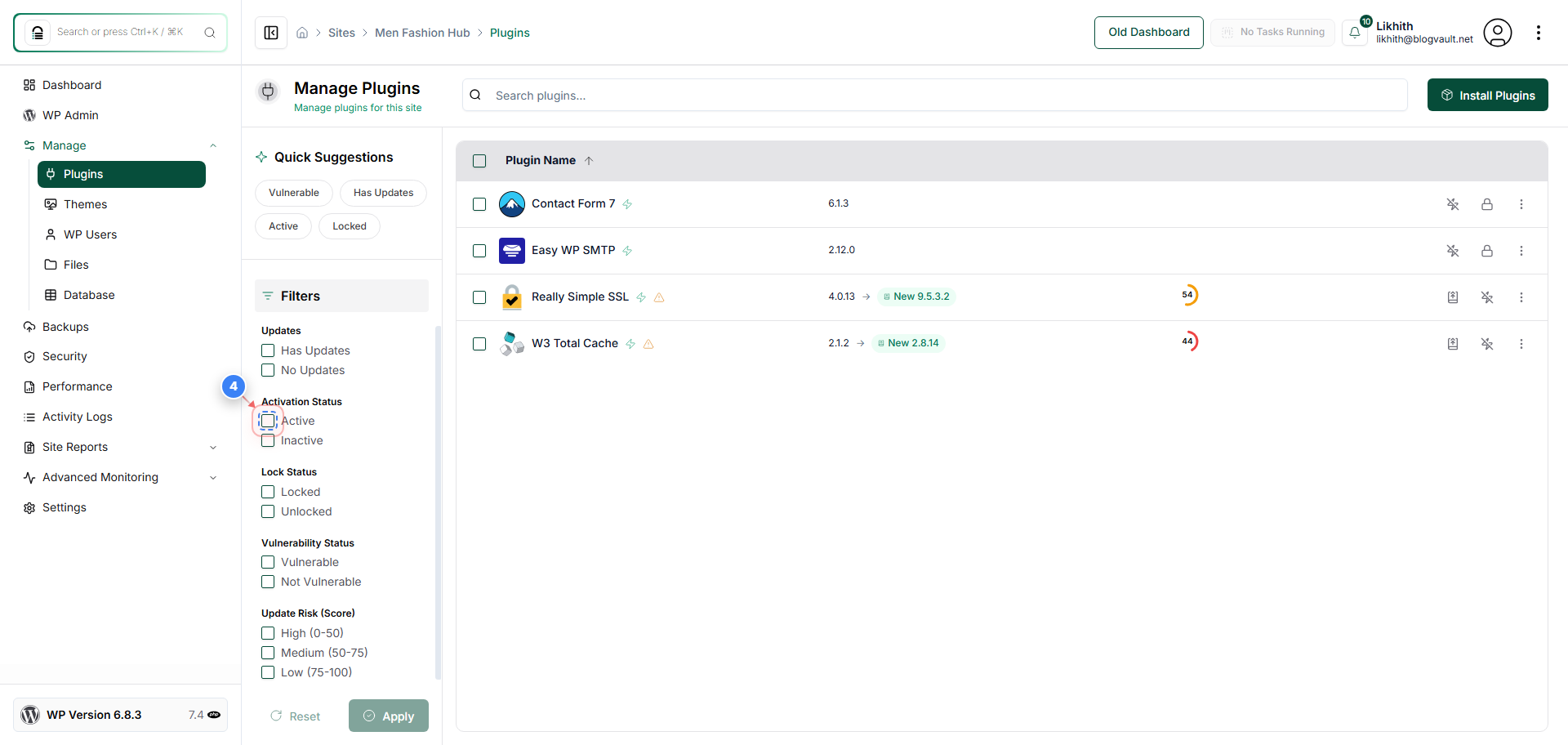
Step 4 of 8
Set Activation Filter
Click the **Active** checkbox under Activation Status to filter plugins.
Note: Located in the middle-left area of the Plugins page.
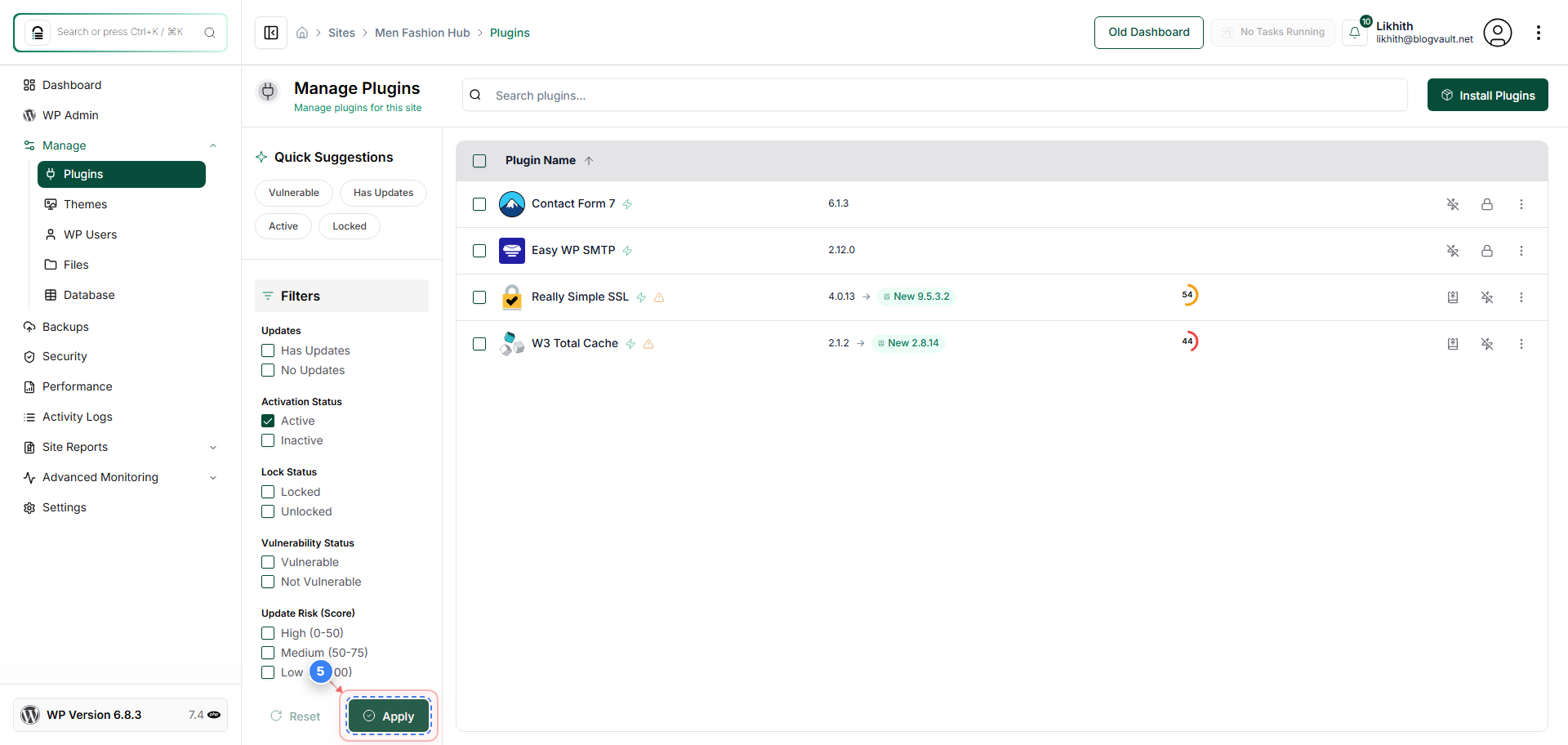
Step 5 of 8
Apply the Filter
Click the **Apply** button at the bottom-left of the page to update the plugin list.
Note: Ensure the correct filter is enabled before applying.
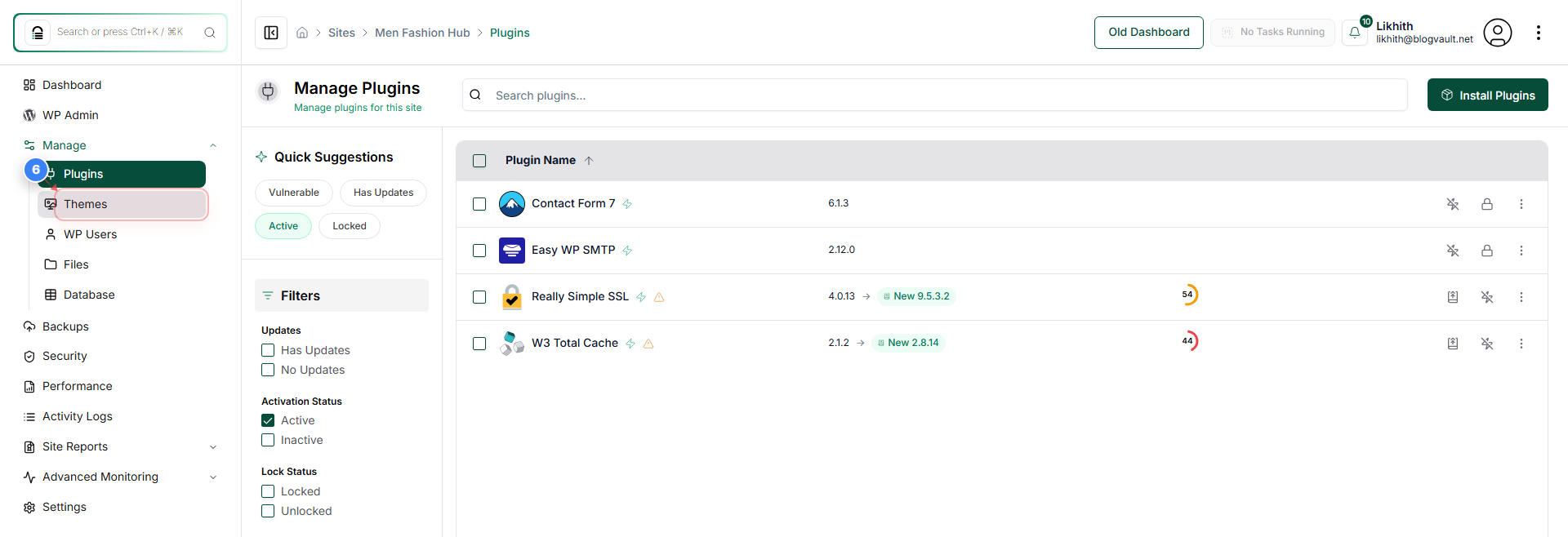
Step 6 of 8
Navigate to Themes
Click **Themes** from the left sidebar to switch to theme management.
Note: Themes are located directly below Plugins in the Manage submenu.
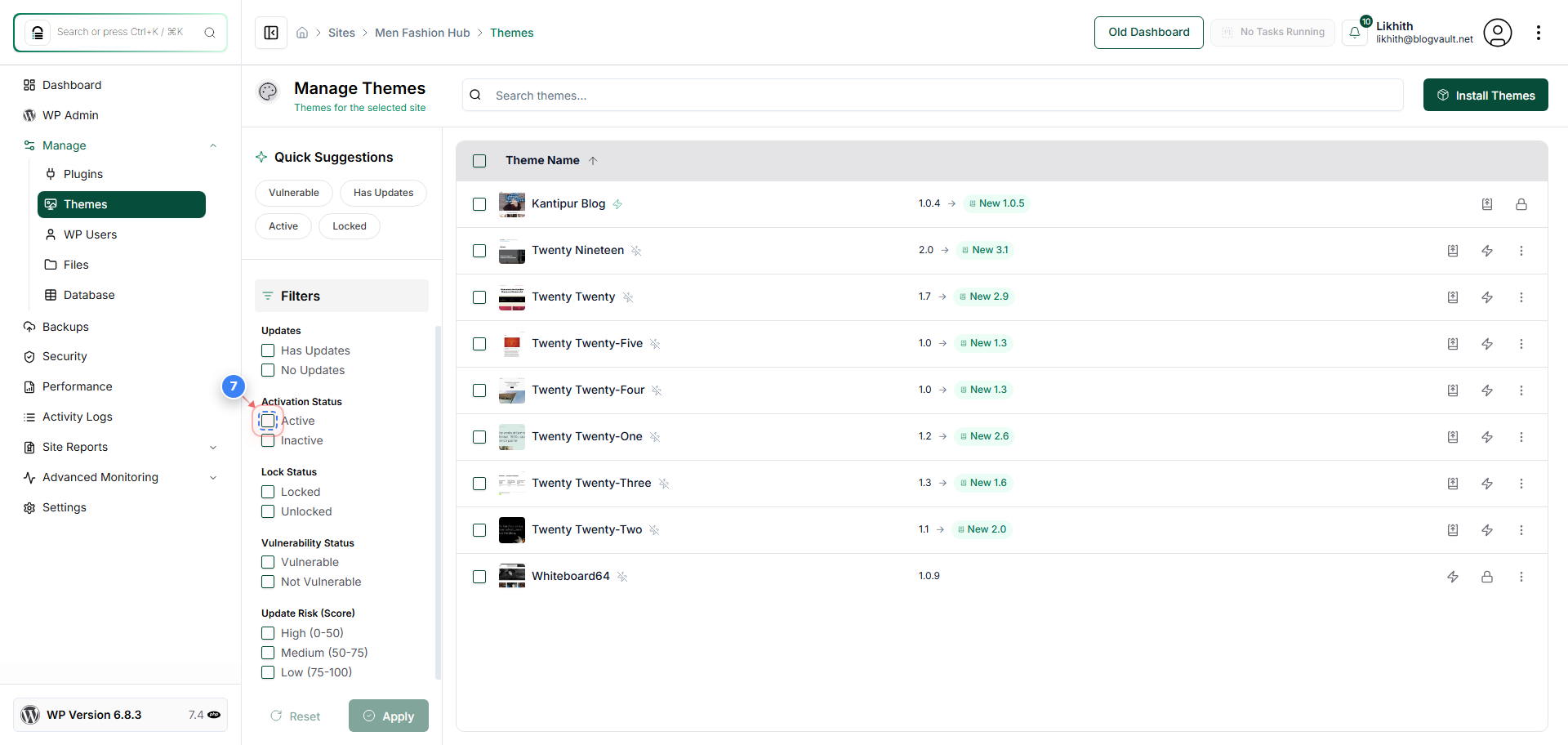
Step 7 of 8
Set Theme Activation Filter
Click the **Active** checkbox under Activation Status to filter themes.
Note: Appears in the same layout as the plugin filters.
Step 8 of 8
Apply the Theme Filter
Click the **Apply** button at the bottom-left of the Themes page.
Note: This updates the theme list based on the selected activation state.