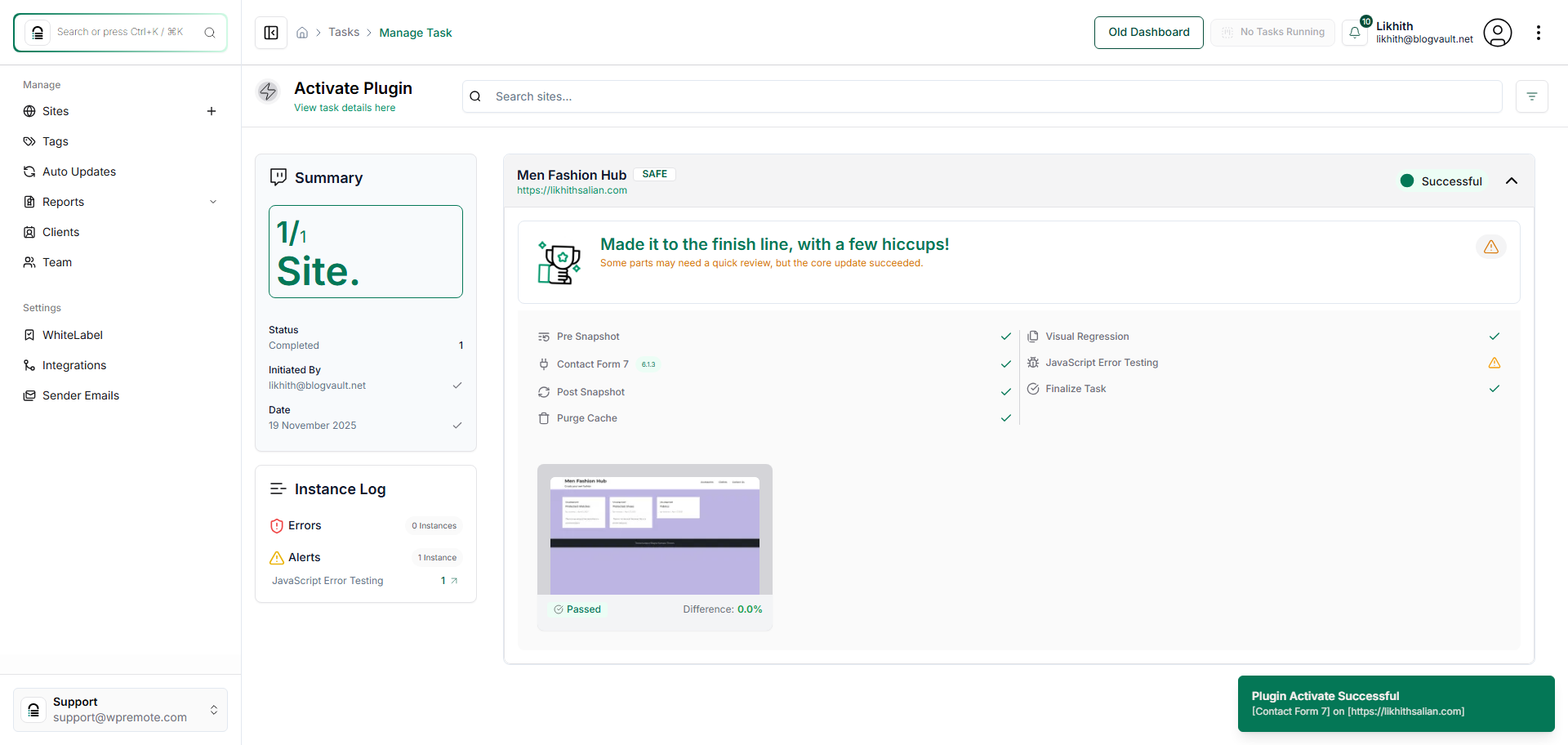
How do I activate or deactivate plugins or themes?
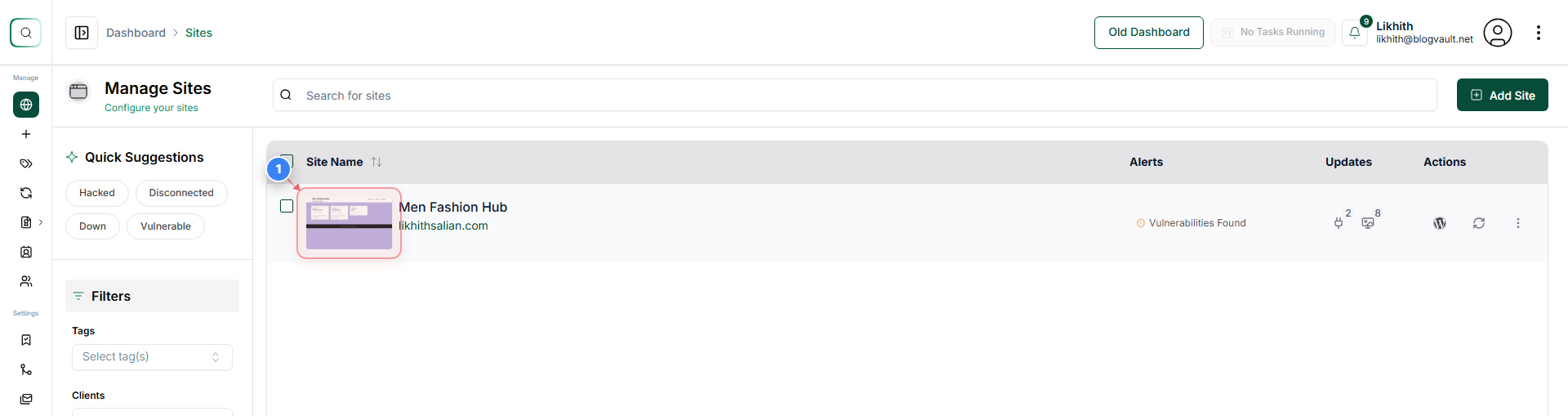
Step 1 of 7
Open the Site Dashboard
Click the Sites page to open its management dashboard.
Note: This tile appears on the left side of the Sites page.
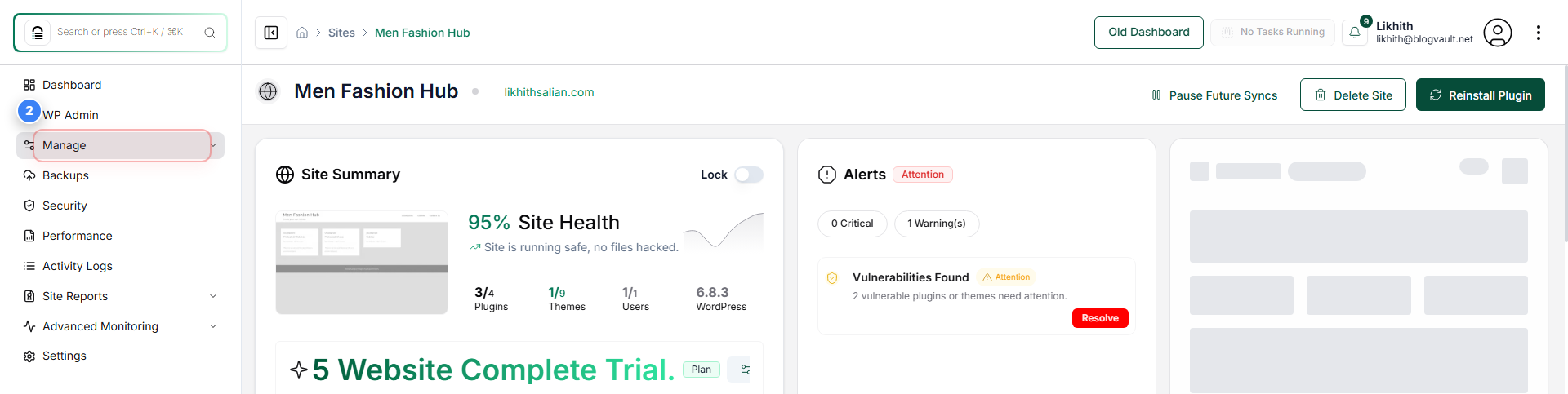
Step 2 of 7
Go to the Manage Section
Click **Manage** in the left sidebar to access all site management tools.
Note: The Manage option is located in the top-left area of the sidebar.
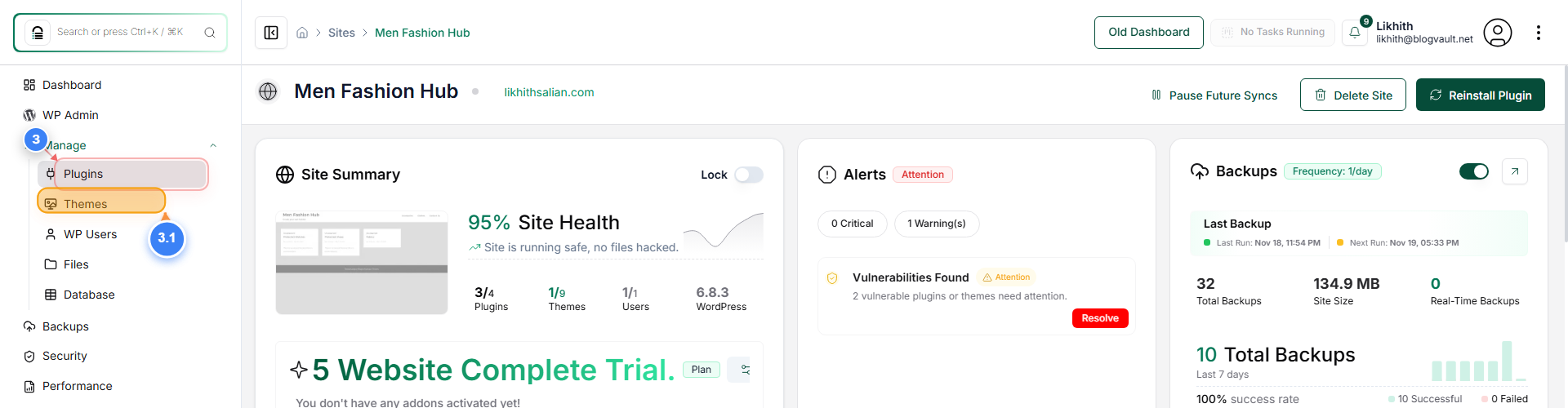
Step 3 of 7
Open the Plugins Page
Select **Plugins or themes** from the site management sidebar to view all installed plugins or themes.
Note: This reveals the Plugins or themes list along with actions like activation or deletion.
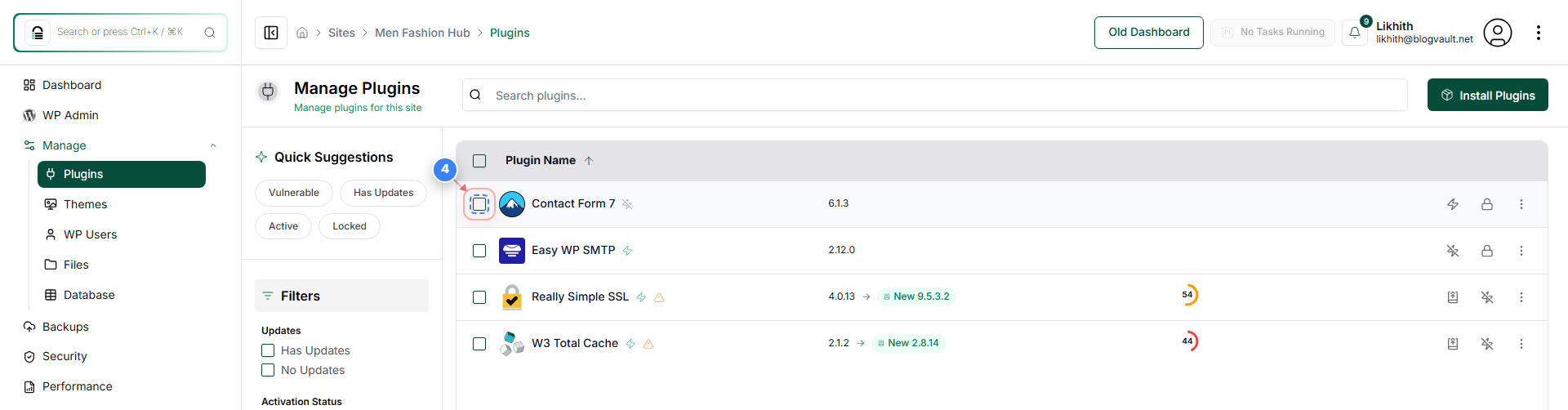
Step 4 of 7
Select the Plugin or themes ( Here we selected a plugin for guidance)
Click the checkbox next to the plugin you want to activate.
Note: The checkbox is located in the centre of the page beside the plugin name.
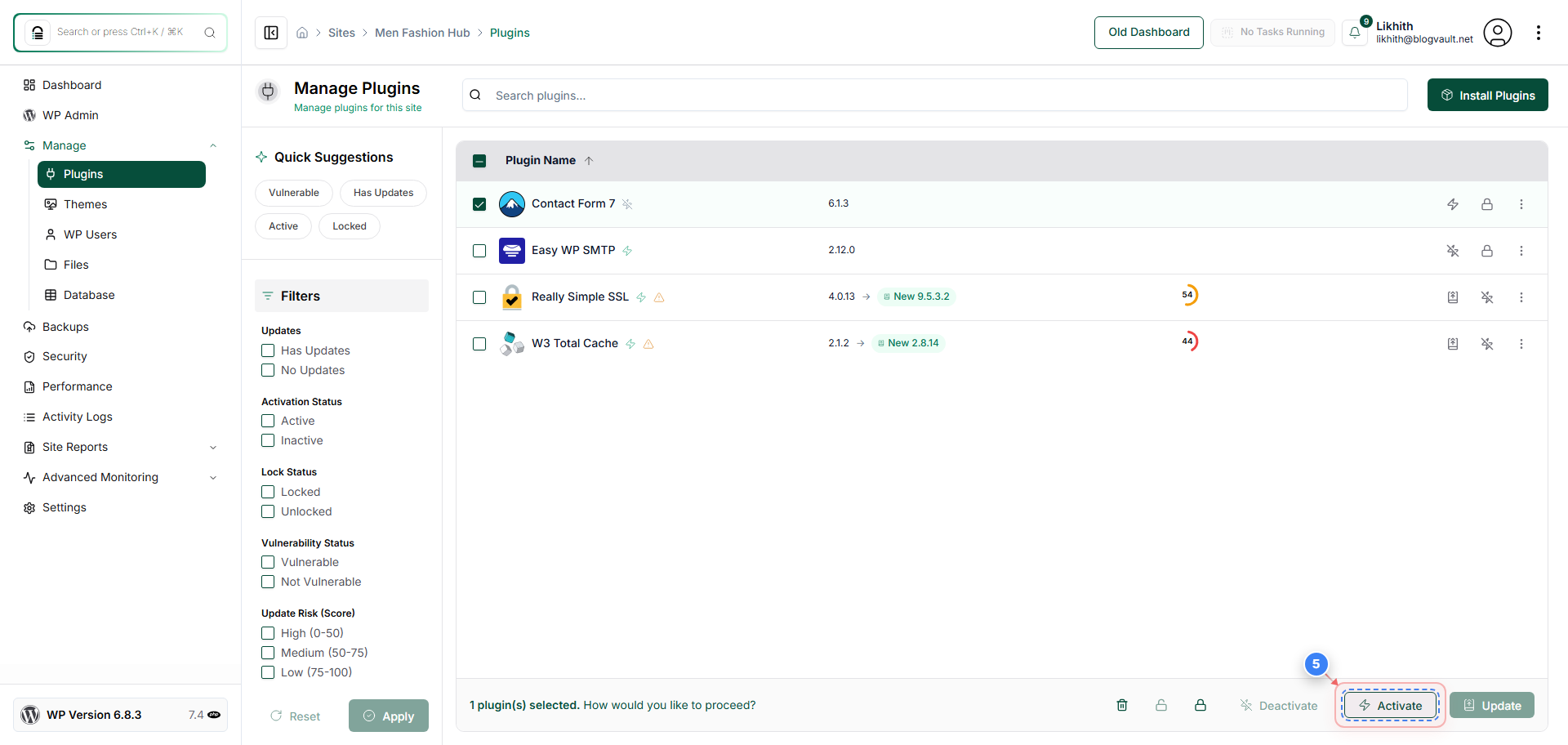
Step 5 of 7
Choose an Action
Click the **Activate** button in the bottom-right action bar. You can deactivate the selected plugins or themes whenever you want. Under active Plugins or Themes filters, select the plugin or theme you want to deactivate.
Note: This action bar appears once a plugin is selected.
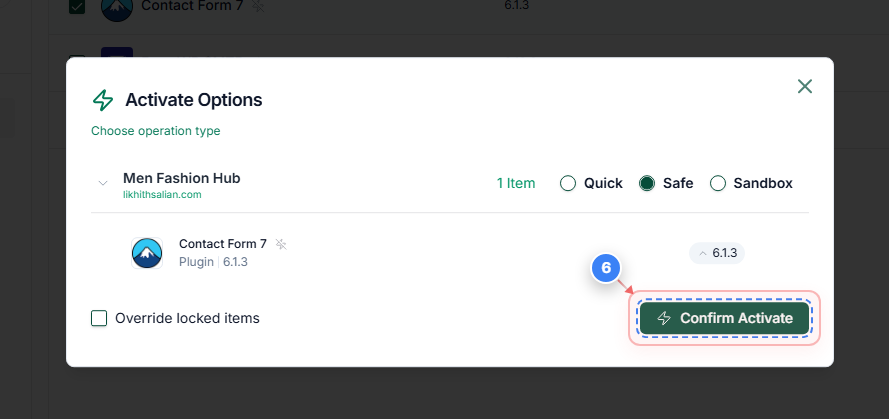
Step 6 of 7
Confirm Activation
In the confirmation pop-up, click **Activate Options** to finalise activation.
Note: The pop-up appears at the centre of the screen with activation choices.
Step 7 of 7
Review Final Page
View the final page showing the completed operation summary.
Note: This page confirms that all plugin activation steps are completed.