How Do I Delete Tags from My Account?
Step 1 of 6
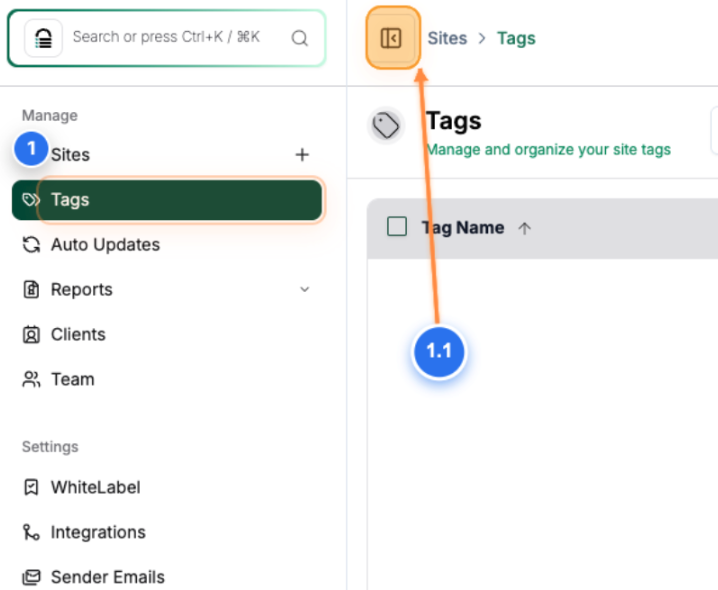
Navigate to the Tags Section
Click on 'Tags' in the left sidebar navigation to access the tag management page.
Note: Click the button (1.1) next to “Sites” in the top-left corner of the page to expand or hide the navigation menu.
Step 2 of 6
Single Tag Deletion
Click the delete icon next to the tag you want to delete in the tags list.
Note: The delete icon is located in the Actions column for each tag
Step 3 of 6
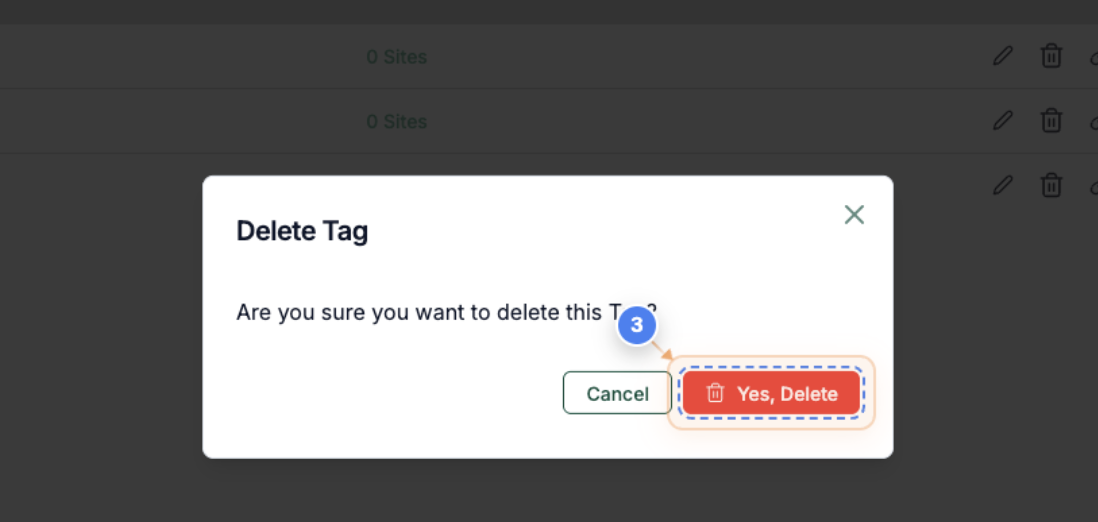
Confirm Single Tag Deletion
Click 'Yes, Delete' in the confirmation dialog to permanently remove the tag.
Note: This action cannot be undone - the tag will be immediately deleted from your site
Step 4 of 6
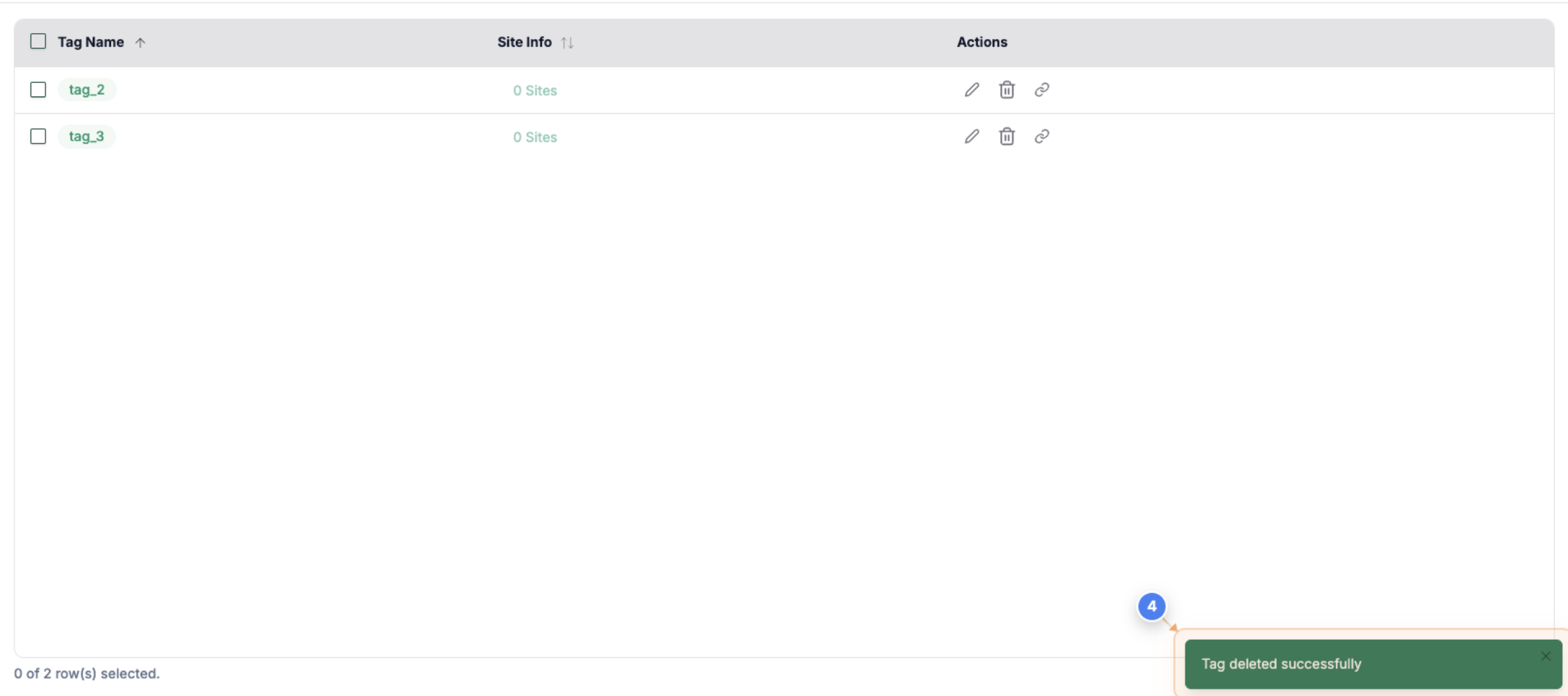
Deletion Confirmation
The 'Tag deleted successfully' notification will appear in the bottom-right corner.
Note: This confirmation message appears briefly after successful deletion
Step 5 of 6
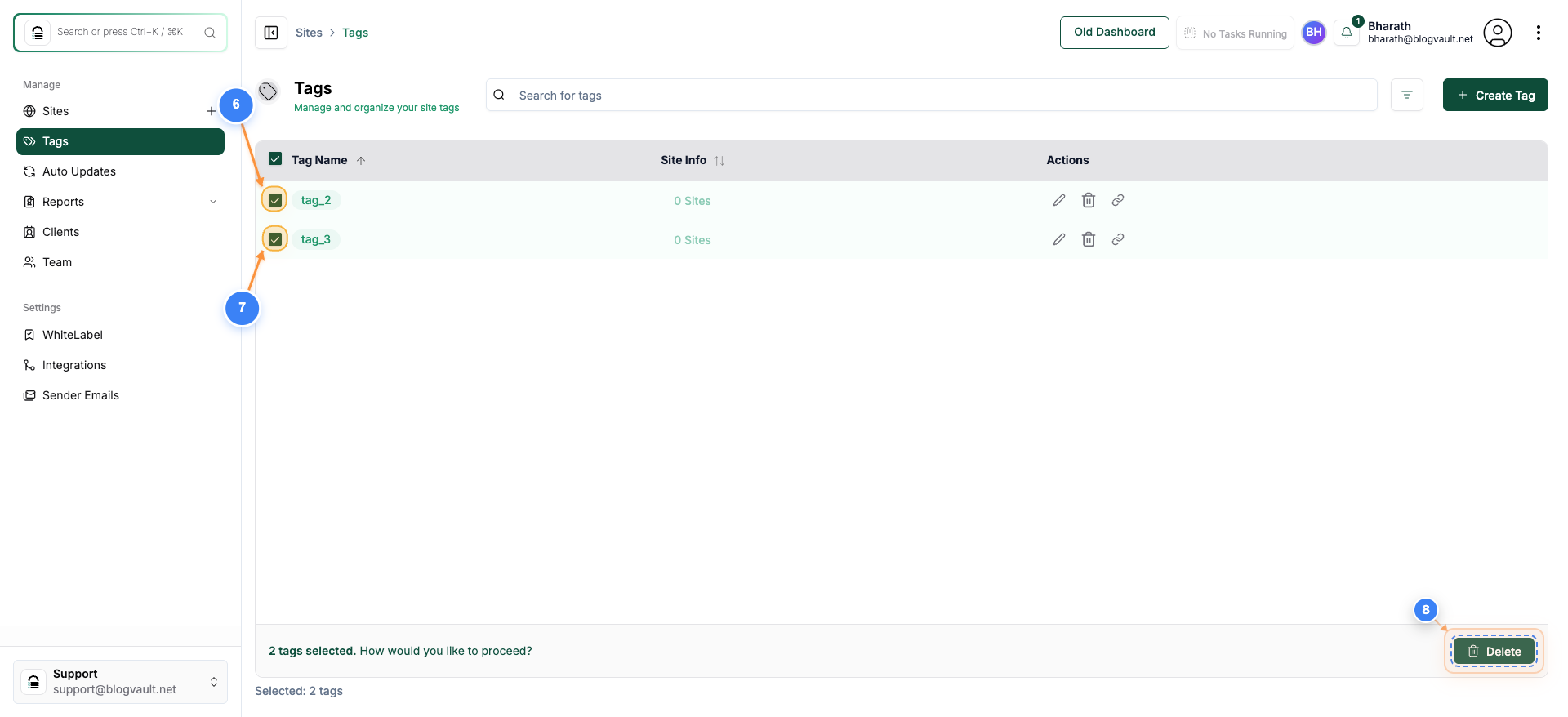
Bulk Tag Deletion – Use this method only if you want to delete multiple tags simultaneously.
Check the checkbox next to the tags you want to delete in the tags list and click the 'Delete' button in the bottom action bar to delete selected tags.
Note: The bulk action bar appears at the bottom when you select multiple items
Step 6 of 6
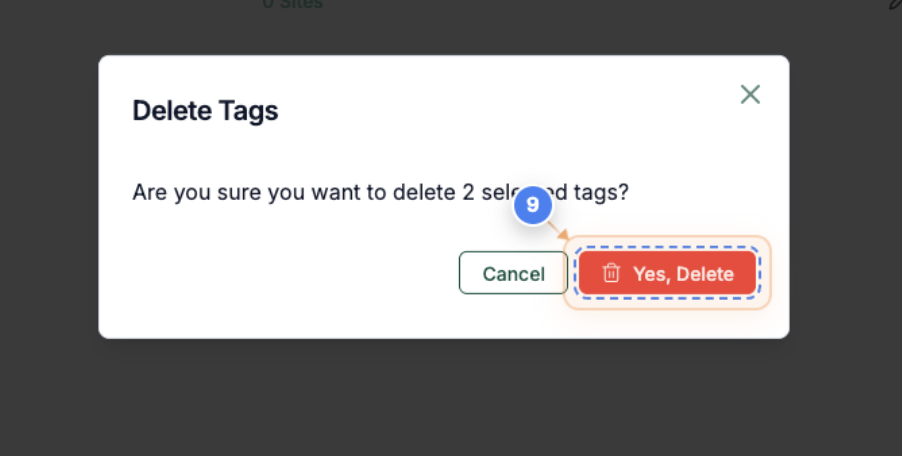
Confirm Bulk Tag Deletion
Click 'Yes, Delete' in the confirmation dialog to permanently remove all selected tags
Note: This will delete all checked tags - double-check your selection before confirming