How Do I Add Tags to My Websites?
Step 1 of 7
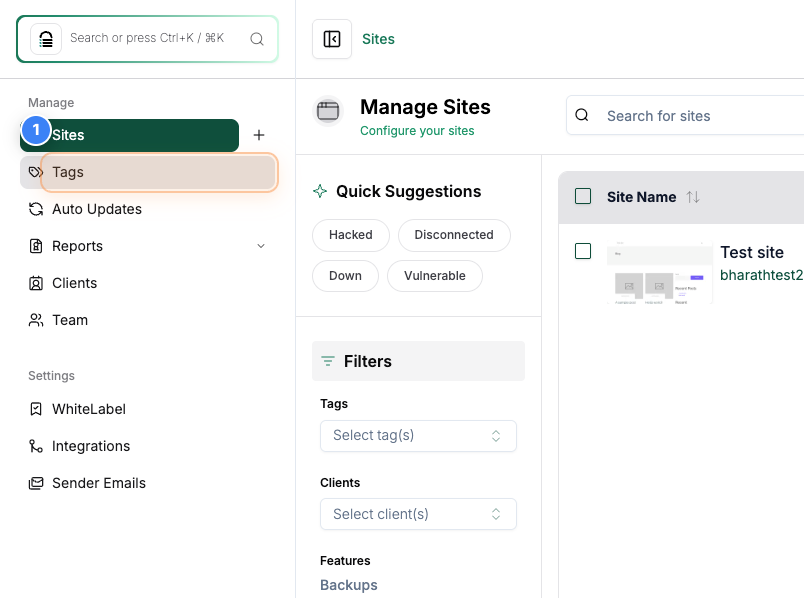
Access the Tags Section
Click on the 'Tags' option in the sidebar to open the Tags management section, where you can organize and label your sites.
Step 2 of 7
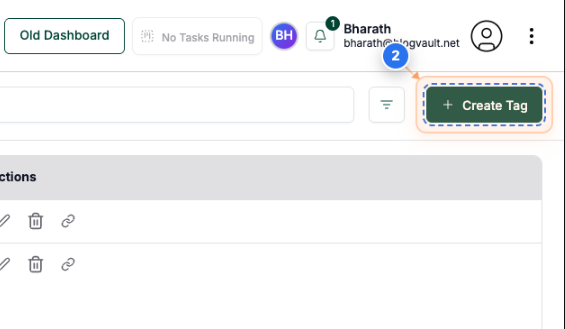
Start Creating a New Tag
Click the 'Create Tag' button in the top-right corner to begin adding a new tag for your sites.
Step 3 of 7
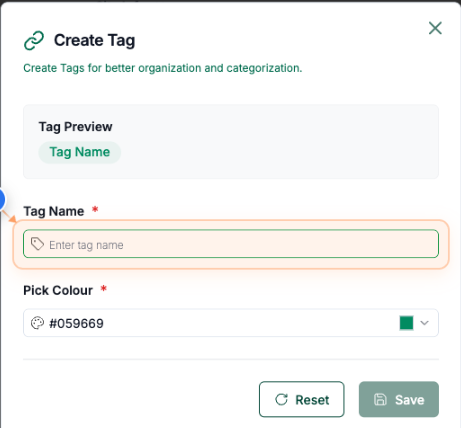
Enter a Tag Name
In the 'Enter tag name' field, type a name that describes the purpose of the tag and select the color.
Note: Choose a clear and consistent naming convention to make it easier to organize your sites later.
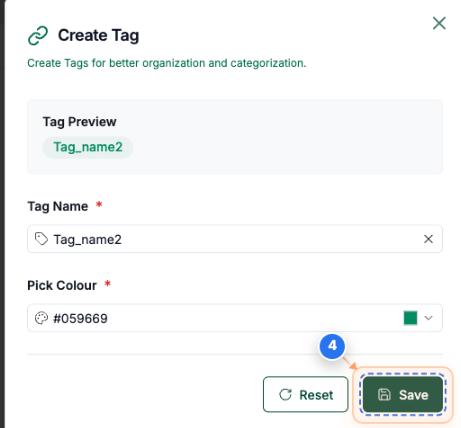
Step 4 of 7
Save the New Tag
Click the 'Save' button to create the tag and add it to your tag list.
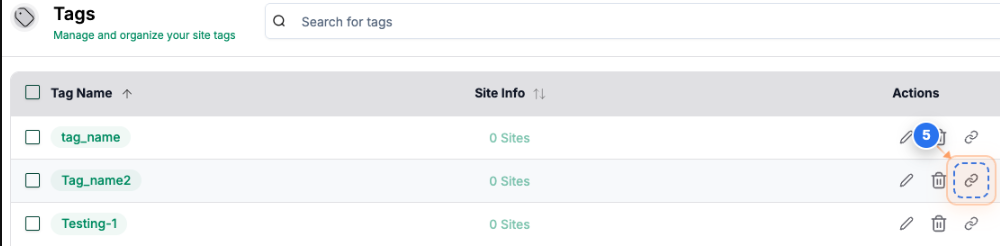
Step 5 of 7
Link Existing Tag
Click the link icon next to an existing tag to assign the tag to the sites.
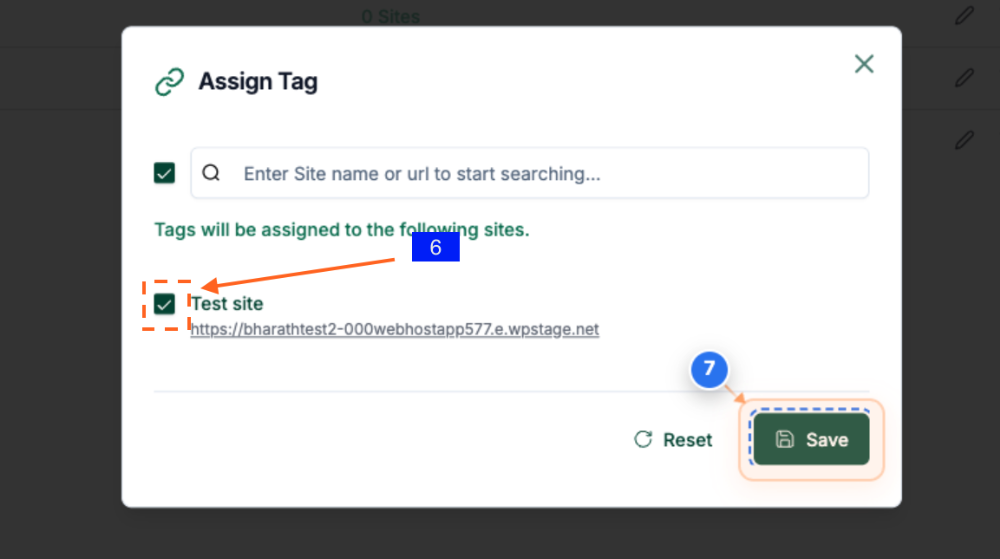
Step 6 of 7
Save Tag Assignments
Click the 'Save' button to confirm and apply the selected tags to the chosen sites.
Step7 of 7
Verify Tag Assignment
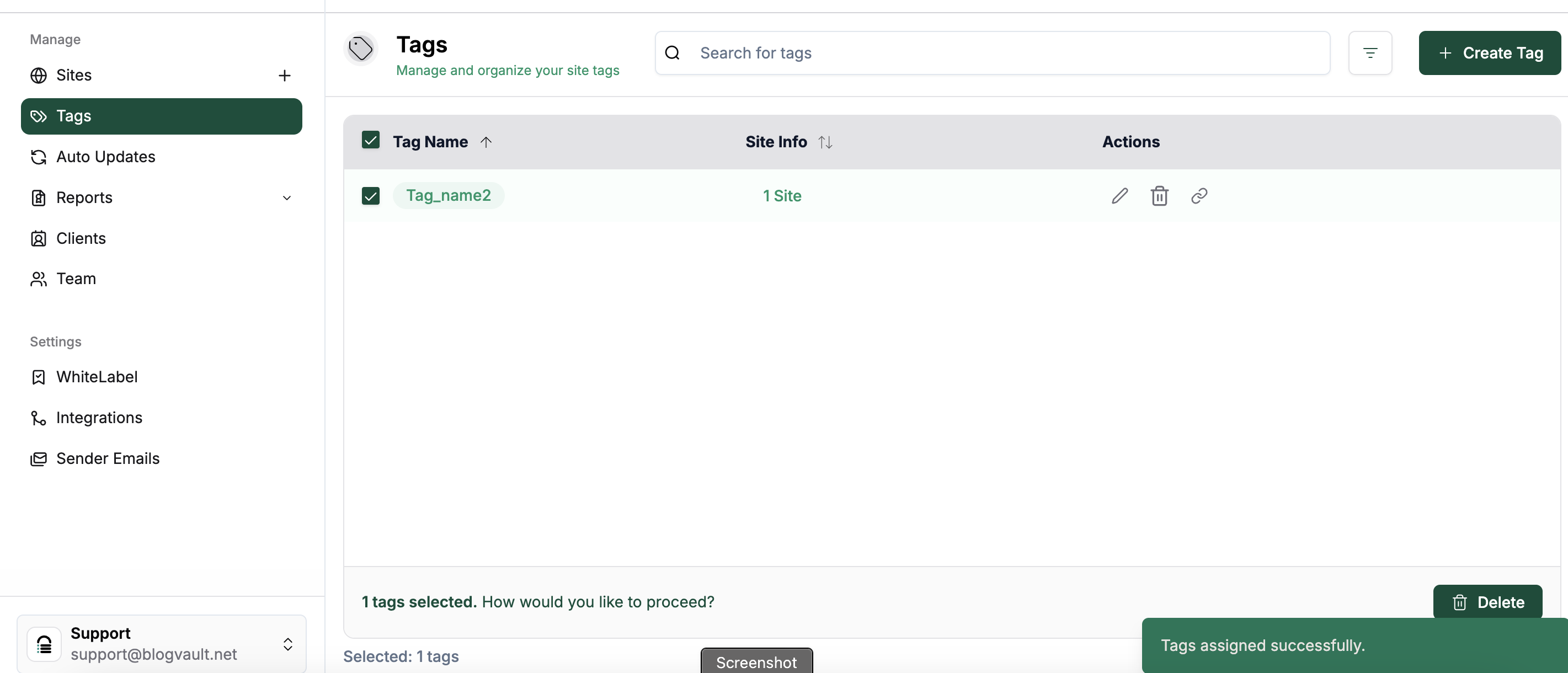
Review the updated Tags page to confirm that your tag has been successfully created and assigned. A success message saying 'Tags assigned successfully' should appear at the bottom.
Note: If you don't see the success message, refresh the page or check that the tag name is unique.