
How do I add more websites on Dashboard?
Step 1 of 3
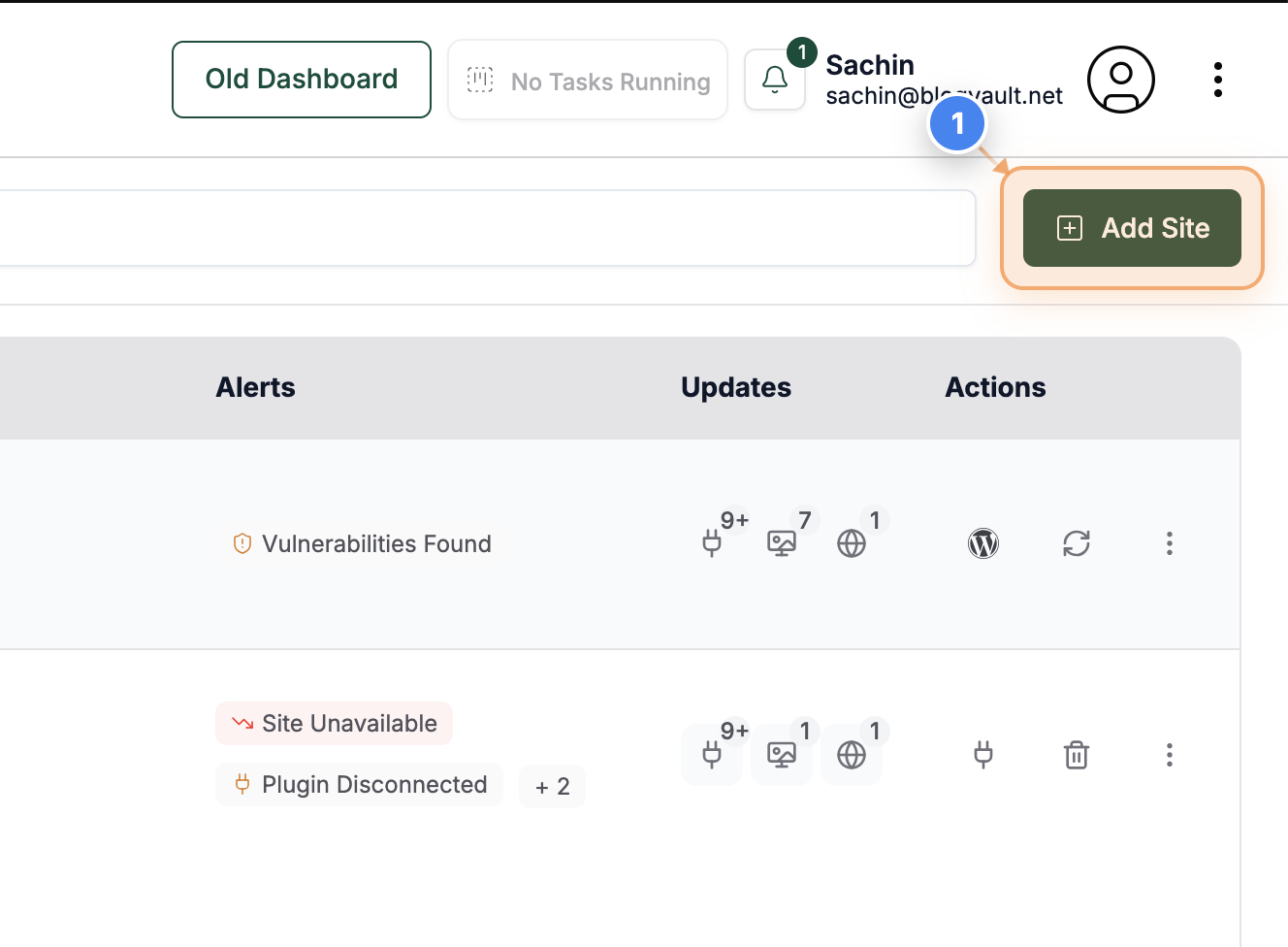
Add a New Site
Click the "Add Site" link in the top-right area of the Sites page to begin adding a new website to your BlogVault account.
Note: You can manage multiple websites within BlogVault by adding each one separately.
Step 2 of 3
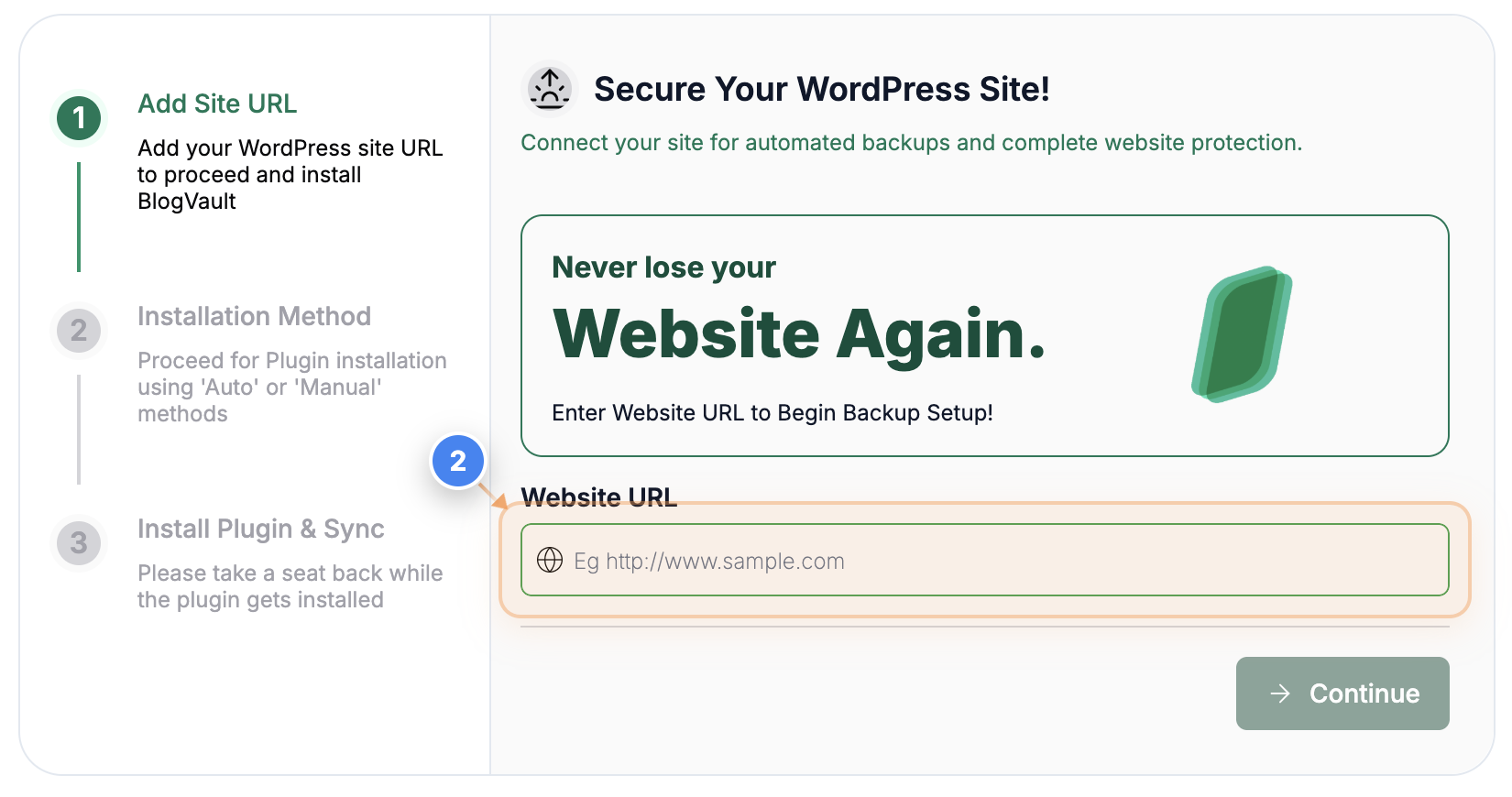
Enter Website URL
In the Website URL field on the onboarding page, enter your website's address to connect it with BlogVault.
Note: Ensure the URL starts with http:// or https:// for proper validation.
Step 3 of 3
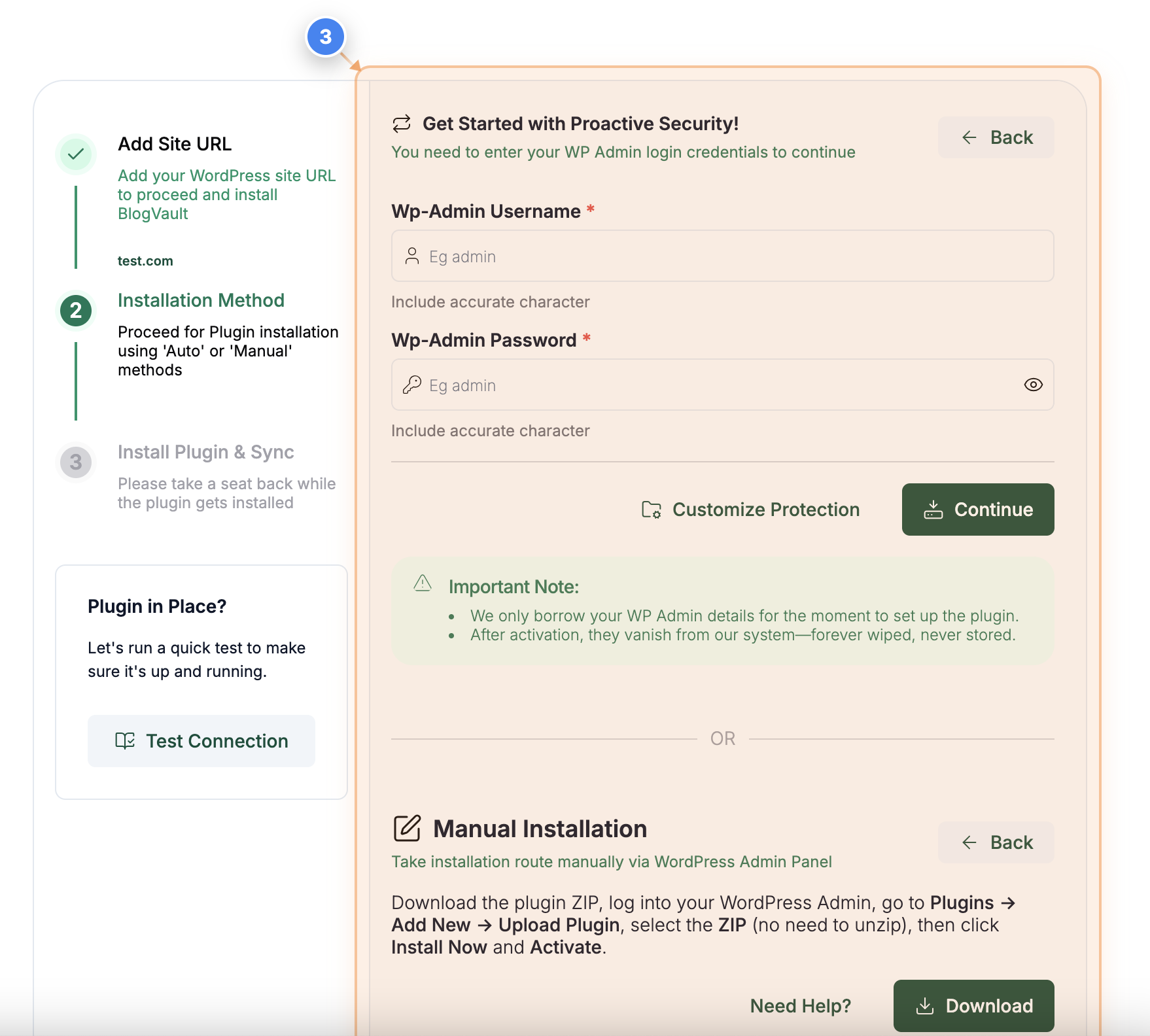
Start Setup
See the "Get Started with Proactive Security" option in the onboarding section to continue setting up plugin connection for your site.
Note: You'll be asked to provide your WordPress admin credentials to enable plugin connection to your site. Enter the details & click on continue to auto-install the plugin.
You may refer to: How to Set up a Manual Plugin Connection with the site?