How Do I Access the WordPress Admin Dashboard from My Account?
Step 1 of 3
Open Site Management Dashboard
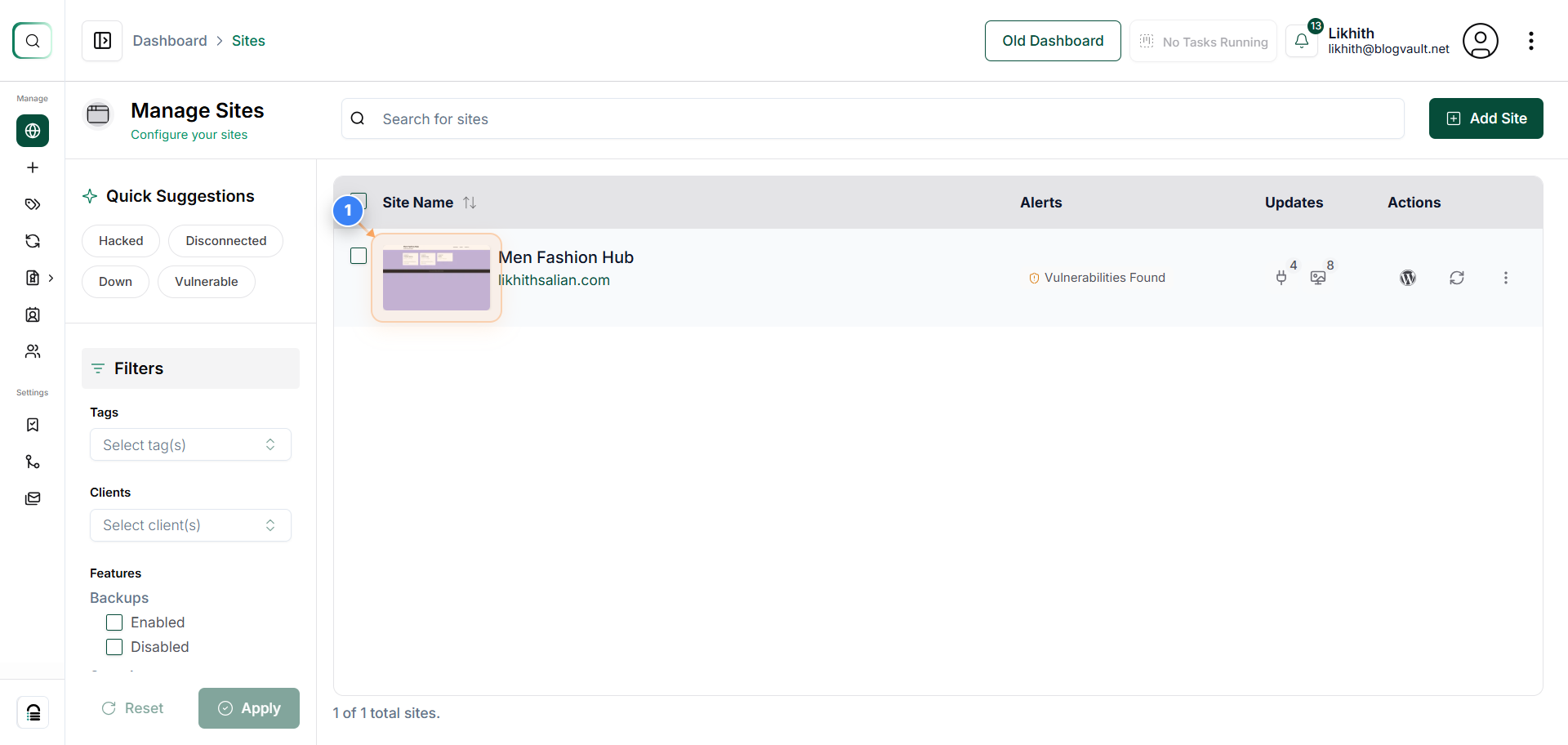
Click on your site thumbnail in the Sites Dashboard to open its management options.
Note: You can access backups, security scans, and performance reports for this site from its dashboard.
Step 2 of 3
Access WordPress Admin Panel
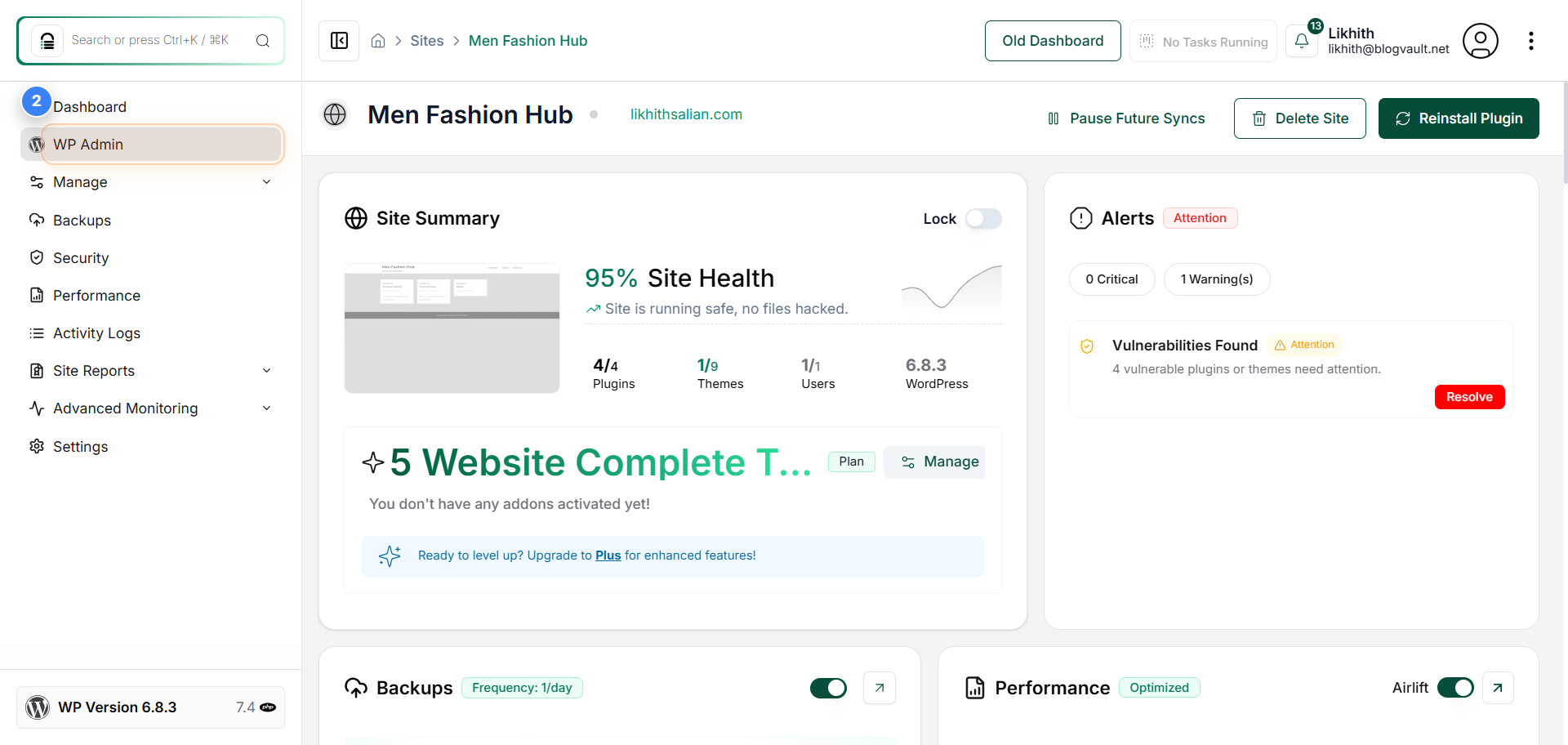
Click on 'WP Admin' in the top-left navigation panel to log directly into your site's WordPress admin area.
Note: Use this option to manage your WordPress content, plugins, and settings without needing to re-enter login credentials.
Step 3 of 3
Redirect to WordPress Dashboard
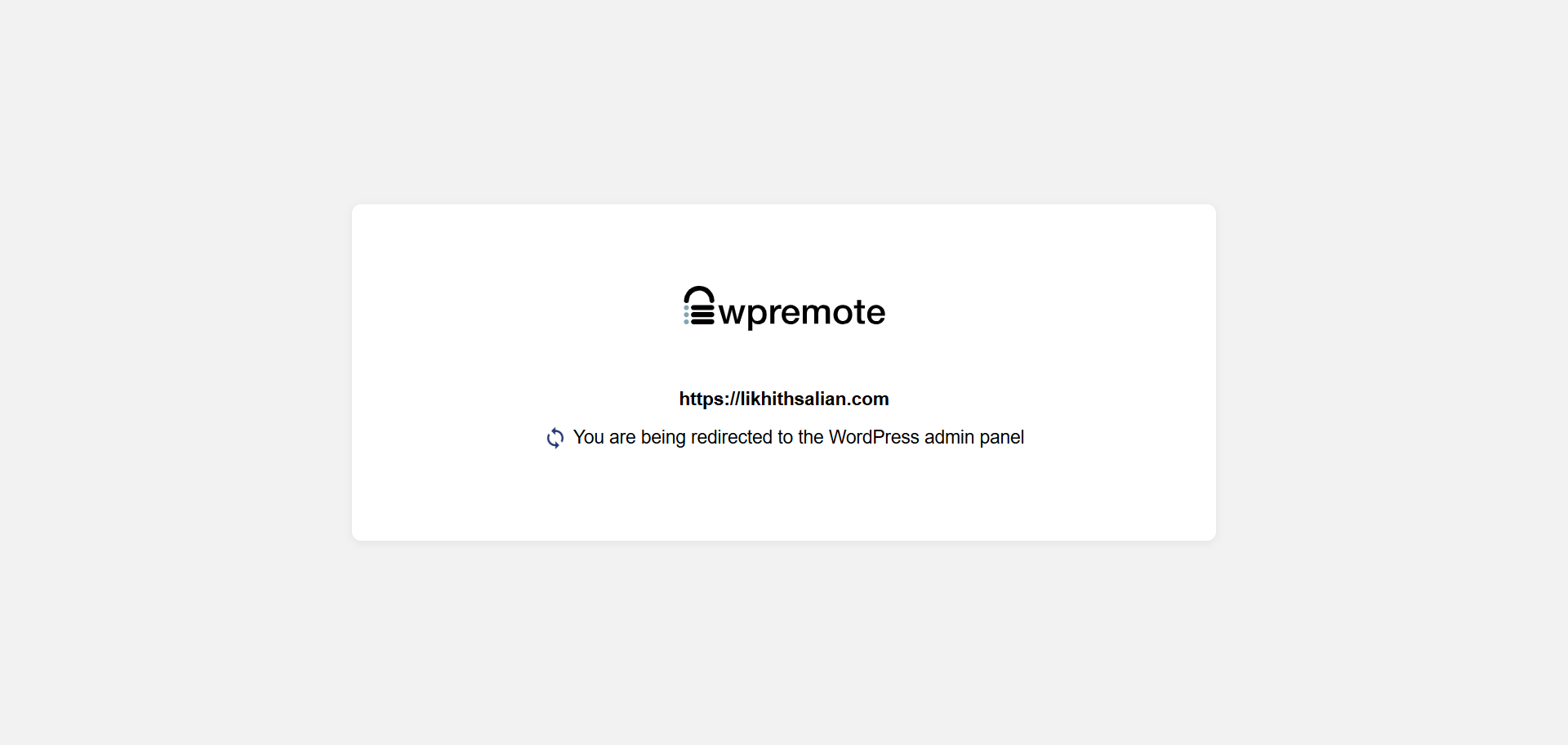
After clicking 'WP Admin', a redirect screen will appear showing your site URL and a loading animation. This indicates you are being securely redirected to the WordPress admin dashboard.
Note: Once the redirect completes, you'll arrive at your WordPress admin panel where you can manage site settings and content.