How to Review Malware Files Before Cleaning?
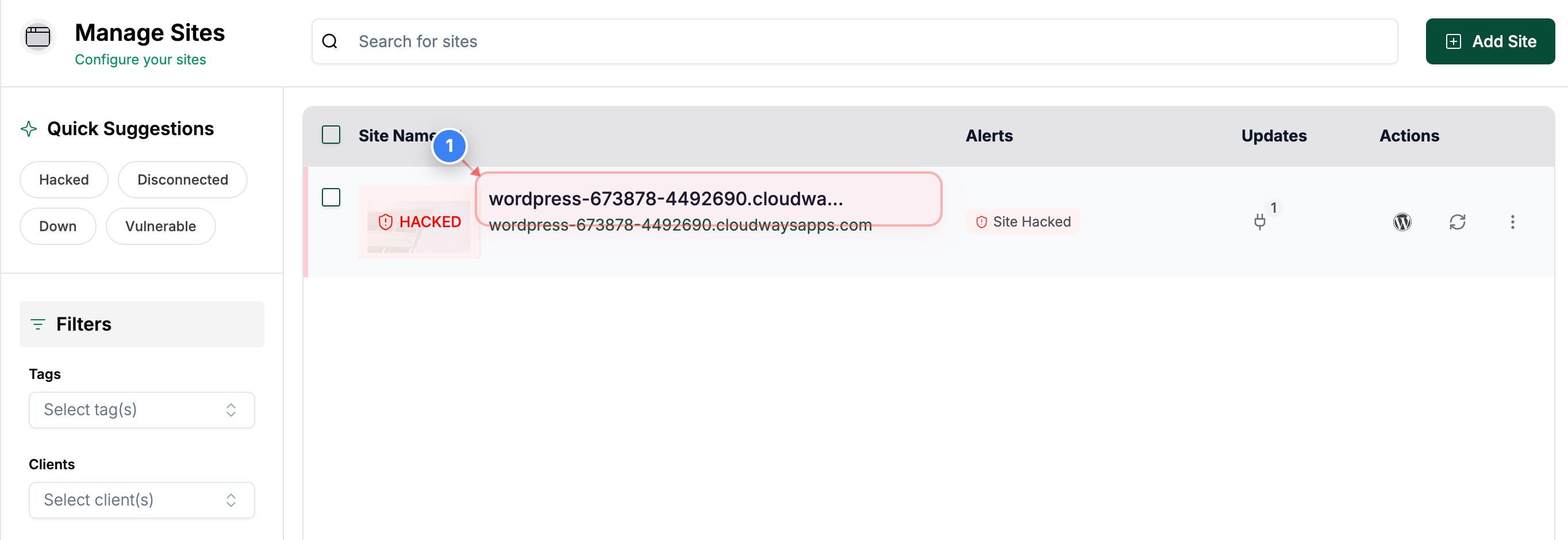
Step 1 of 5
Open Your Site Details page
Click on your site in the Sites page to open the details page
Note: This takes you to the overview page where all tools for the selected site are available.
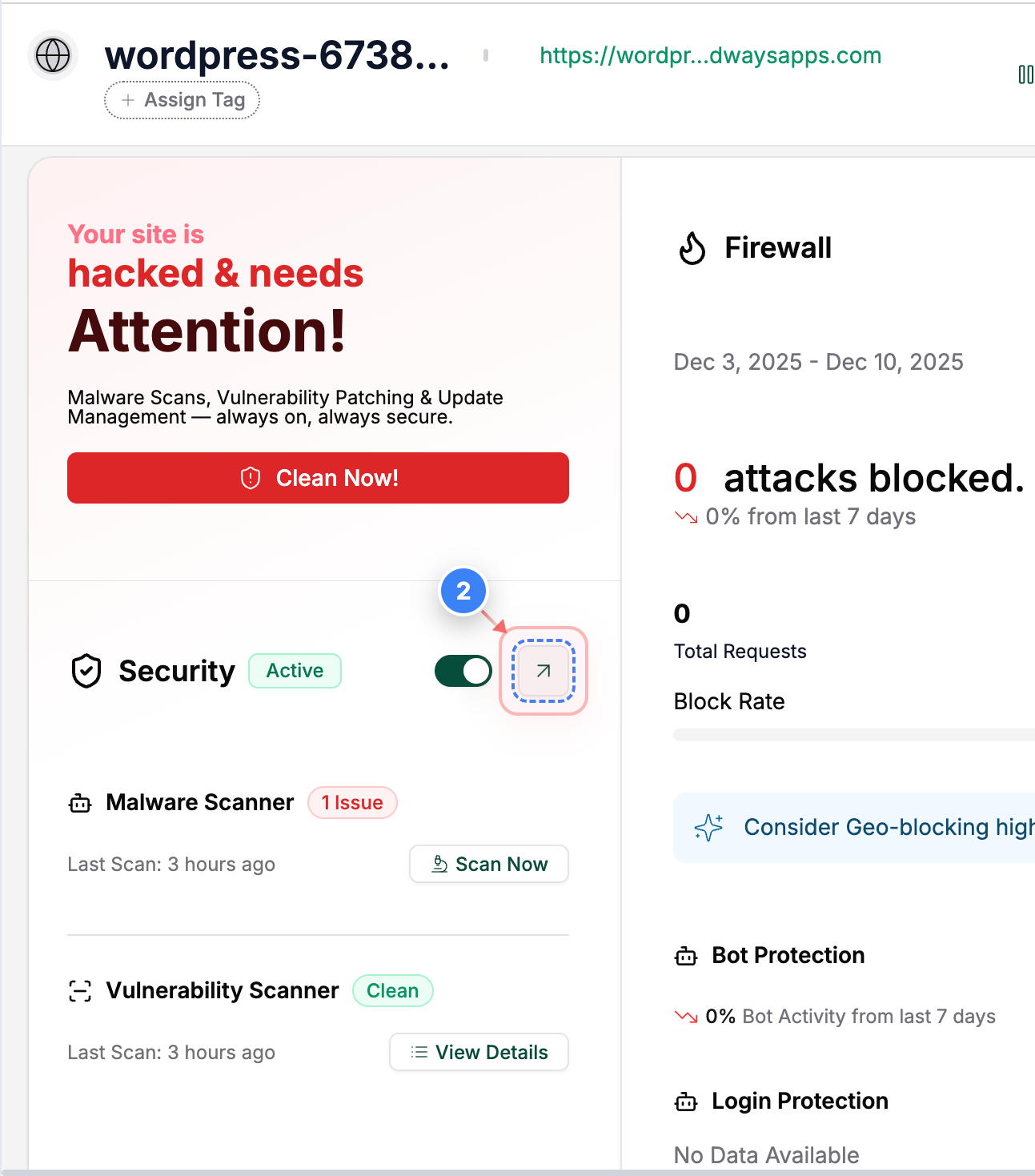
Step 2 of 5
Open Security Section
Click the Security section on this page to access security tools and scan results.
Note: This section shows your site's security status and other security information.
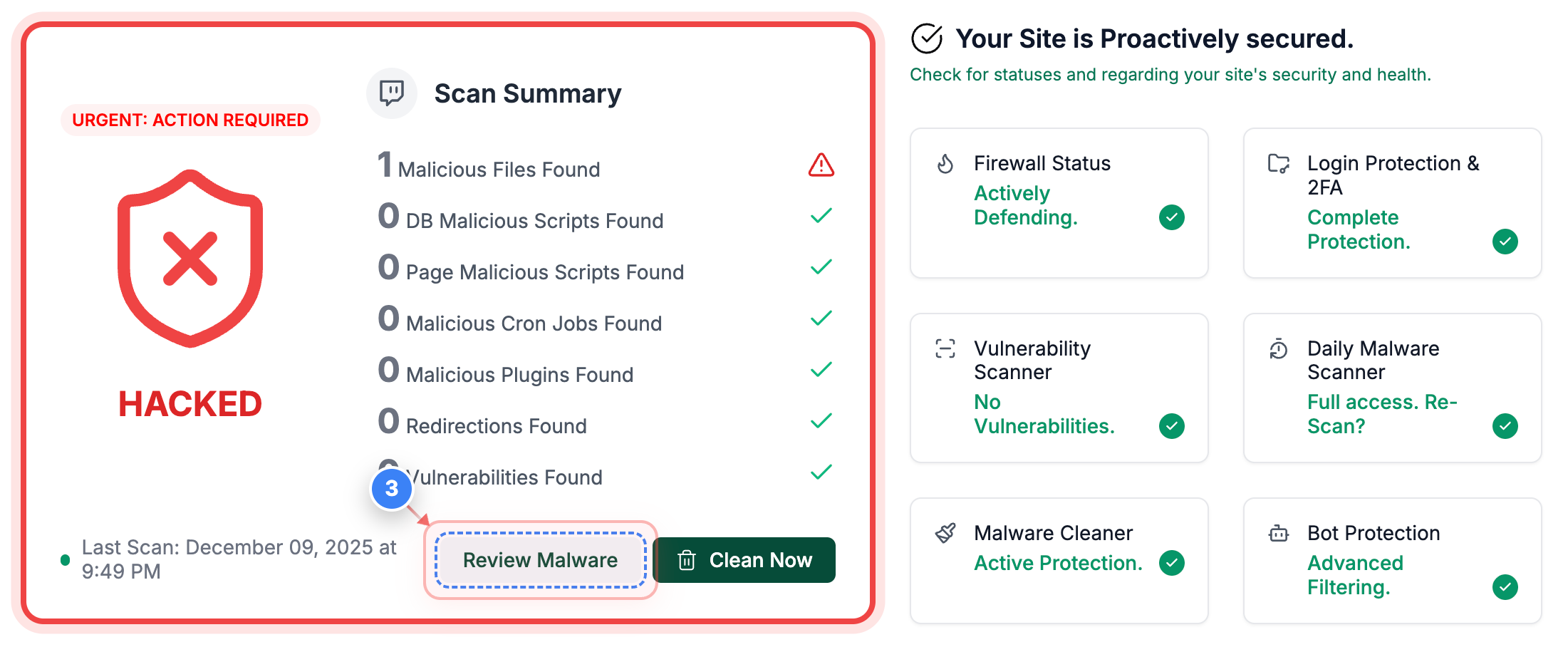
Step 3 of 5
Review Malware Findings
Click the Review Malware button on the Security page to view malicious files.
Note: You will see the latest scan time and all flagged items here.
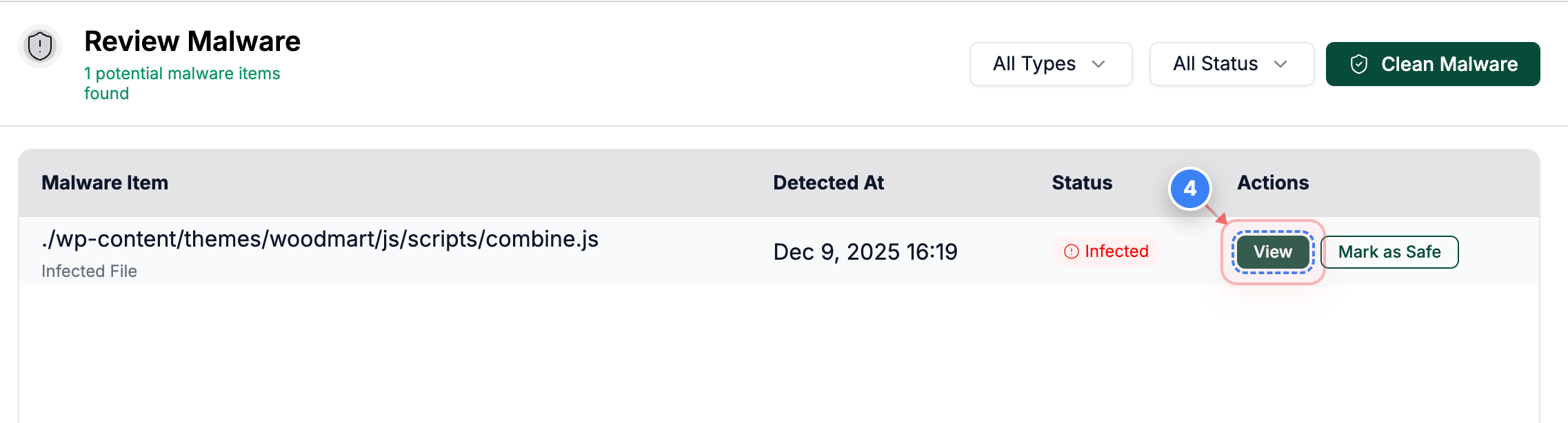
Step 4 of 5
Open File Details
Here you can see all the hacked file names. Click the View button next to a flagged file to inspect its contents
Note: Use this to verify whether a file is truly malicious before taking action.
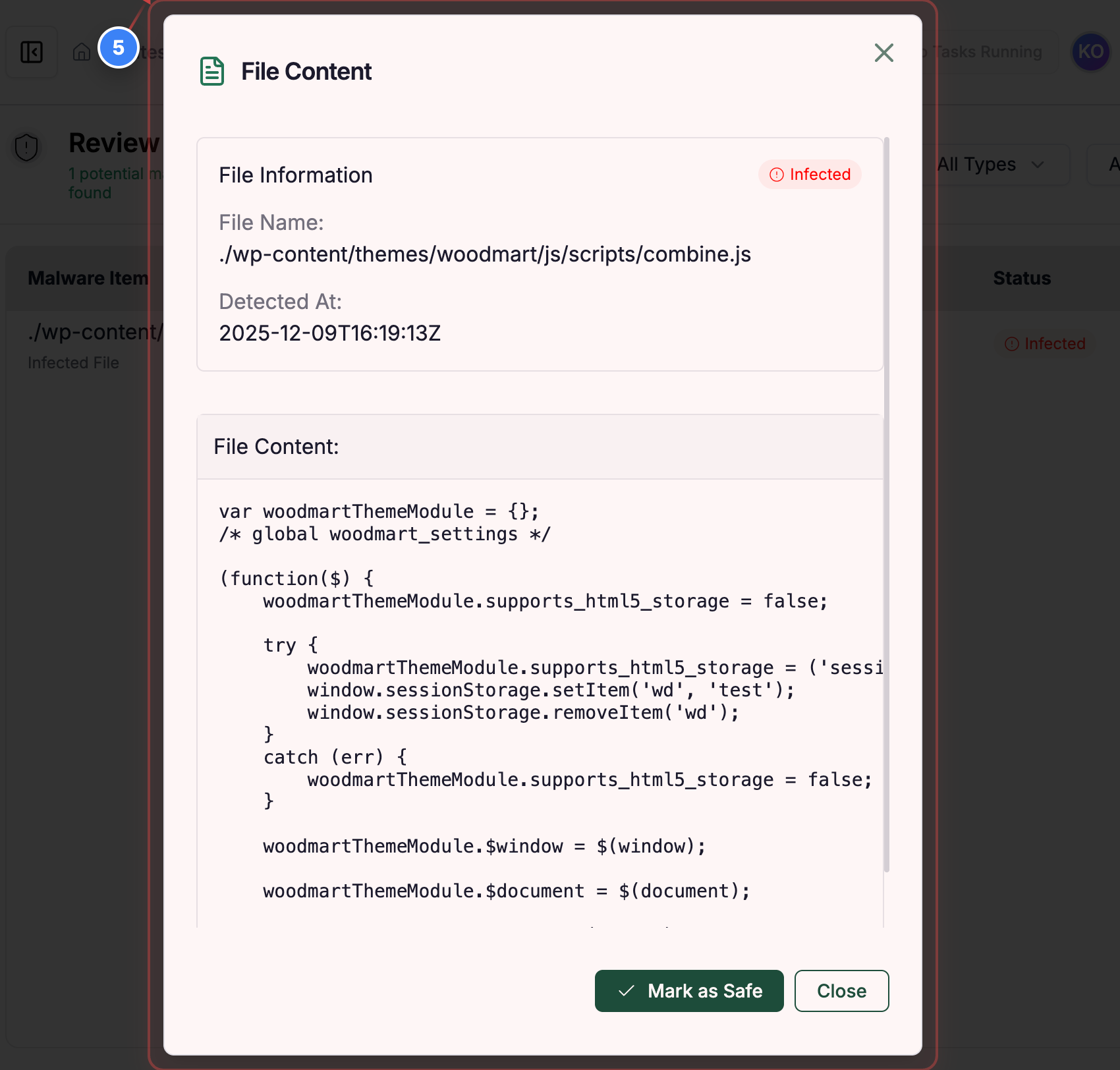
Step 5 of 5
Inspect File Content
This pop-up will show the complete code in that file here
Note: This helps you examine the exact code or injected content within the file.