How Can I See Detailed Firewall Logs for My Site?
Step 1 of 5
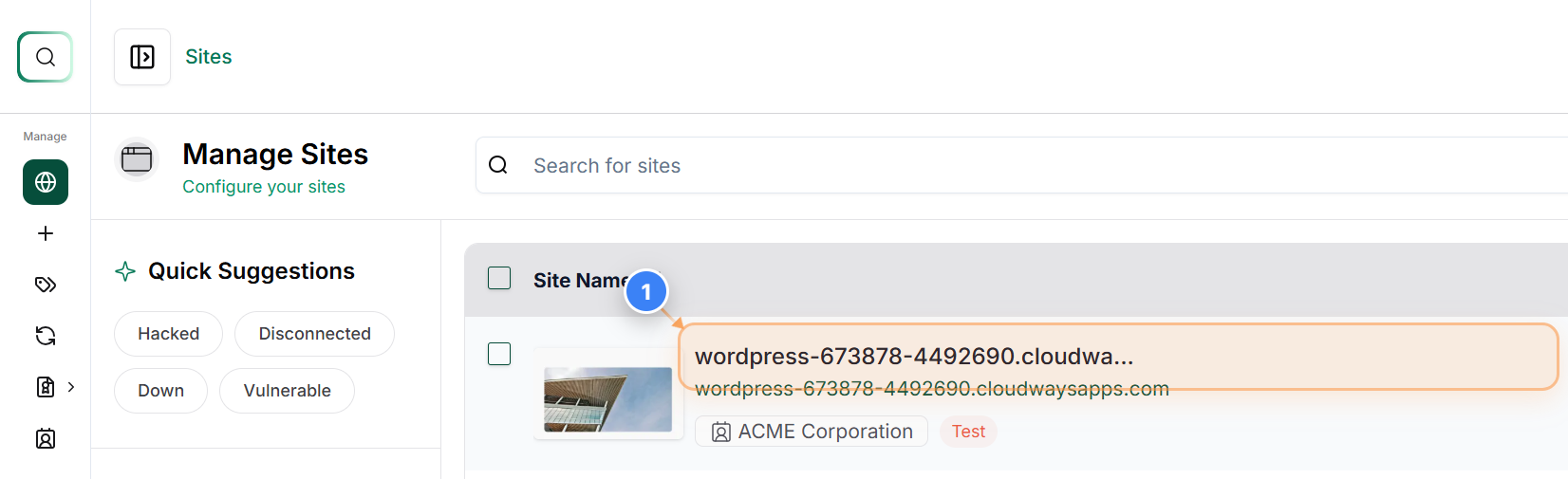
Open Site Dashboard
Click on your site name in the main sites list to open the management dashboard for that specific WordPress site.
Note: This page provides detailed controls and insights for the selected site, including security, backups, and performance sections.
Step 2, 3, 4 of 5
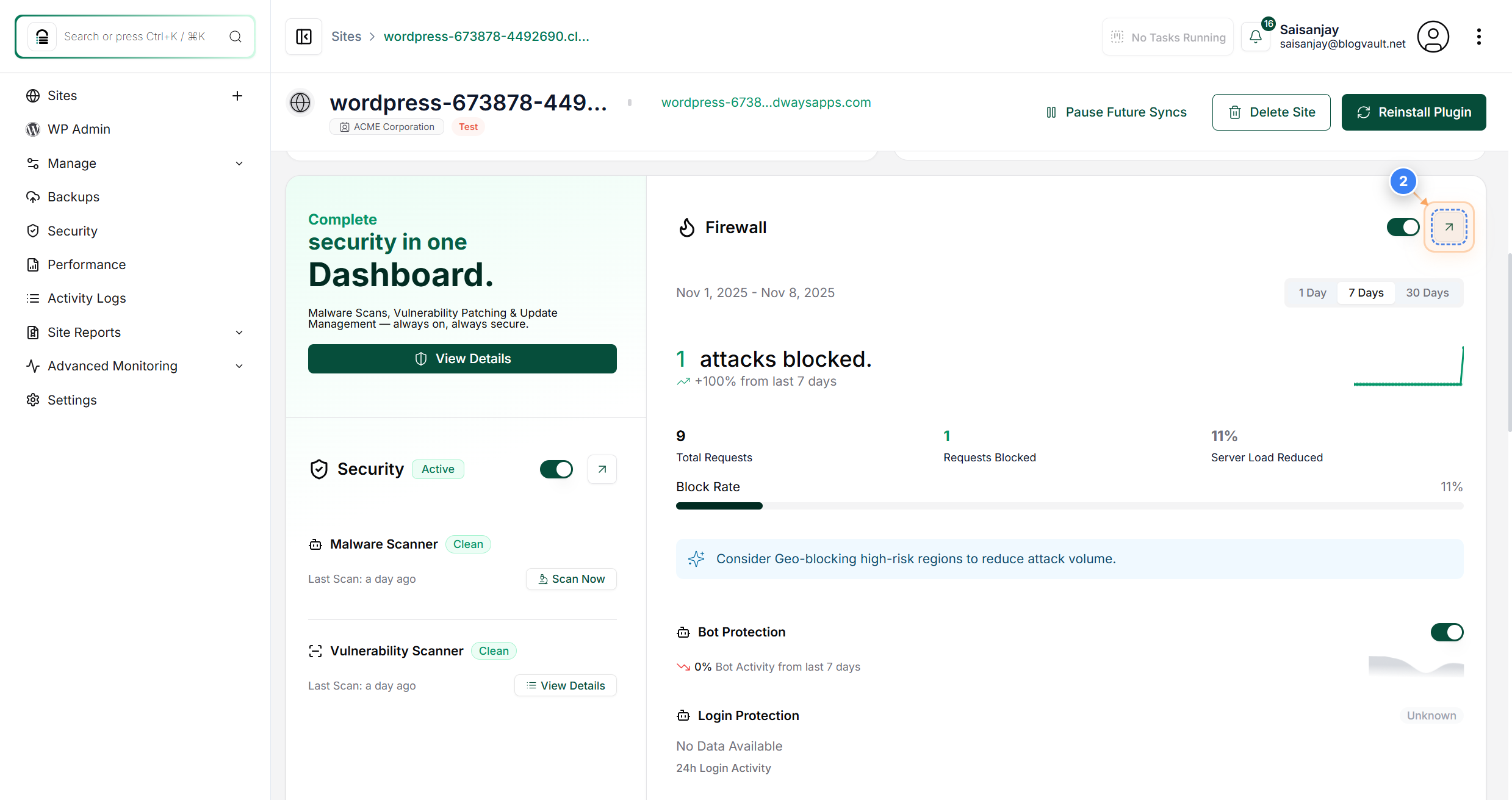
Access Firewall Controls || Alternative (3/4)
Click the arrow button in the top-right corner of the Firewall section to open firewall configuration options.
Note: This feature allows you to manage active protections and view blocked attack data for the selected site.
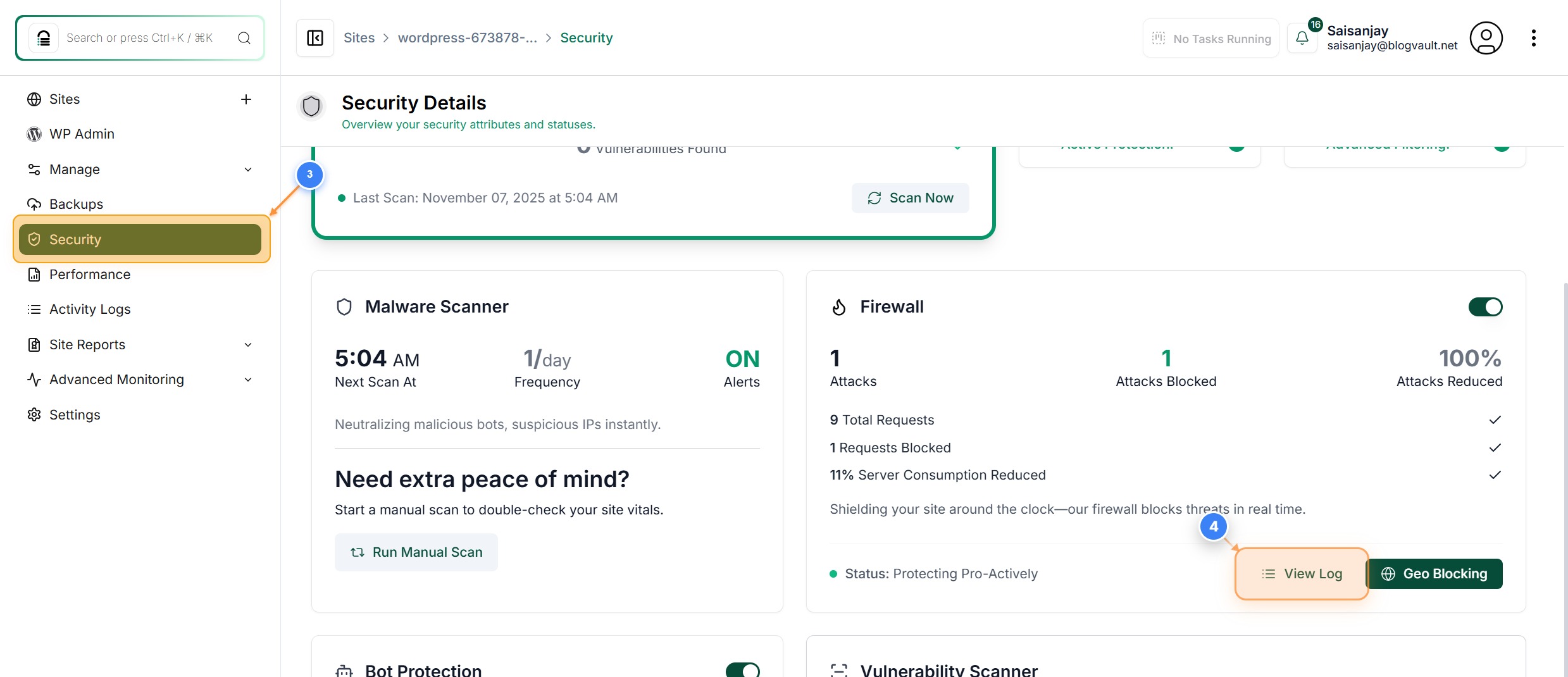
You can also access the firewall logs by clicking on Security(3) in the left sidebar to view detailed protection settings, including firewall logs and threat history. Click the View Log button(4) on the right side of the Firewall section to open recent security event logs.
Step 5 of 5
Review Firewall Logs
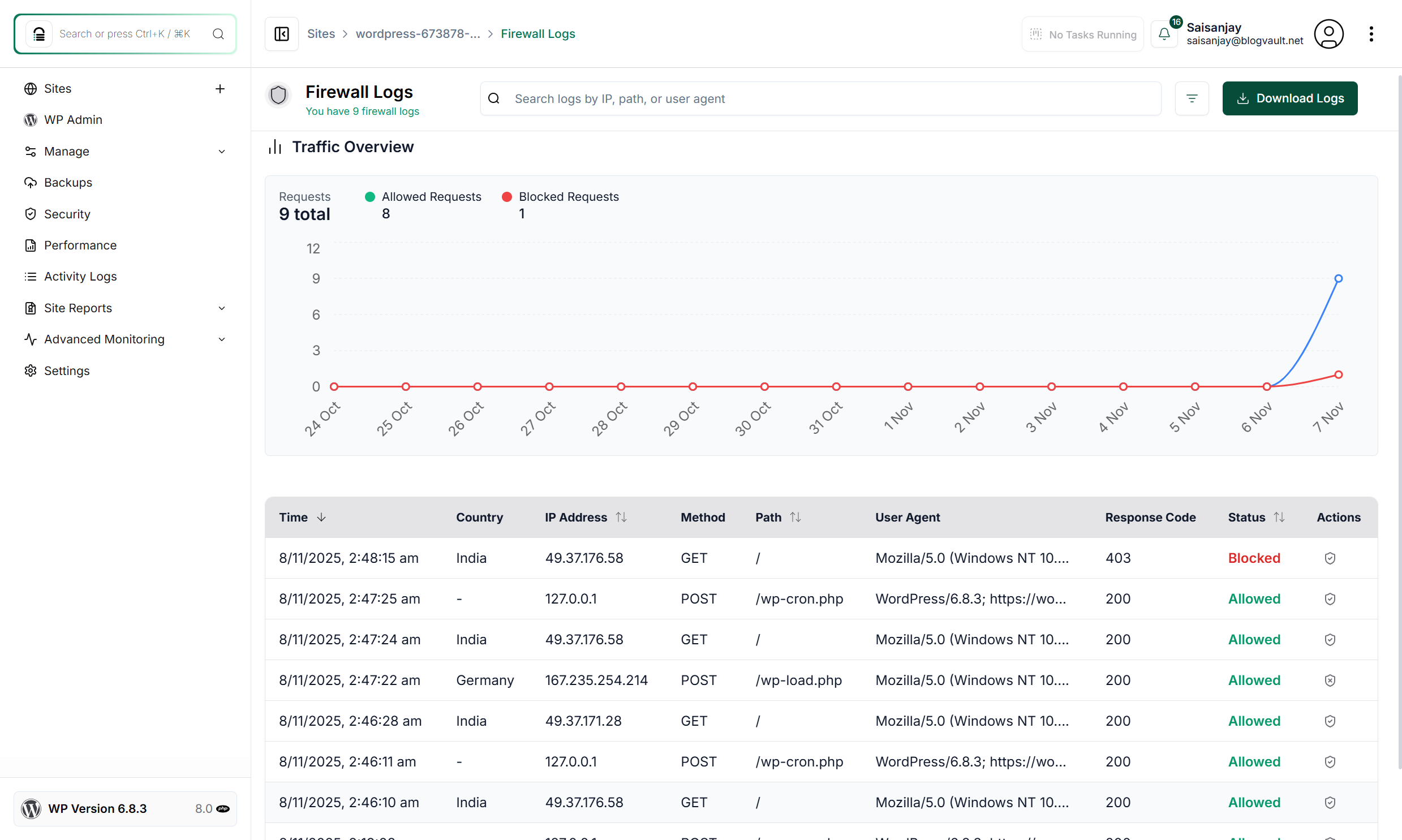
The Firewall Logs page summarizes recent security activity for your site, showing all incoming requests, allowed and blocked traffic, and detailed request metadata.
Note: You can review each log entry to identify patterns or suspicious activity. You can check the 'Blocked Requests' count to ensure attacks are being mitigated effectively. You can download logs for audit or investigation.