How Do I Create a Report Template?
Step 1 of 6
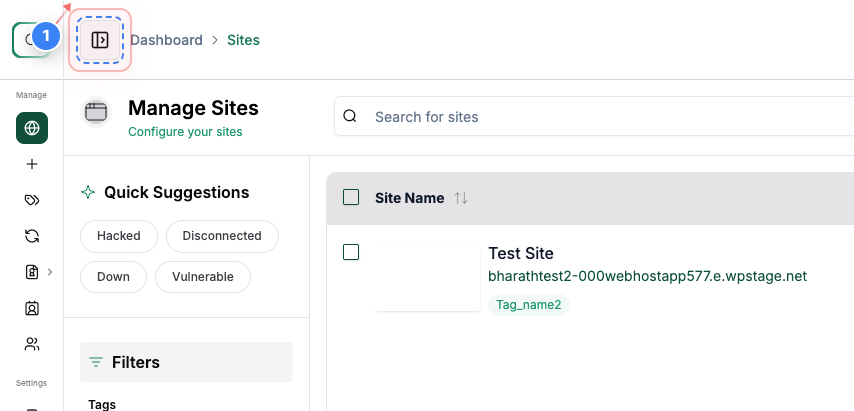
Open Main Navigation Menu
Click on the navigation button in the top-left corner of the page to open the main menu
Note: This button is used to hide or unhide the Naviagation menu
Step 2 of 6
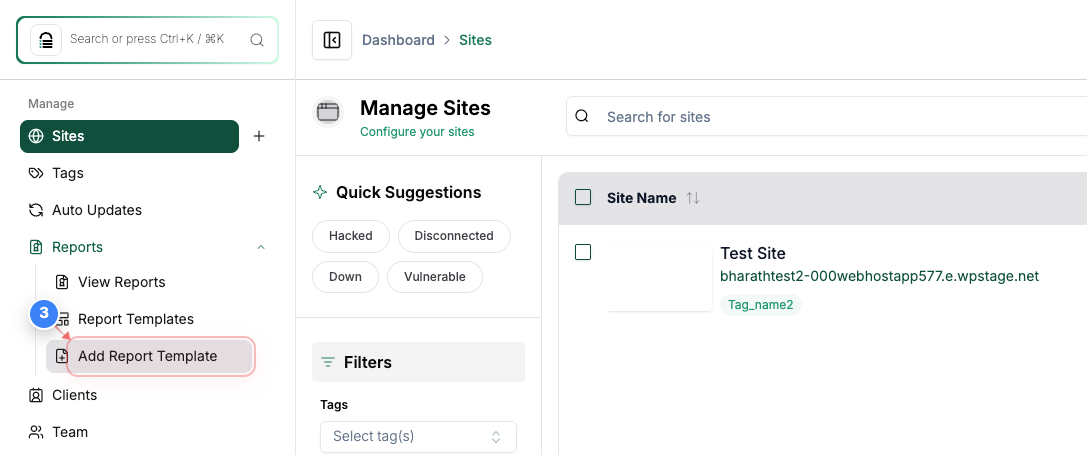
Navigate to the Reports Section
Click on "Reports" in the left sidebar menu and click on "Add Report Template" in the left sidebar to start creating a new template
Note: This opens the template creation interface, where you can customize report sections
Step 3 of 6
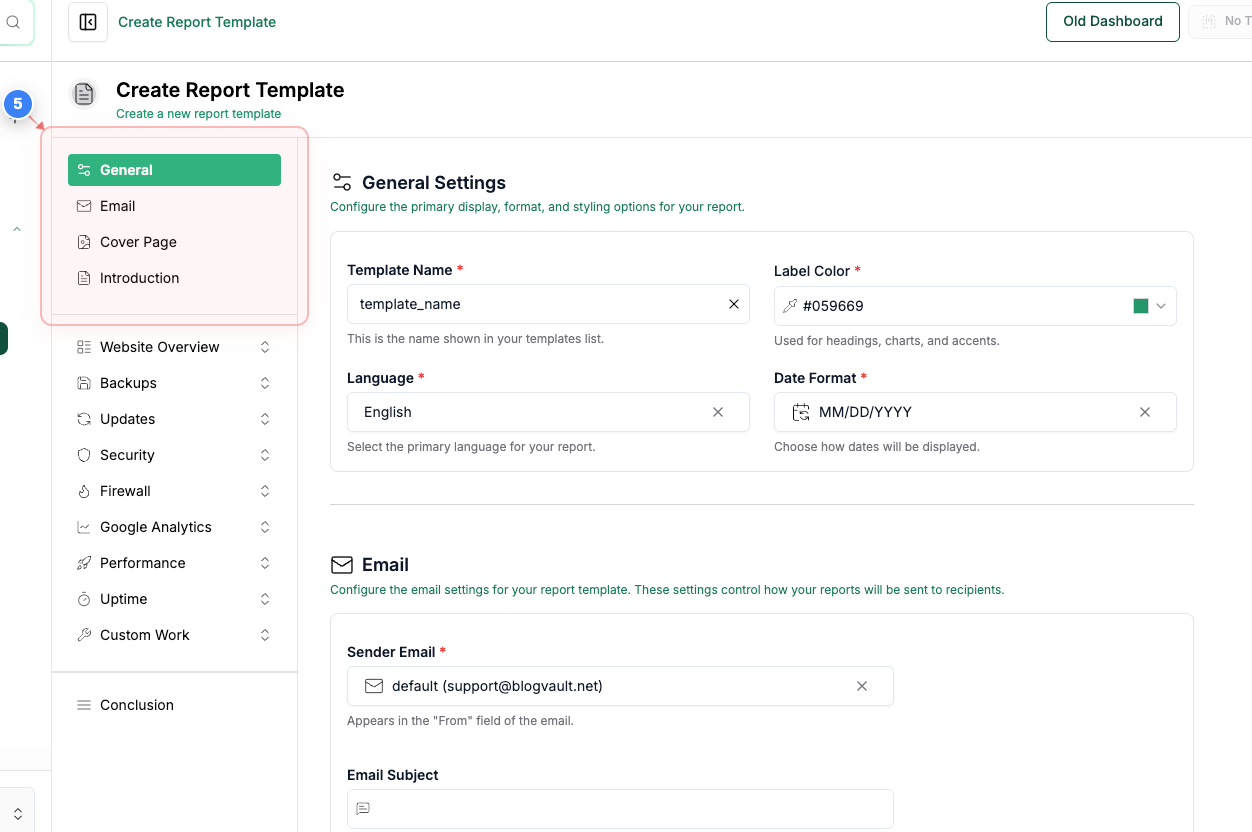
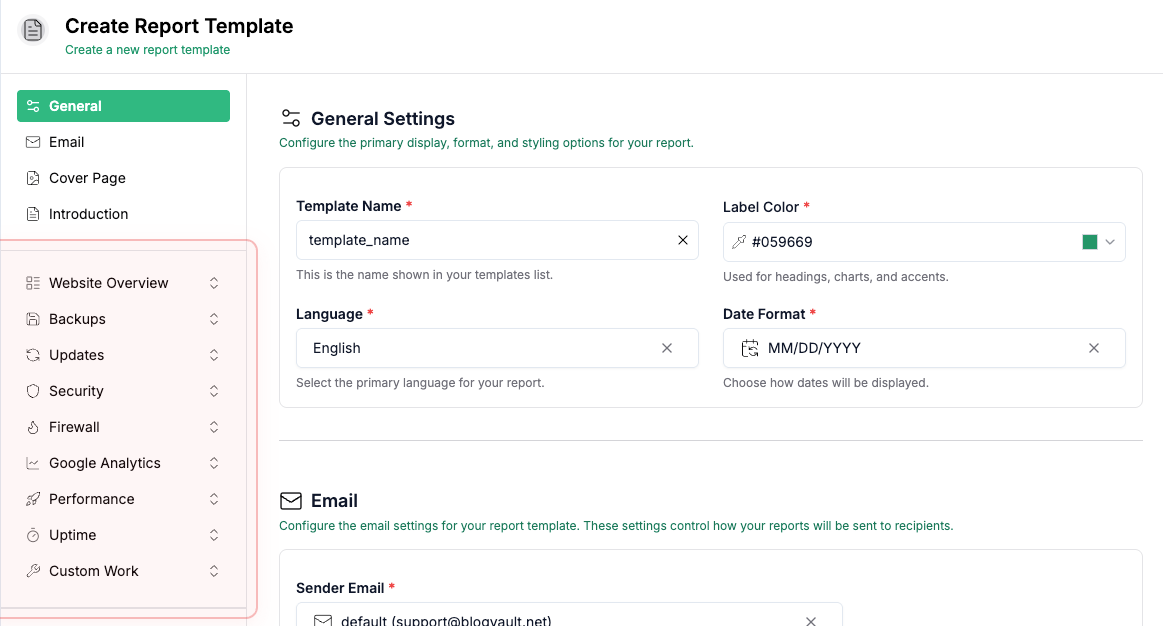
General Section
In the Template section, you can configure the template's General details, Email, Cover page of the report, and Introduction to your Report.
Note: The highlighted General section indicates it's currently selected for configuration
Step 4 of 6
Website Details
In the next section, you can customize the report fields. You have the option to select the data you would like to see in the report, like Overview, Updates, Backup, Security, and more.
Step 5 of 6
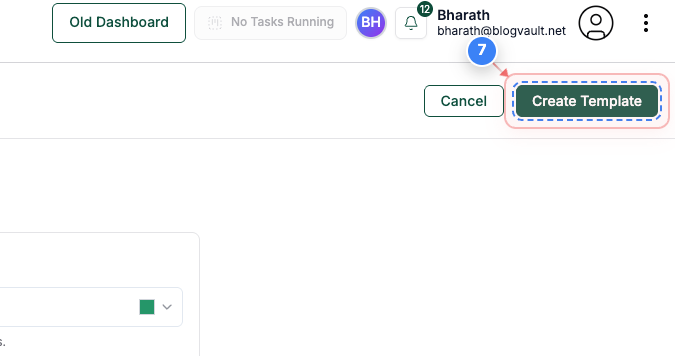
Save Report Template
Click the "Create Template" button in the top-right corner to save your new report template
Note: This completes the template creation process and returns you to the templates management page
Step 6 of 6
Verify Template Creation
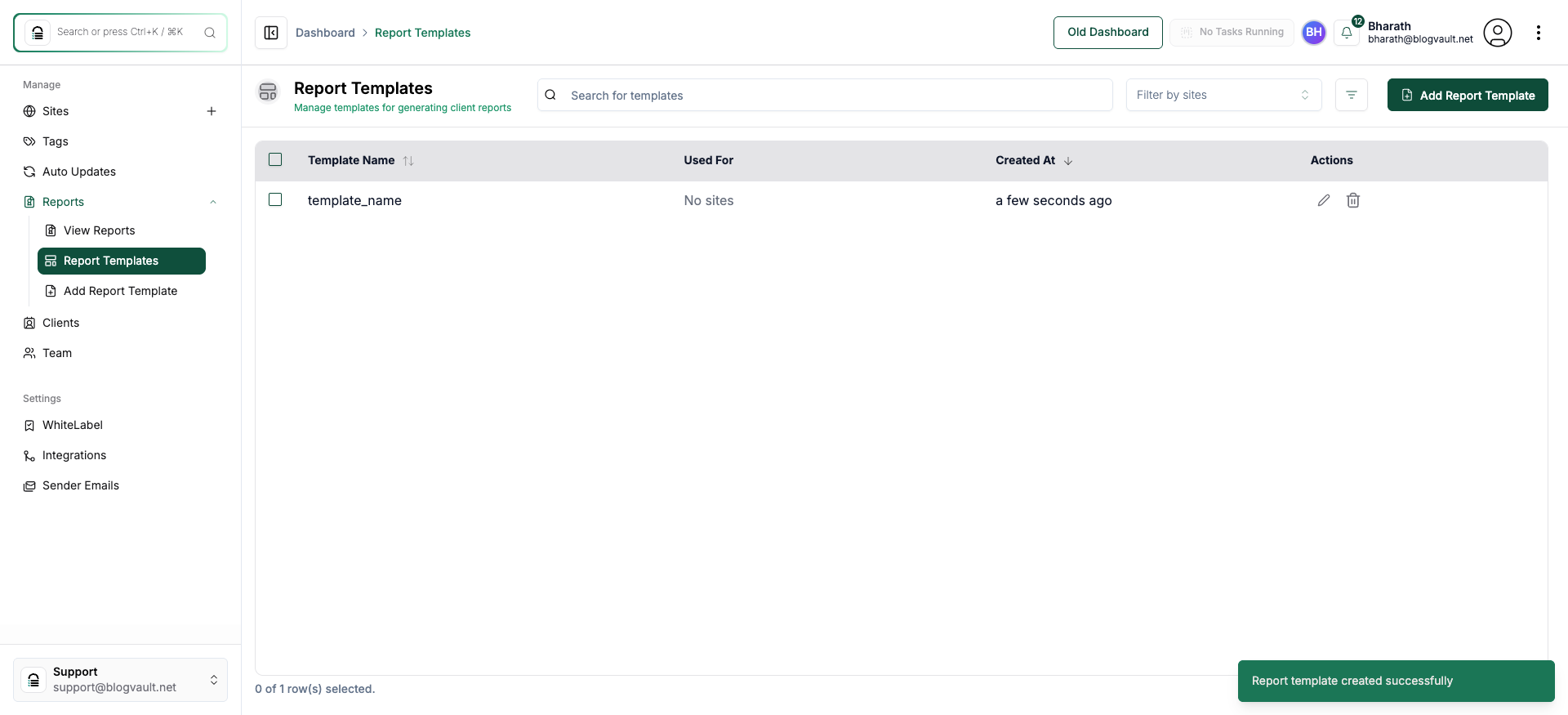
Review the Report Templates page to confirm your new template appears in the list with creation details
Note: Look for the success confirmation message and verify your template name, creation date, and usage status are displayed correctly in the templates table