How Do I Add a New Outbound Email?
Step 1 of 5
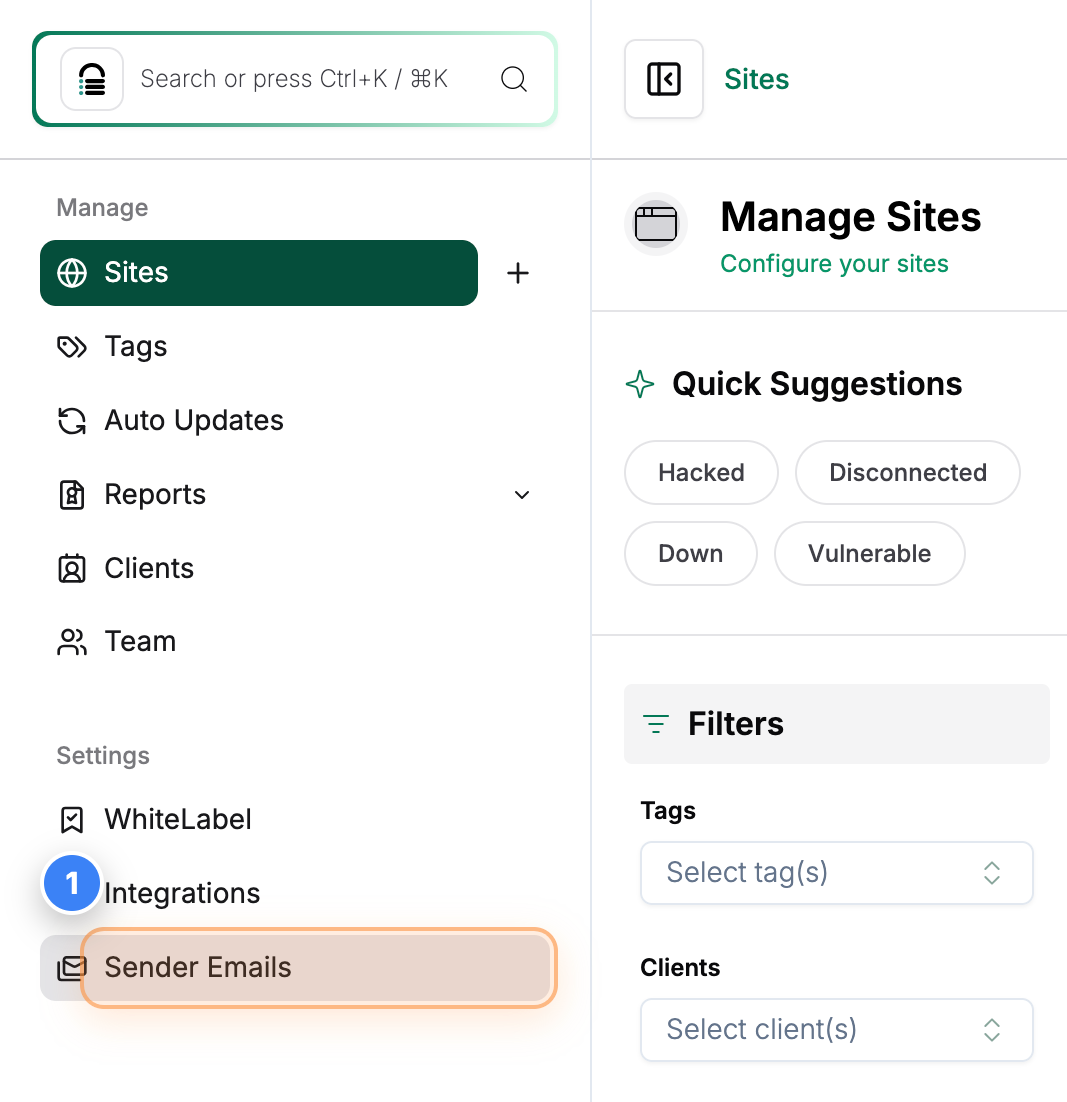
Open Sender Emails
Click the Sender Emails option in the left sidebar to manage the email addresses used for sending notifications.
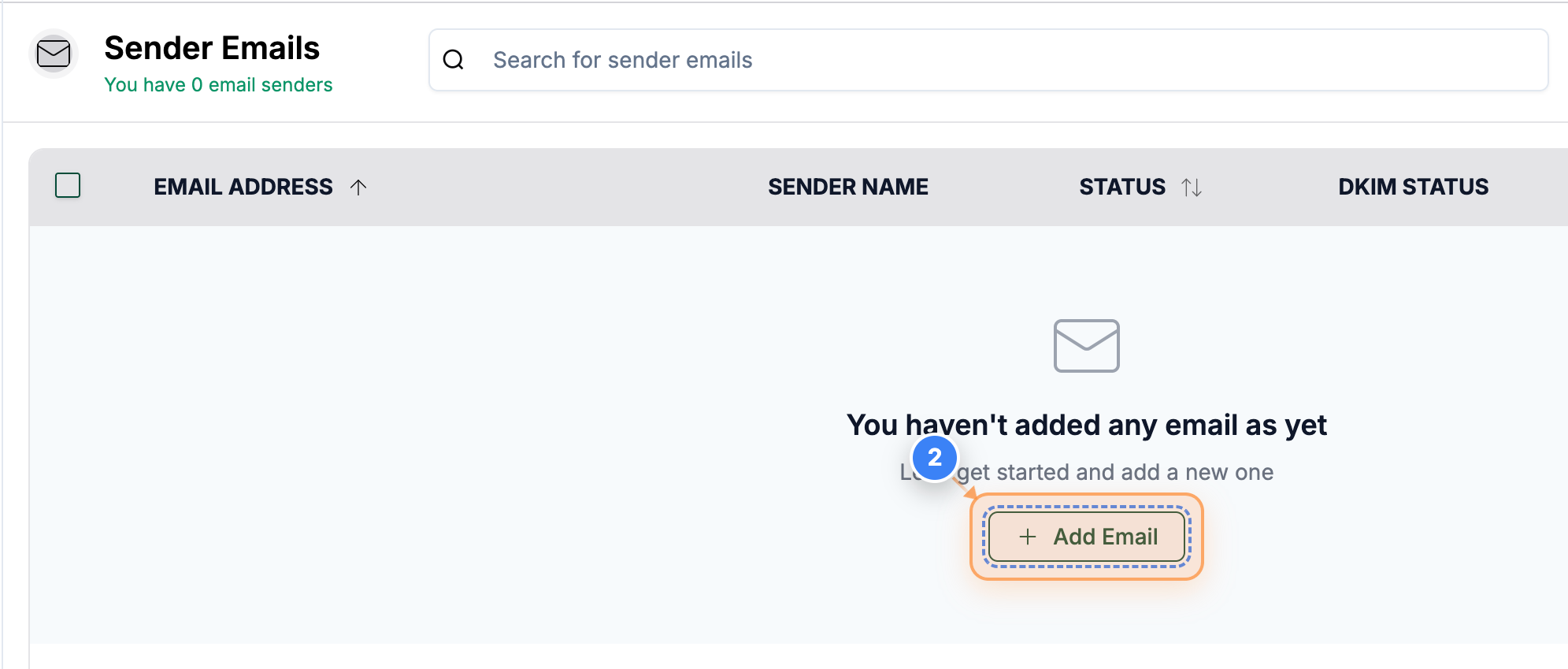
Step 2 of 5
Start Adding Email
Click the Add Email button in the center of the page to begin adding a new sender email.
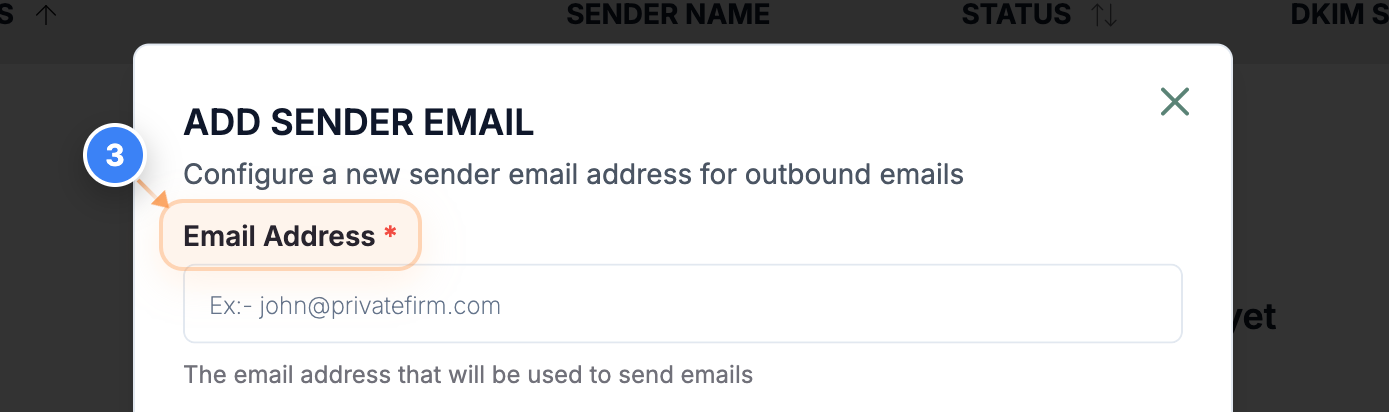
Step 3 of 5
Enter Email Address
Add the Email Address field in the form to type the email you want to use for sending notifications.
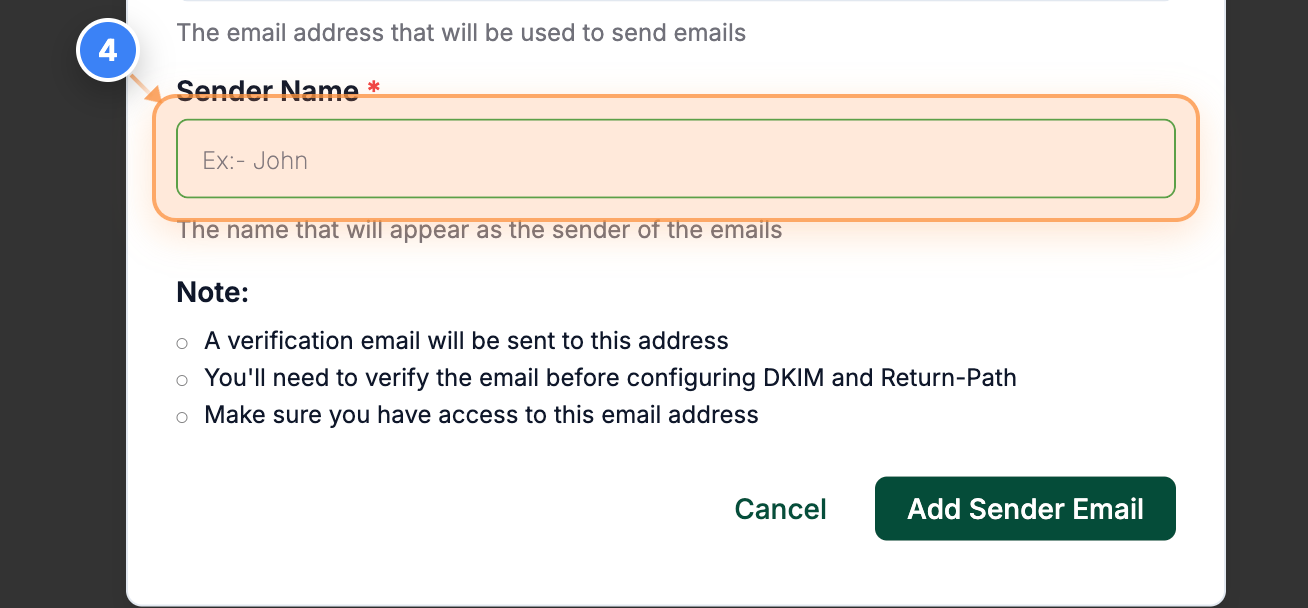
Step 4 of 5
Enter Sender Name
Add the Sender Name field to provide the name that will appear as the sender of your emails.
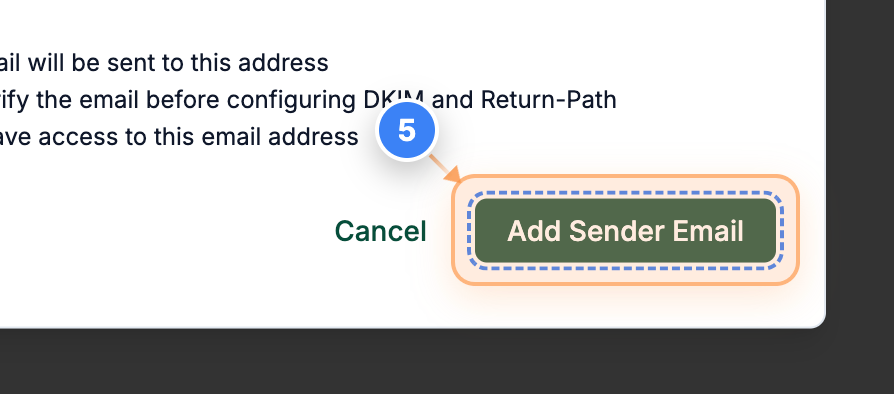
Step 5 of 5
Save Sender Email
Click the Add Sender Email button at the bottom of the form to save your new sender email.
Note: A verification email will be sent to the entered email ID via Postmark. Once you verify the email, you can use it as an Outbound Email.