How Do I Set Up Slack Integration from My Dashboard?
Step 1 of 9
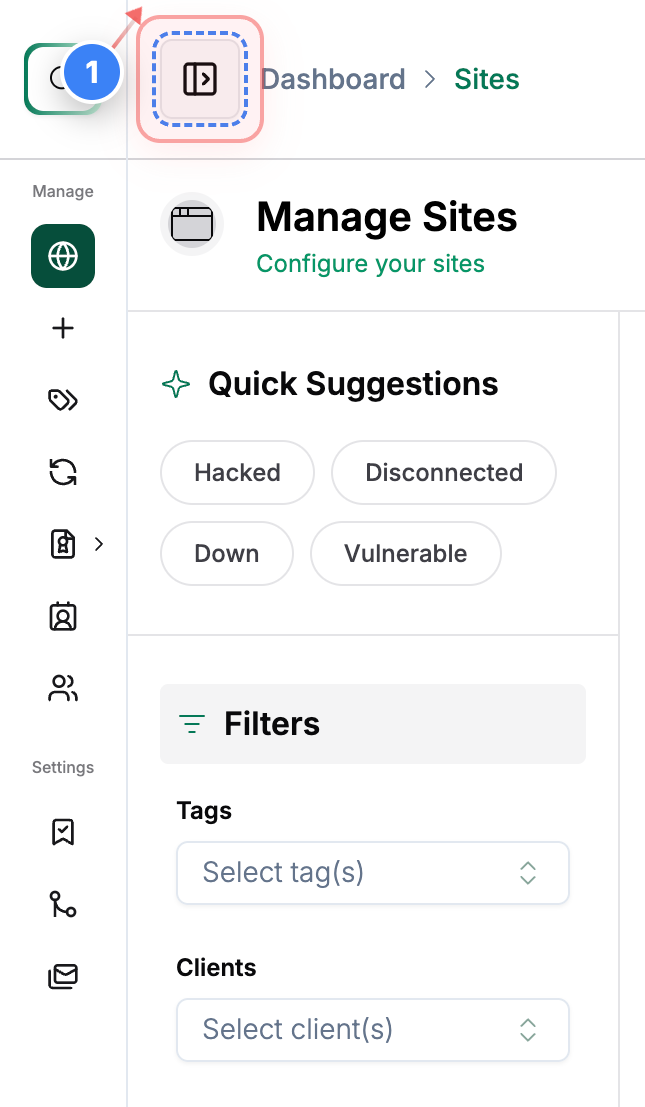
Open the Side Menu
Click on the icon to open the side menu
Note: If you are on your account dashboard, you will see it is already open.
Step 2 of 9
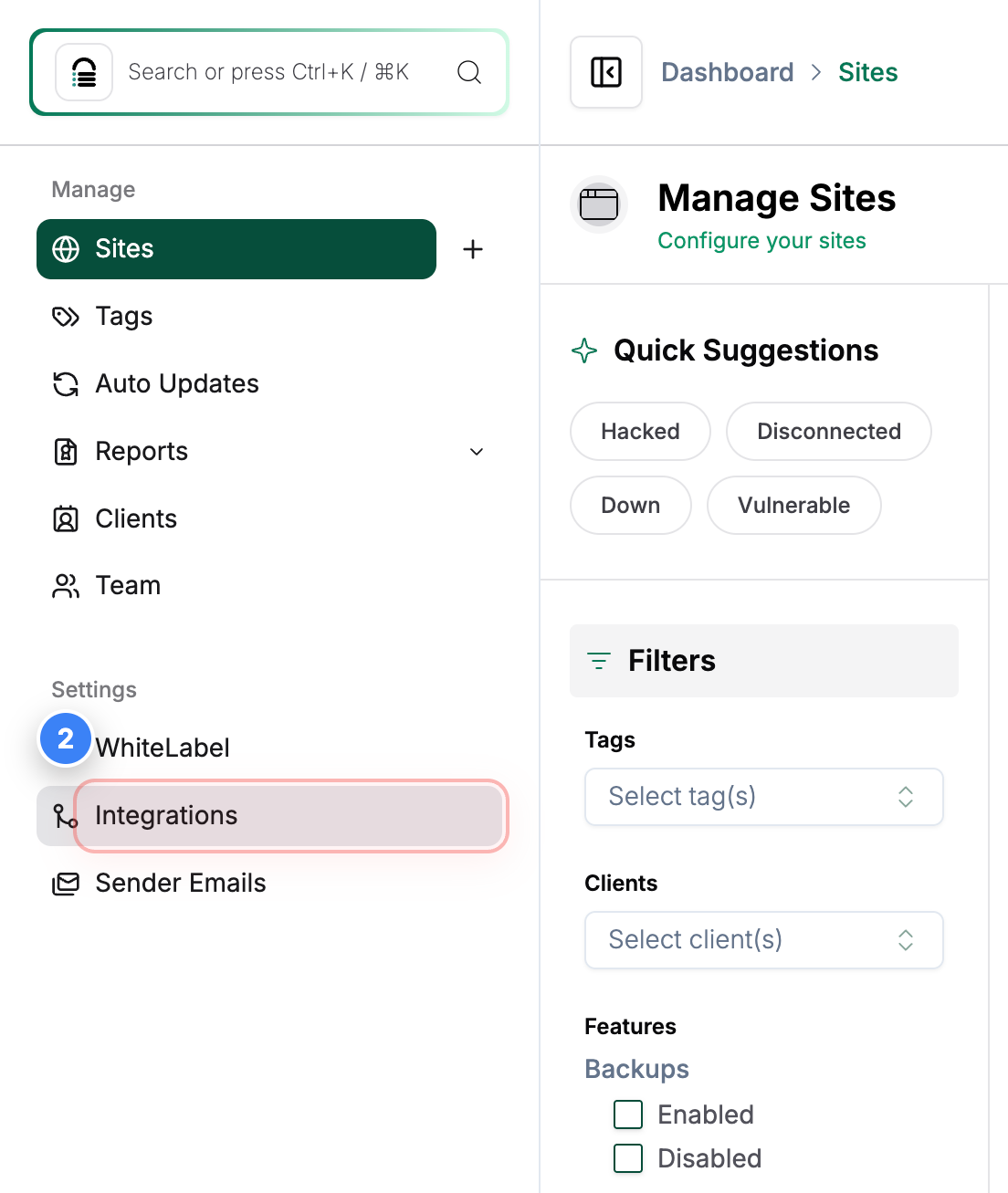
Open Integrations
Click on the Integrations menu as shown below
Note: This section allows you to get settings for the Integrations for your account
Step 3 of 9
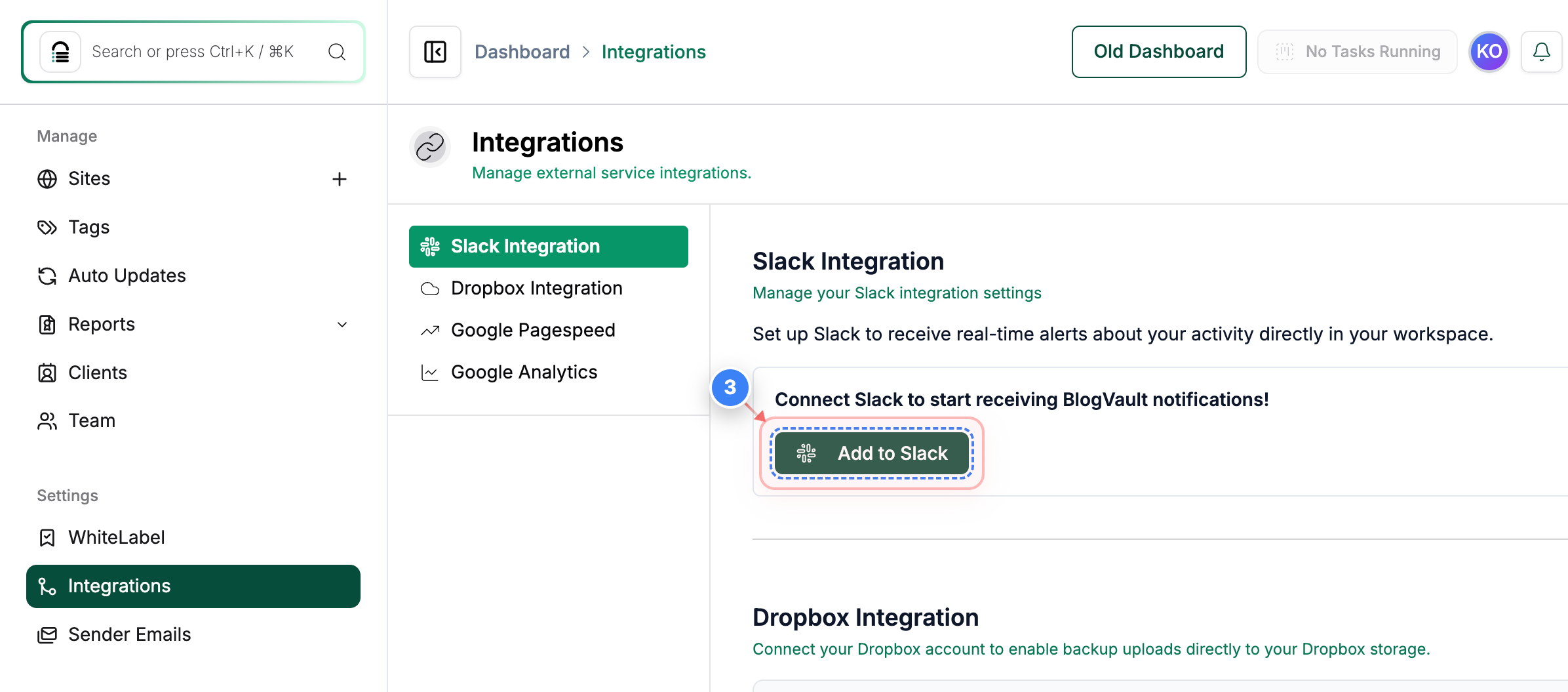
Navigate to Slack Integration
Click on the "Add to Slack" button
Note: You will see this option only if you have not completed the connection previously
Step 4 of 9
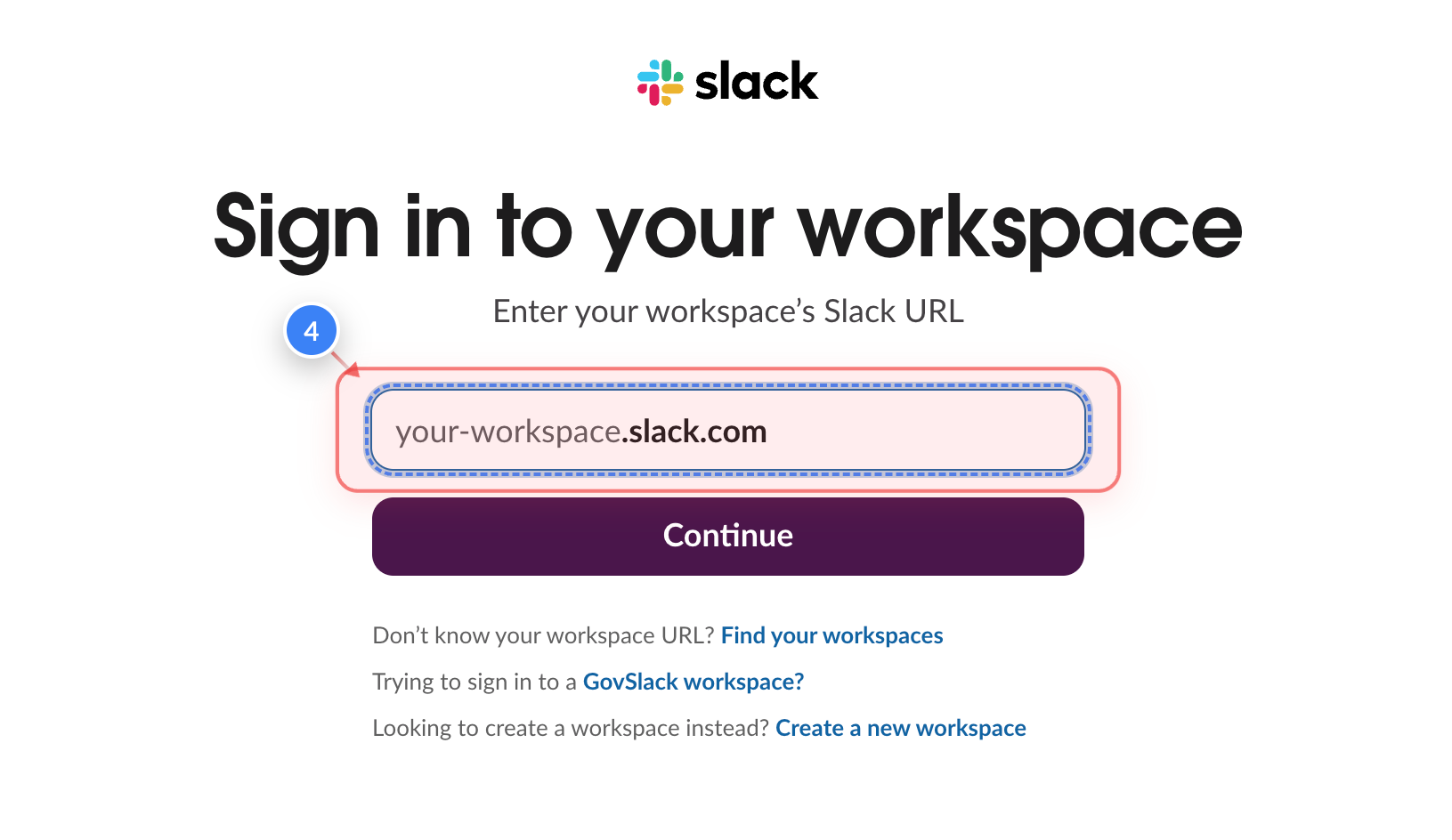
Enter your Slack Workspace
Enter your Slack workspace URL to processed with the setup here
Note: You need to create a Slack account and you will get your workspace URL in your slack account
Step 5 of 9
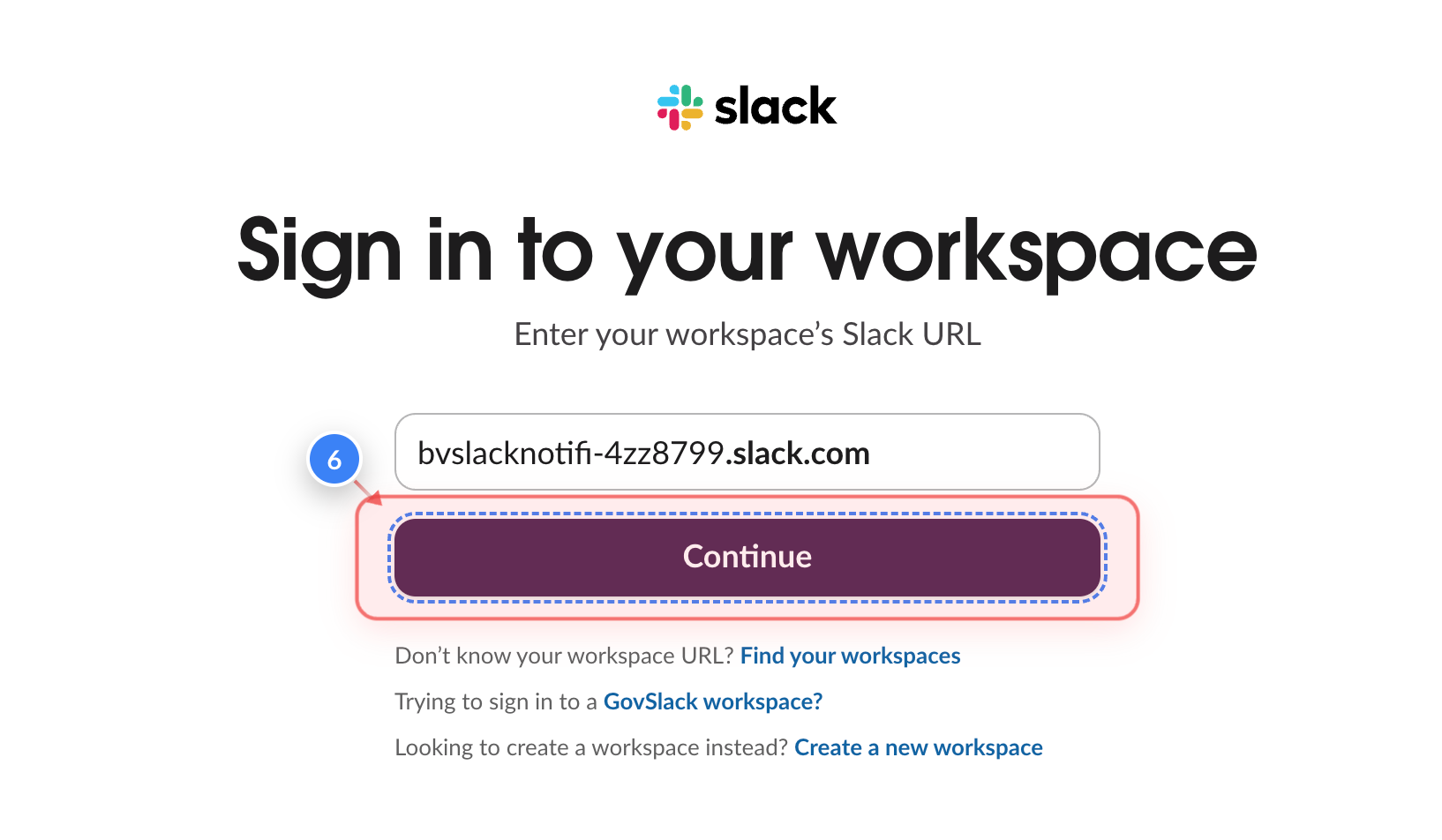
Continue with the setup here
Once you have entered your workspace URL you can click on continue button there
Note: If you don't remember your workspace URL, you will get the option to find it using your account and create a new workspace as well
Step 6 of 9
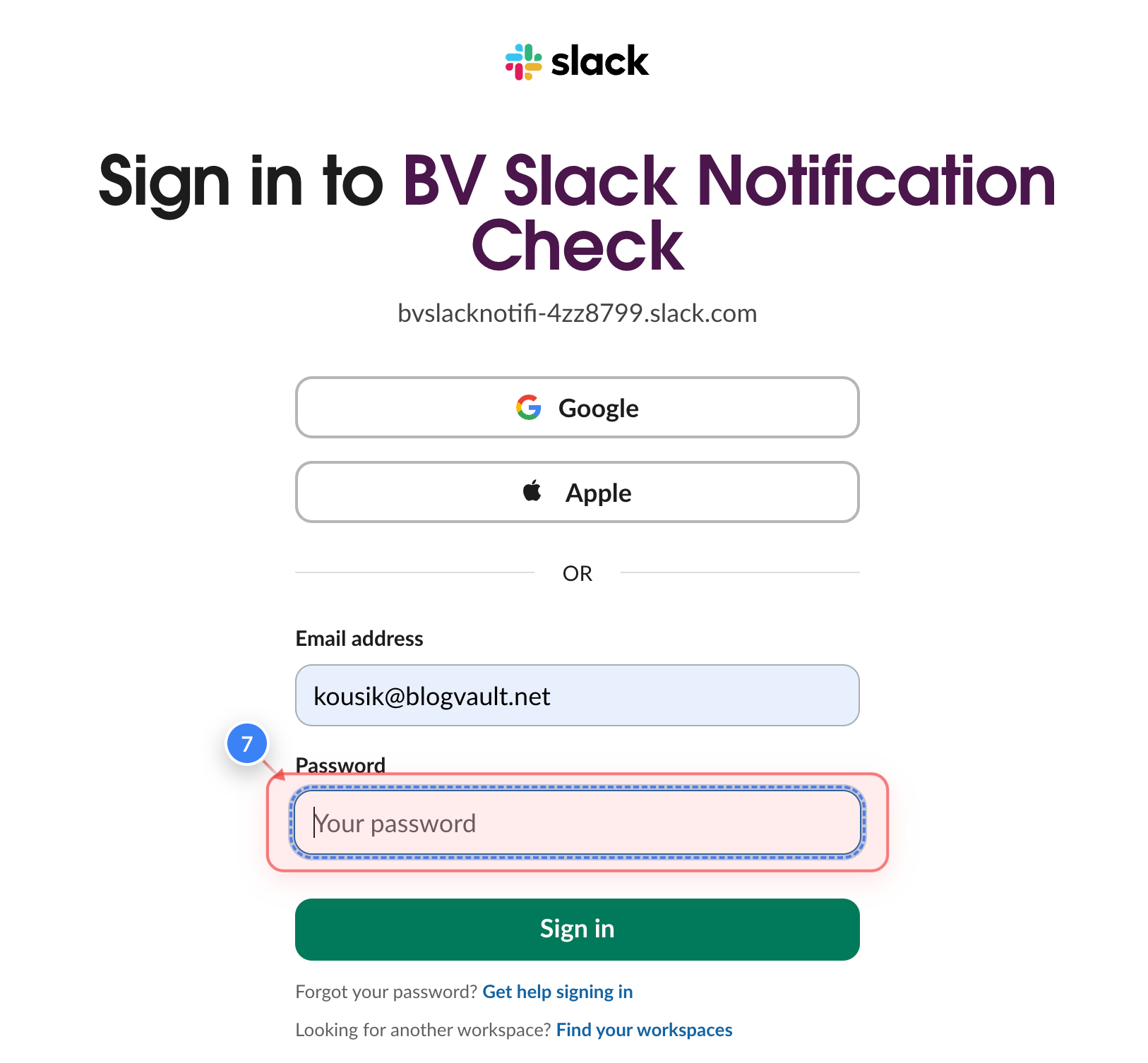
Enter your Slack credentials
You need to enter your email ID & password for your slack account
Note: If you forget the password, you can reset it there
Step 7 of 9
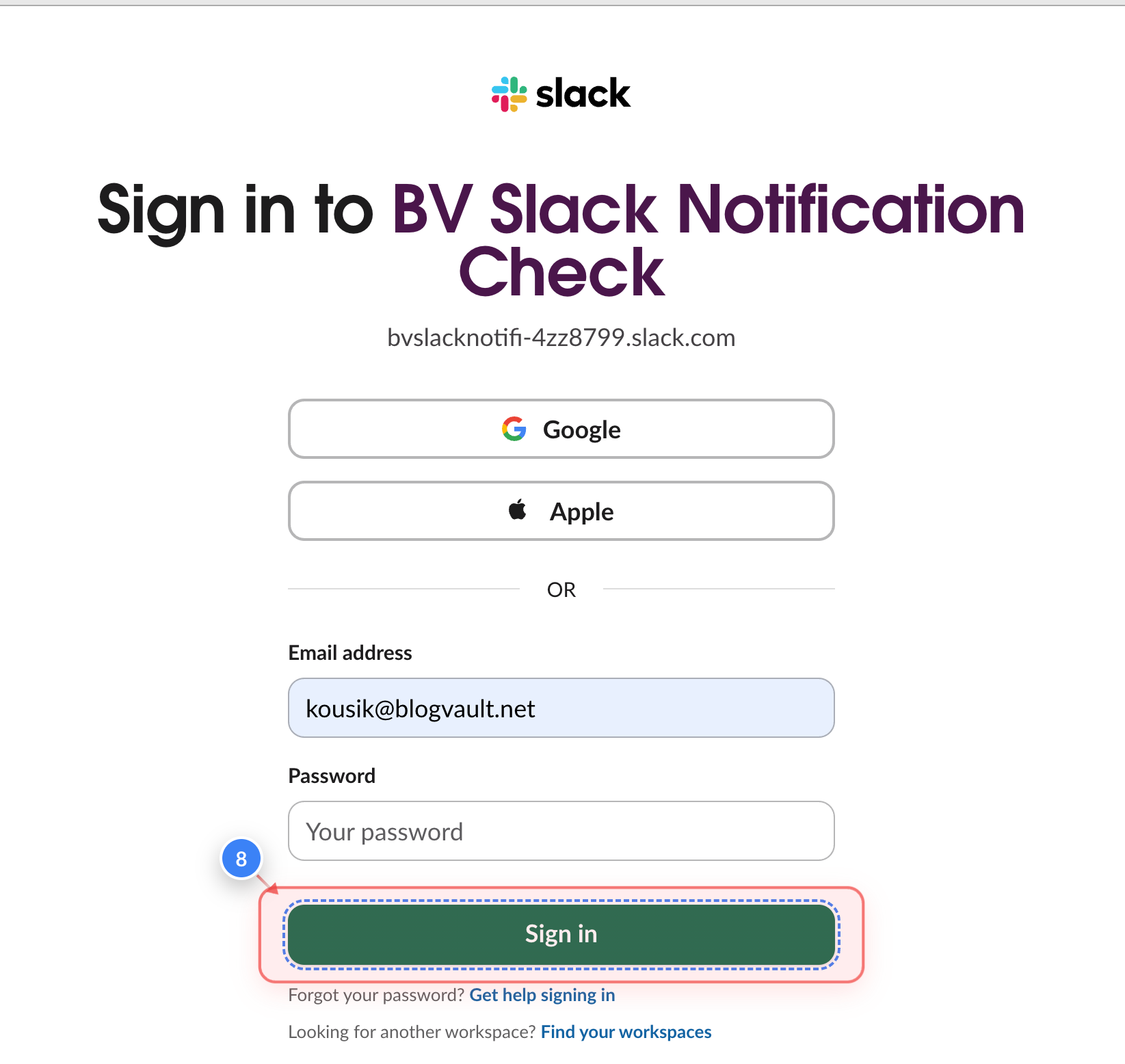
Login to Slack
Once you have entered the Slack account details, click on Sign in to login your slack account
Note: If you are Slack account it created using Google/Apple account, you can login with Google/Apple
Step 8 of 9
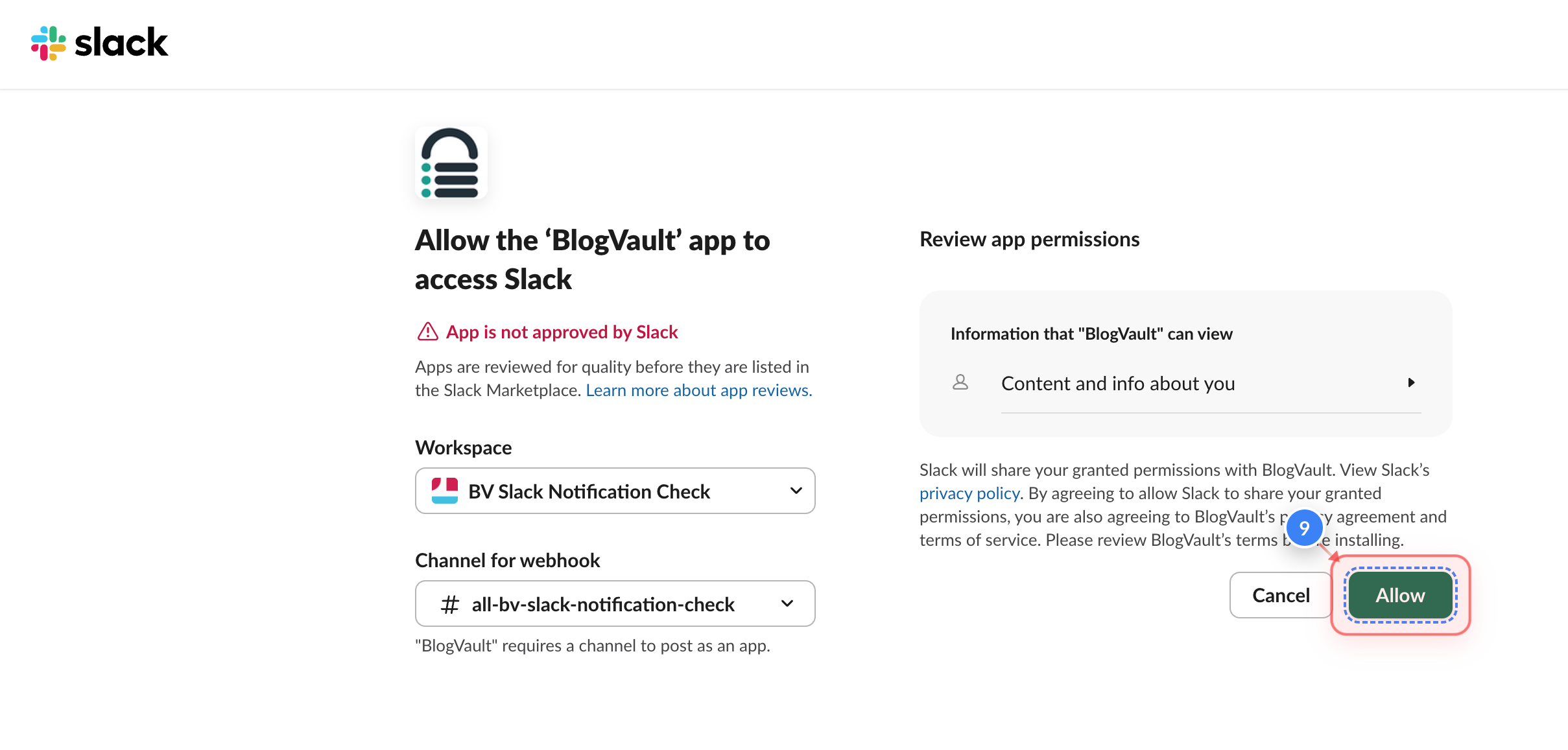
Choose the Slack Channel
Choose your slack channel where you would like to receive the notification and click on the "Allow" button in the middle area (located center of the page)
Step 9 of 9
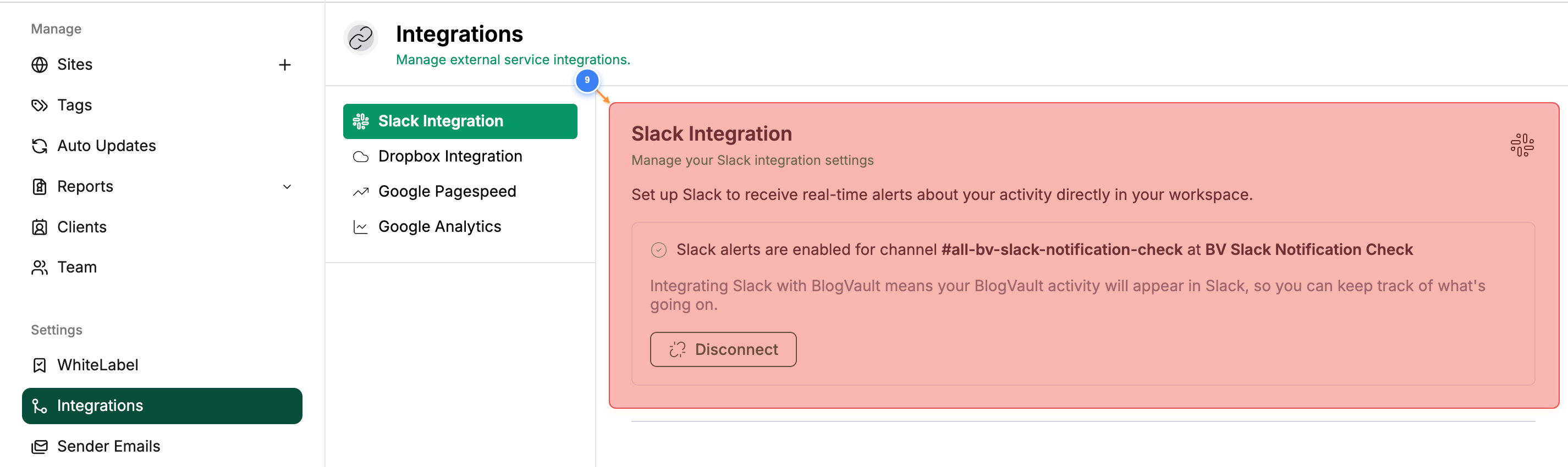
Ready to receive the Slack notification
Now you will see channel where you will recive the slack notification