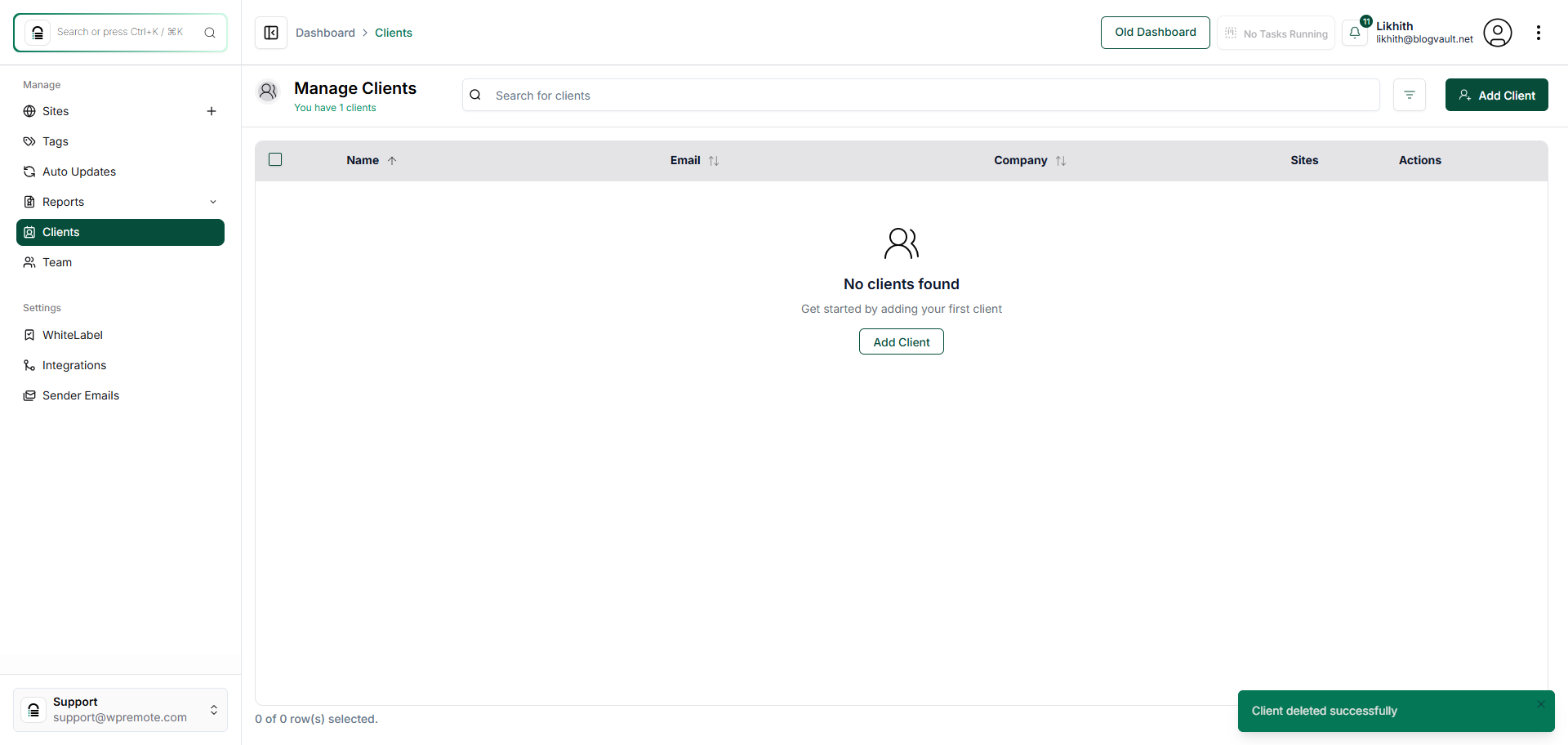
How Do I Delete Clients from the Dashboard?
Step 1 of 4
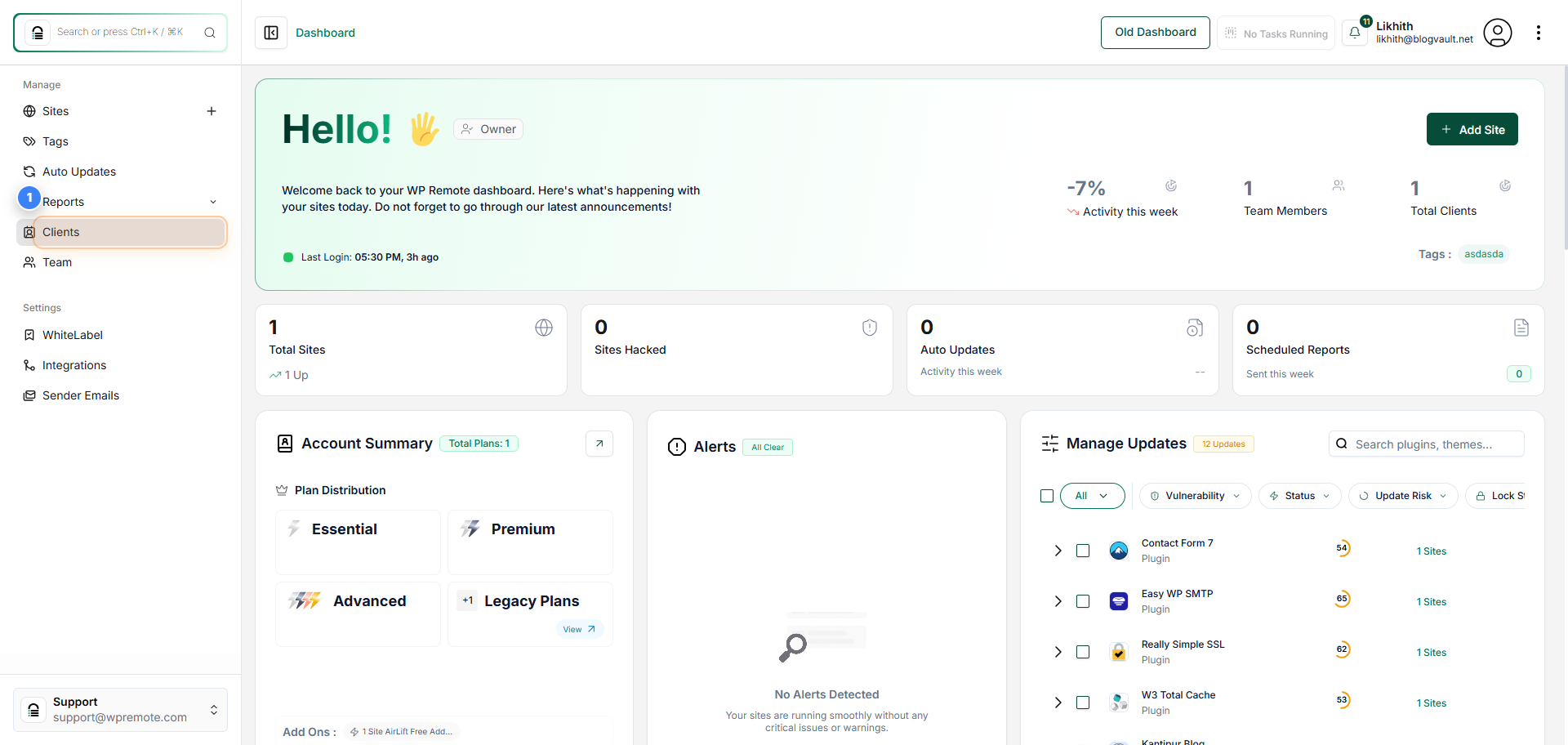
Access the Clients Section
Click on 'Clients' in the left sidebar to open the Clients section and view all existing client records.
Note: This section allows you to manage client details, add new clients, or update existing ones.
Step 2 of 4
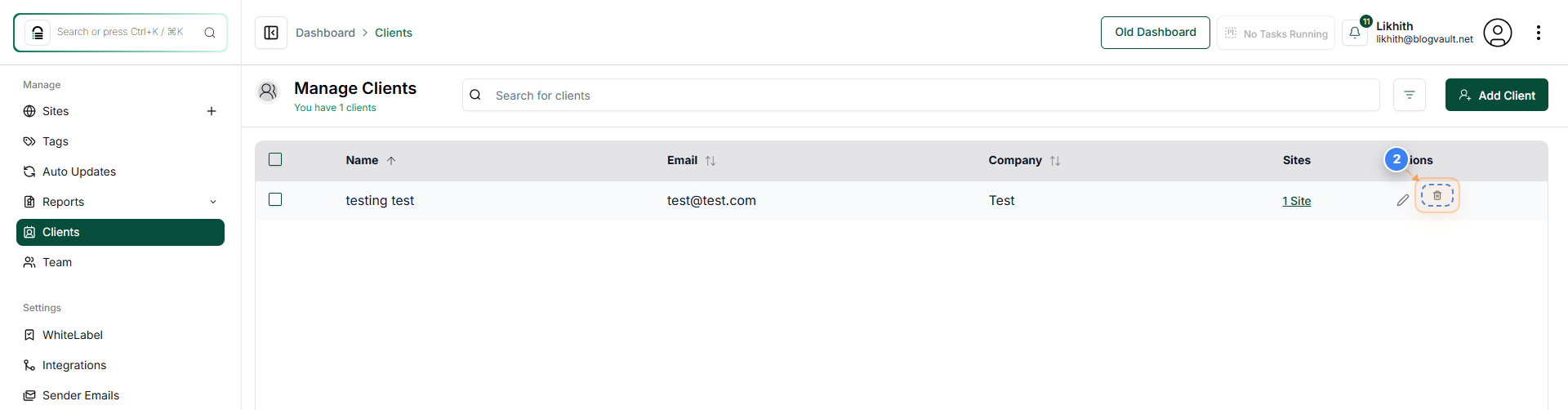
Open Client Management Options
Click the delete icon button to delete the client.
Note: You can also modify client information, view associated sites, or remove a client from here.
Step 3 of 4
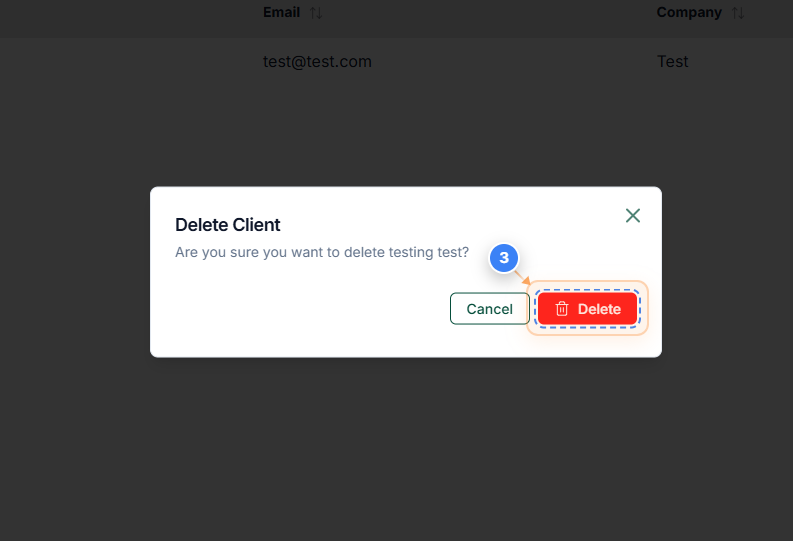
Delete a Client Record
Click the delete confirmation button in the center dialog box to permanently remove the selected client.
Note: Ensure that you no longer need this client's data before confirming deletion, as this action cannot be undone.
Step 4 of 4
Verify Client Deletion
After deletion, review the Clients page to confirm the client record has been removed. You should see a success message saying 'Client deleted successfully' at the top of the page.
Note: If the deleted client still appears, refresh the page or check your internet connection. You can also re-add clients later if needed.