
How Do I Change My Current Billing Address?
Step 1 of 3
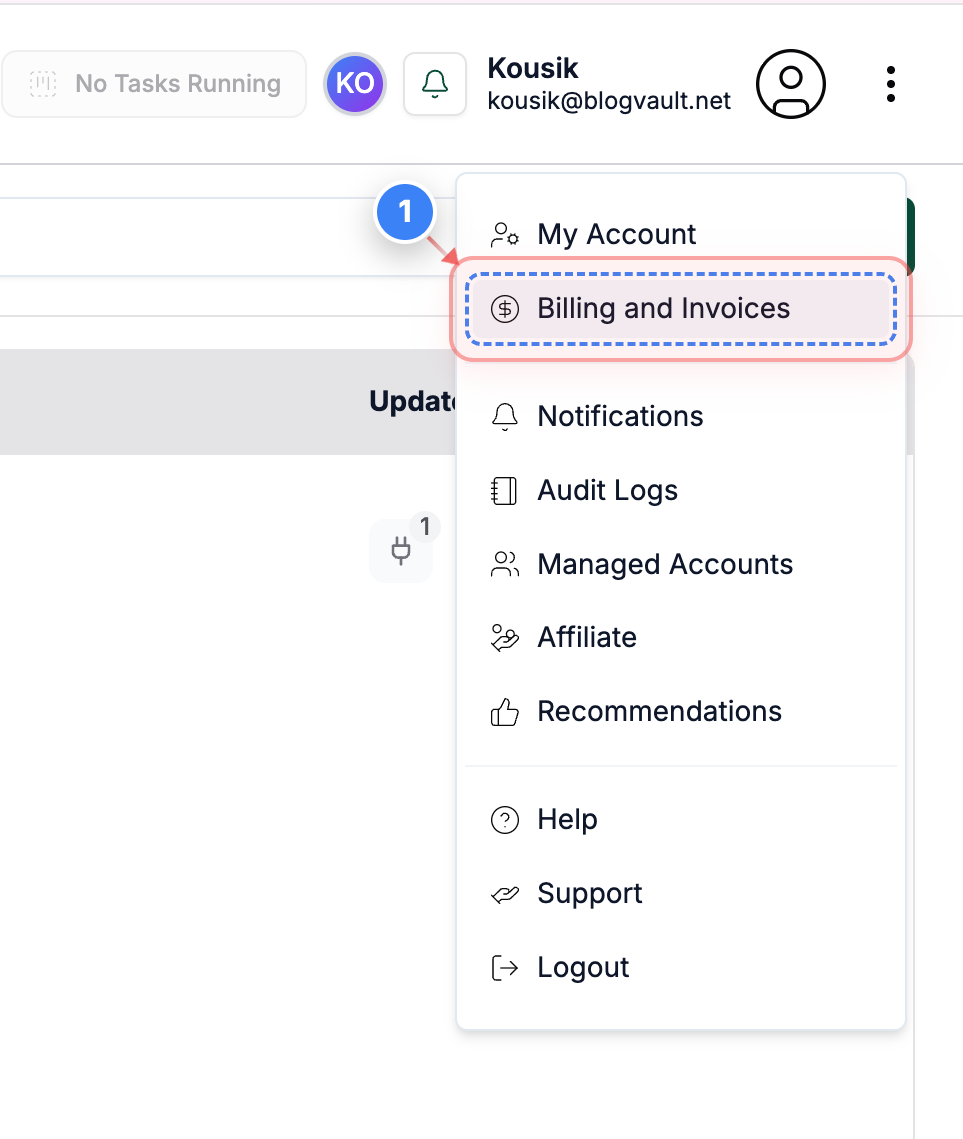
Open Billing and Invoices
Click on the "Billing and Invoices" link in the top navigation to access your billing settings and invoice history.
Note: This section helps you manage payment details and view past invoices.
Step 2 of 3
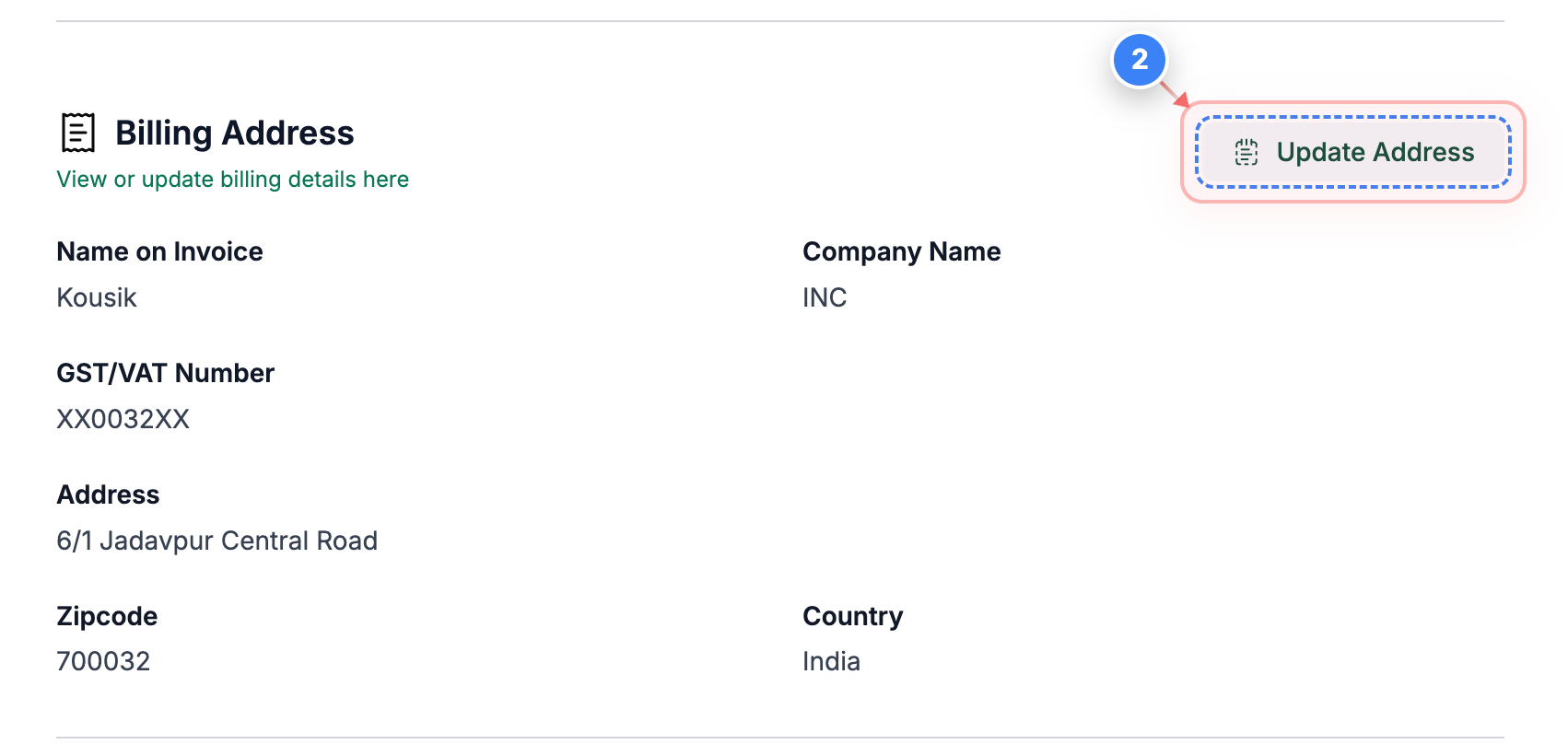
Go to the Billing Address
Click on the "Update Address" option in the Billing Address section to view or edit your current billing details.
Note: Use this page to update name, address, and other billing-related information.
Step 3 of 3
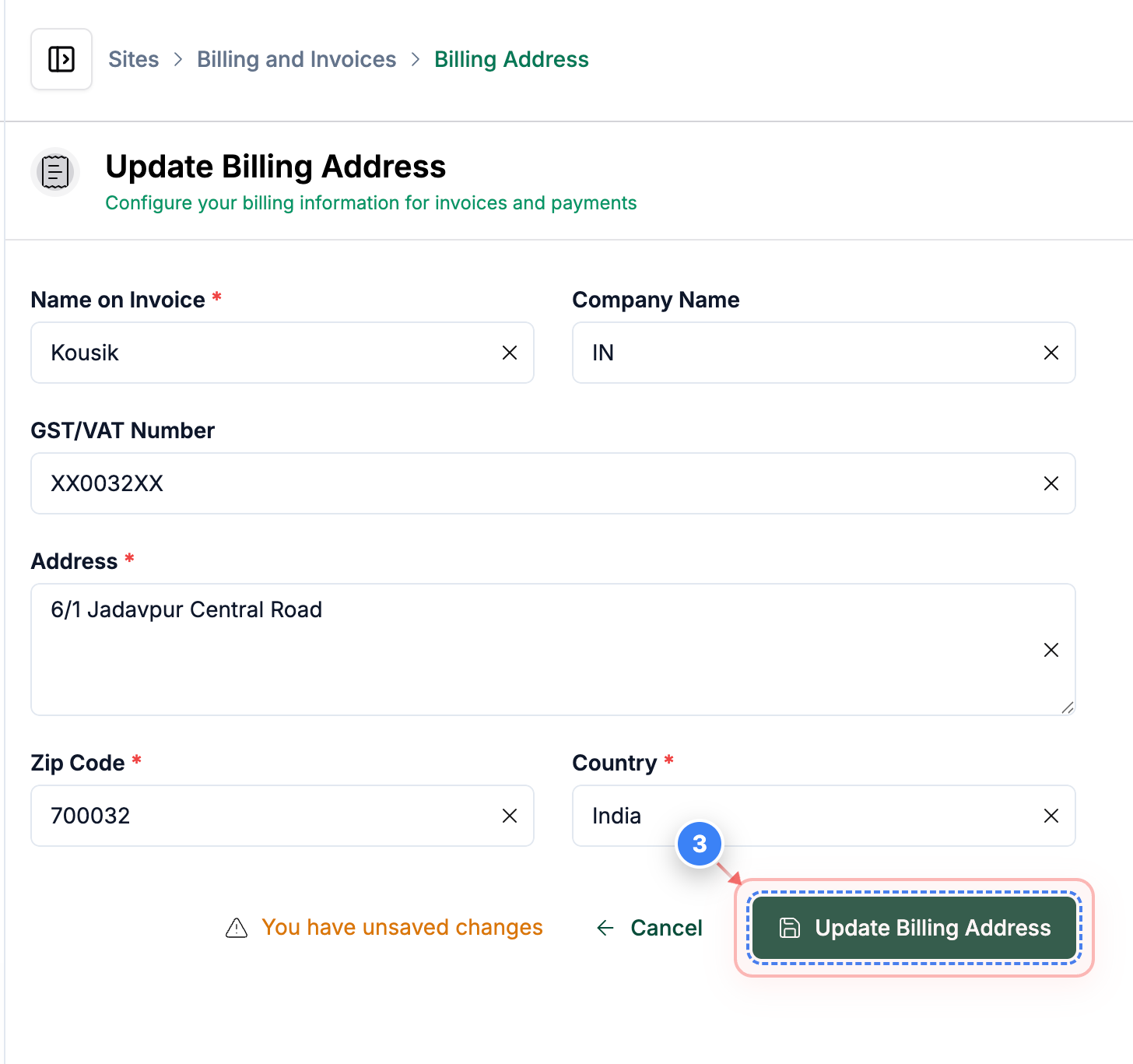
Save Updated Billing Information
Click the button at the bottom of the page to save your updated billing address and apply any changes.
Note: If you leave without saving, any changes made will be lost.
P.S: Once you have updated the billing address for your account, it will be automatically reflected in the invoices on your account. Now you can download the invoices with the updated details.