How Do I Selectively Restore Certain Files and Tables?
Step 1 of 9
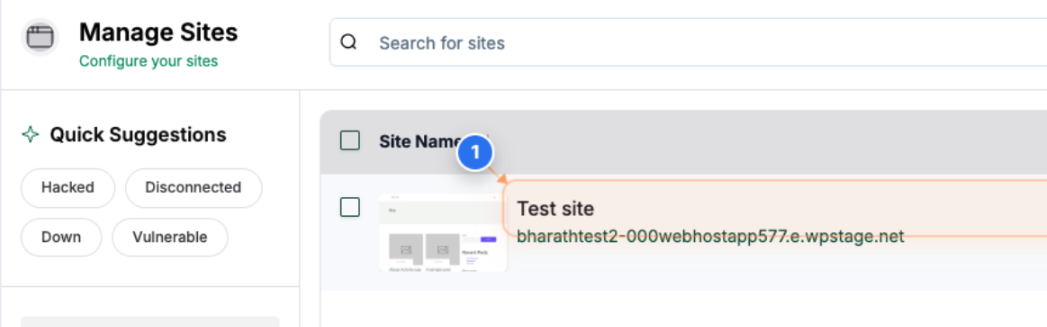
Select Your Site
Click on your site name in the center of the dashboard to access site management options
Note: Your site will be listed with its domain name and the site title
Step 2 of 9
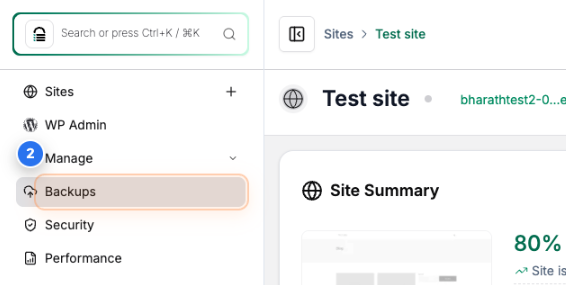
Open the Backup page
Click on the Backups option in the left sidebar to open your site's backup management dashboard
Note: This section contains all your backup history and restore options
Step 3 of 9
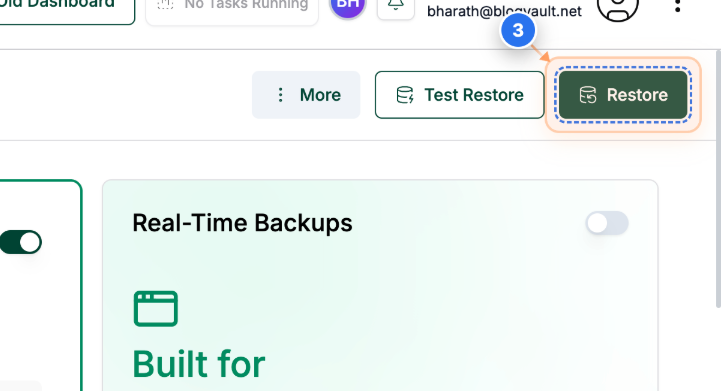
Initiate Restore
Click the Restore button in the top-right corner to access restore options
Step 4 of 9
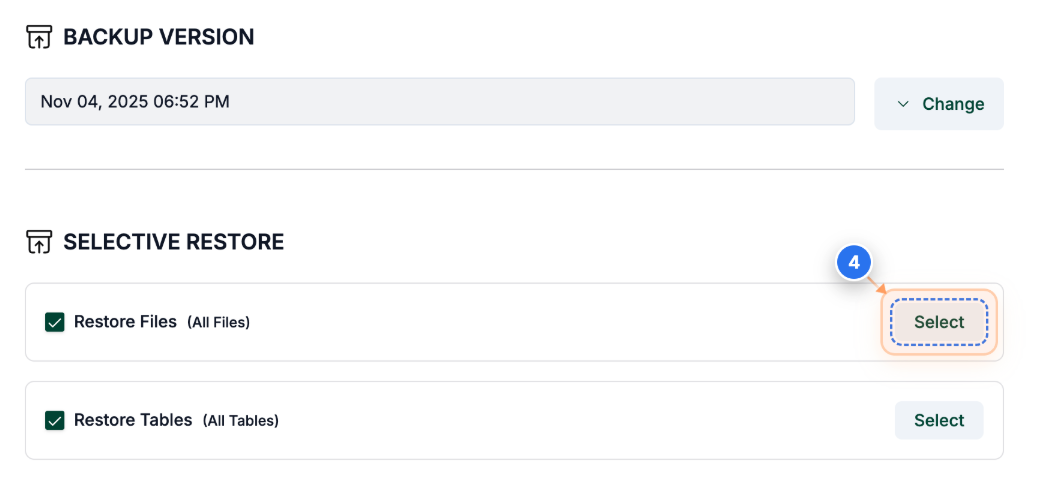
Start File Selection
Click the Select button next to 'Restore Files' in the configuration section to choose which files to restore
Note: You can restore all files or select specific ones depending on your needs
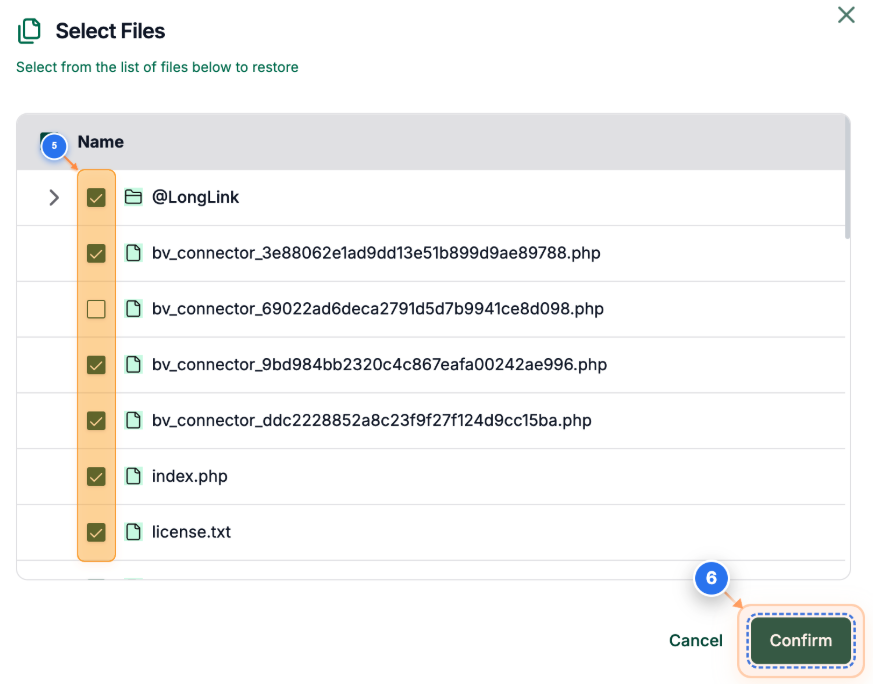
Select or deselect the checkboxes next to the specific files you want to restore. Click the Confirm button at the bottom of the file selection dialog to save your choices
Step 5 of 9
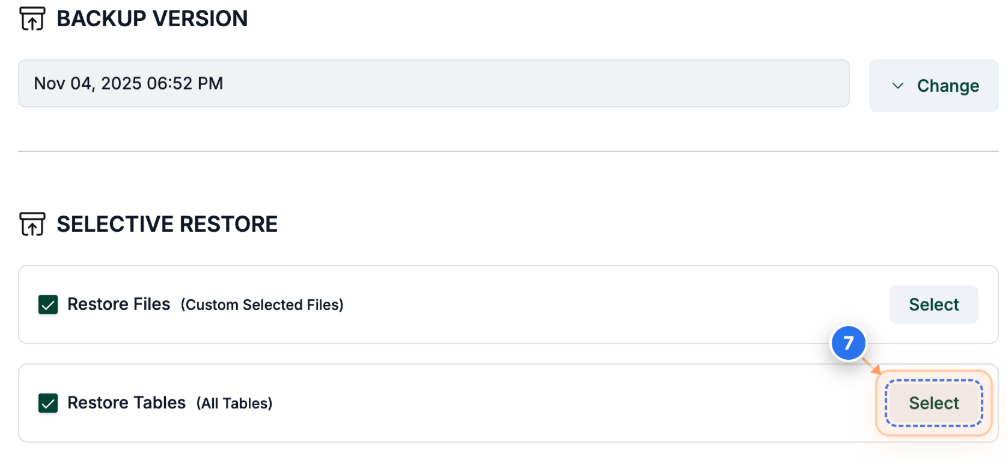
Start Database Selection
Click the Select button next to 'Restore Tables' to choose which database tables to include in the restore
Note: Database tables contain your site's content, settings, and user data
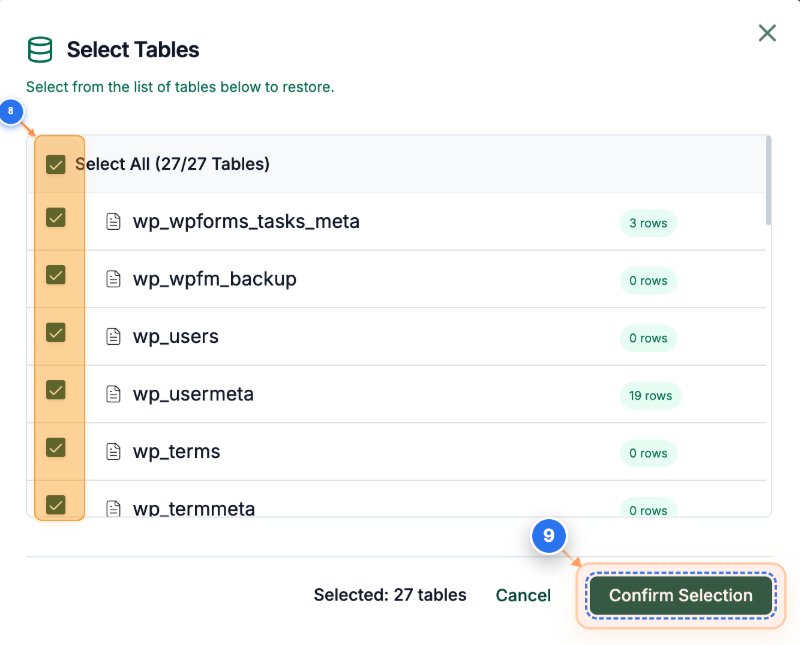
Select the checkboxes next to the database tables you wish to restore from the table list. Click the Confirm Selection button at the bottom of the table selection dialog to finalize your database choices
Note: Ensure you've selected all necessary tables for your site to function properly
Step 6 of 9
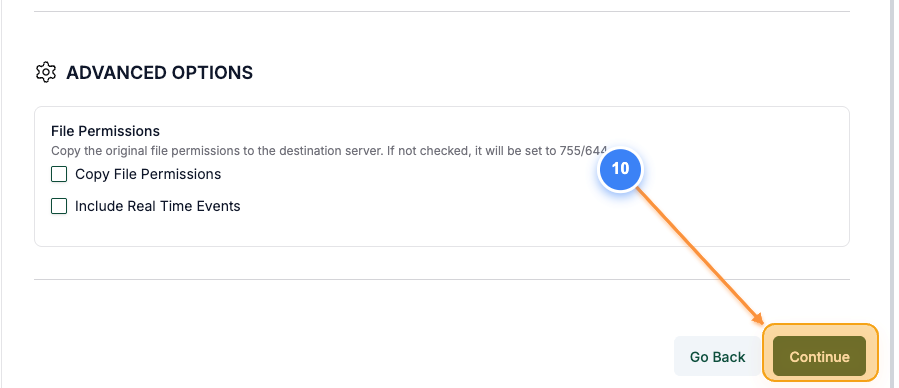
Proceed to Summary
Click the Continue button in the bottom-right corner to review your restore configuration before starting
Note: This takes you to the final summary screen where you can review all selections
Step 7 of 9
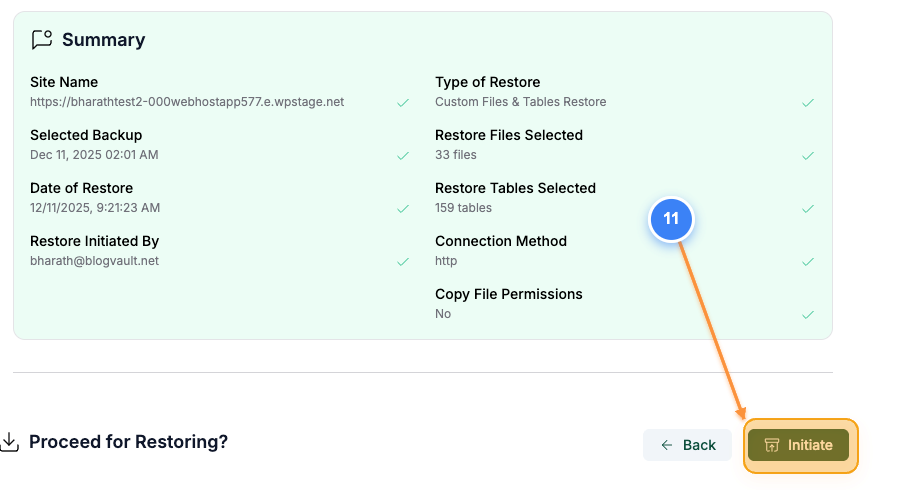
Start Restore Process
Click the Initiate button on the summary page to begin the restore process with your selected configuration
Note: This action cannot be interrupted once started and will overwrite existing files and tables
Step 8 of 9
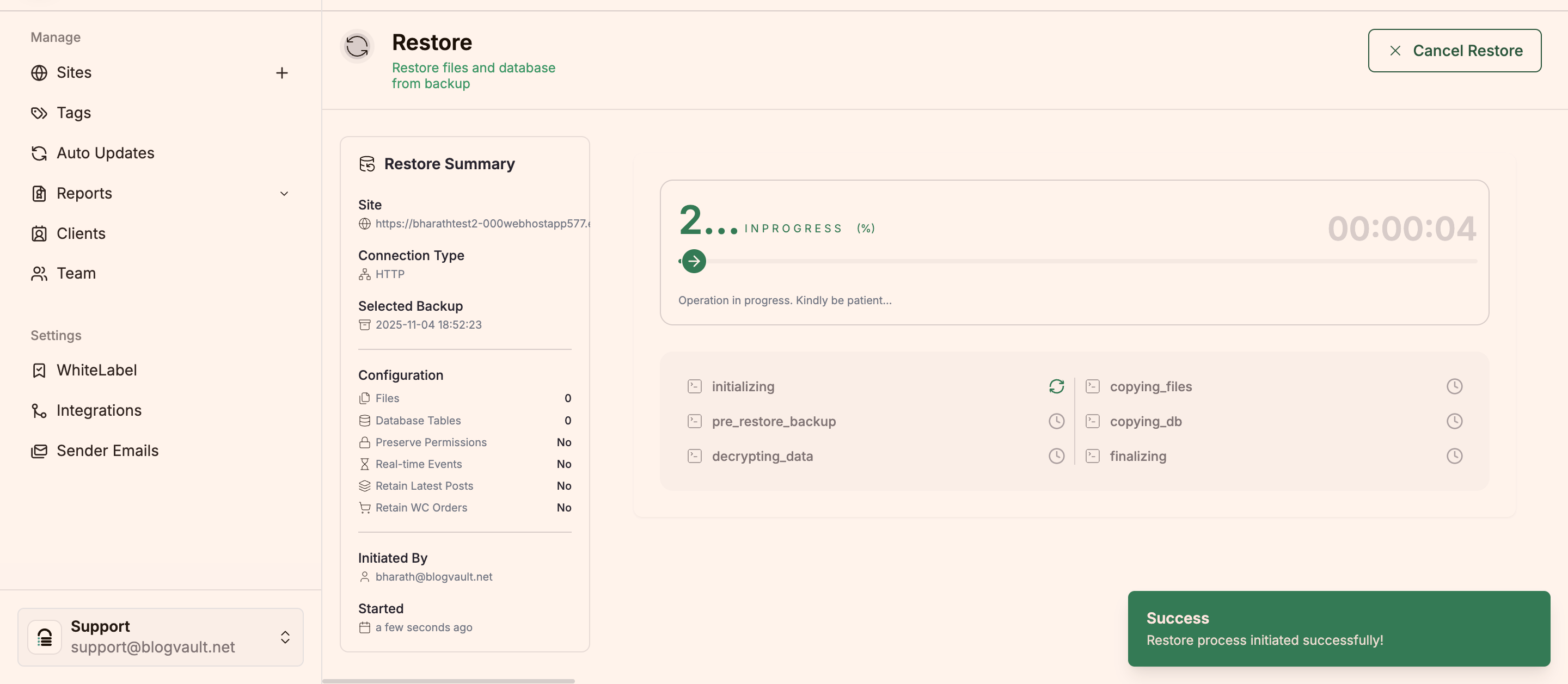
Monitor Restore Progress
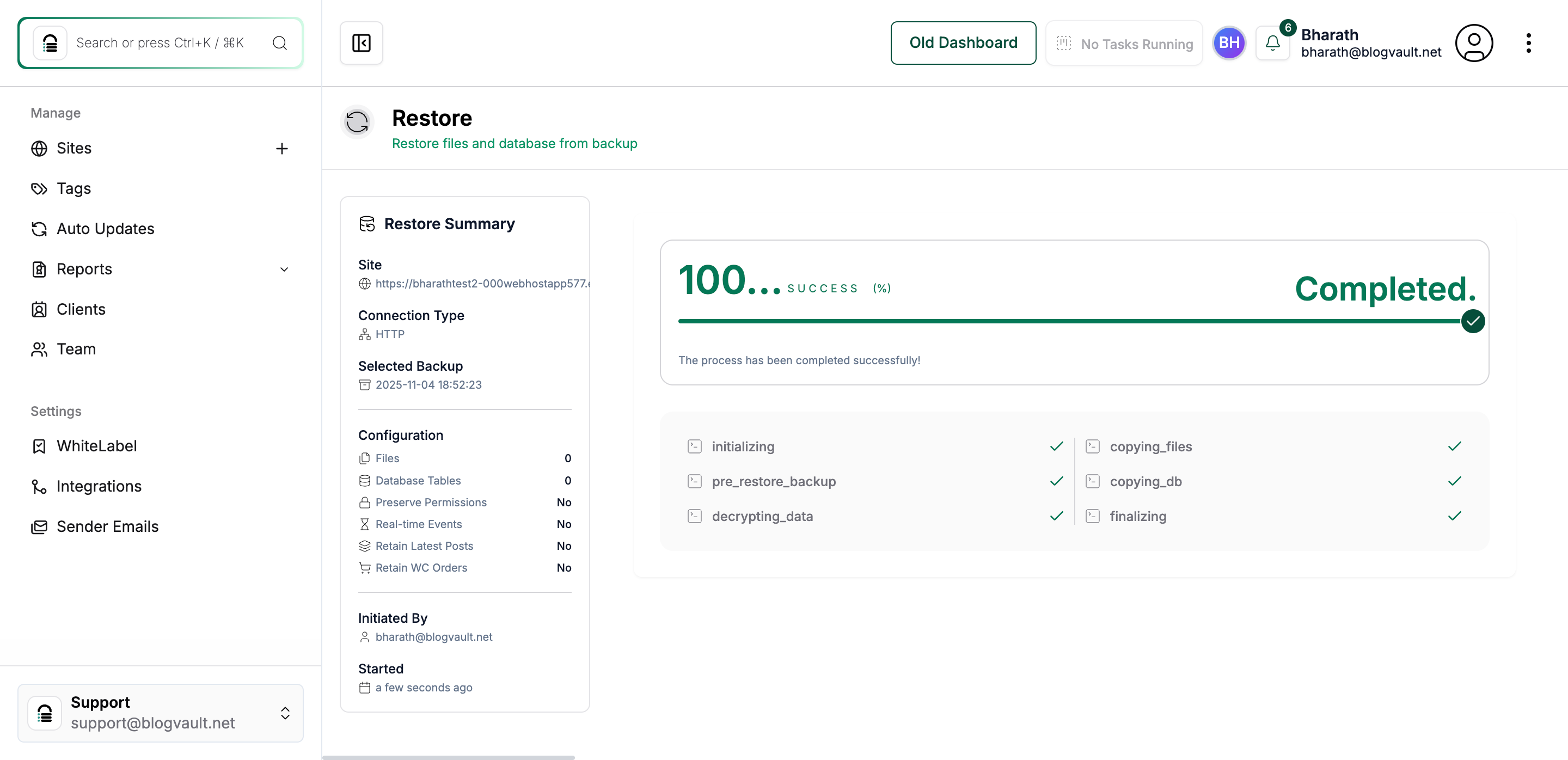
Clicking the initiate button will lead you to the Restore page which shows detailed progress and status of your restore operation
Note: The progress page shows real-time updates as files and databases are restored
Step 9 of 9
Restore Completion
The task details page shows your restore progress with a completion percentage and status indicators for each phase
Note: Look for the 'SUCCESS' status and 100% completion to confirm the restore finished successfully. The page displays detailed information including backup version, files restored, database tables processed, and initiation details.