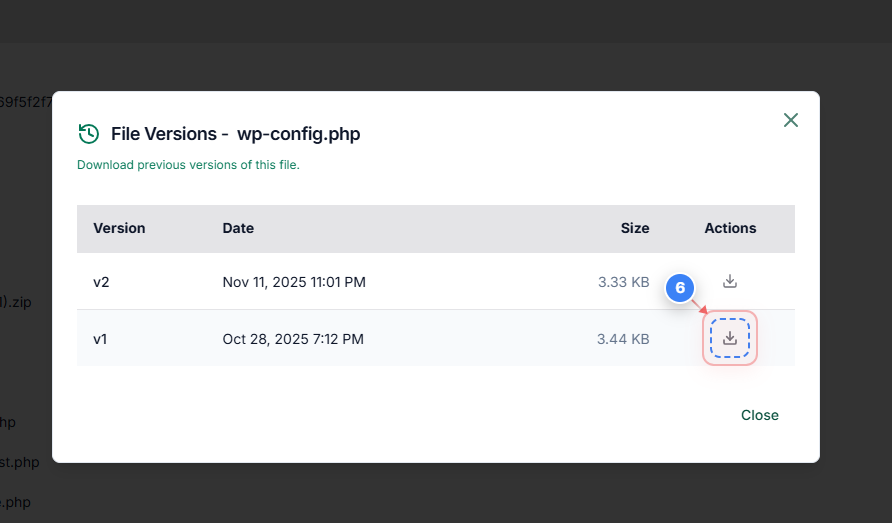
How Do I Download Different Versions of a File?
Step 1 of 6
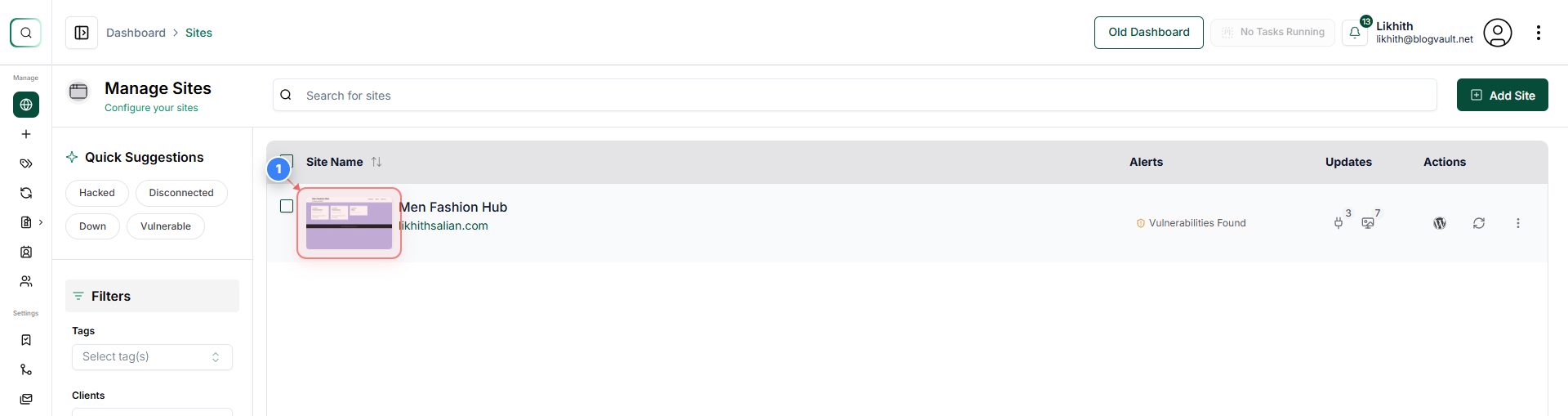
Open Site Management Dashboard
Click on your site.
Step 2 of 6
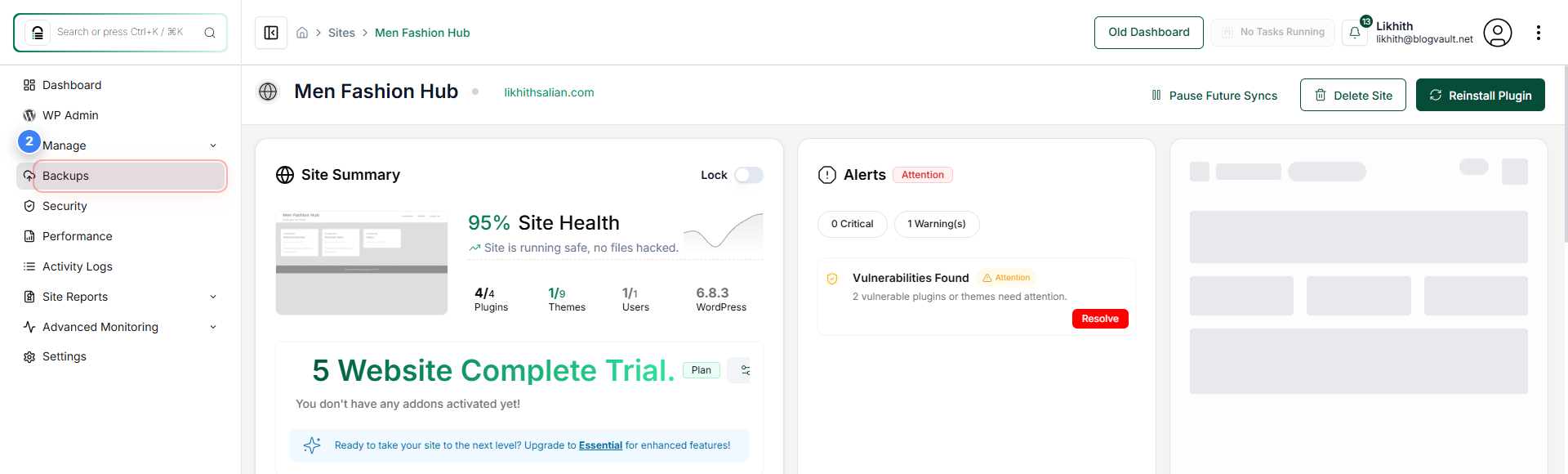
Navigate to the Backups Section
In the left sidebar menu, click on the **"Backups"** link to view the site's backup overview.
Step 3 of 6
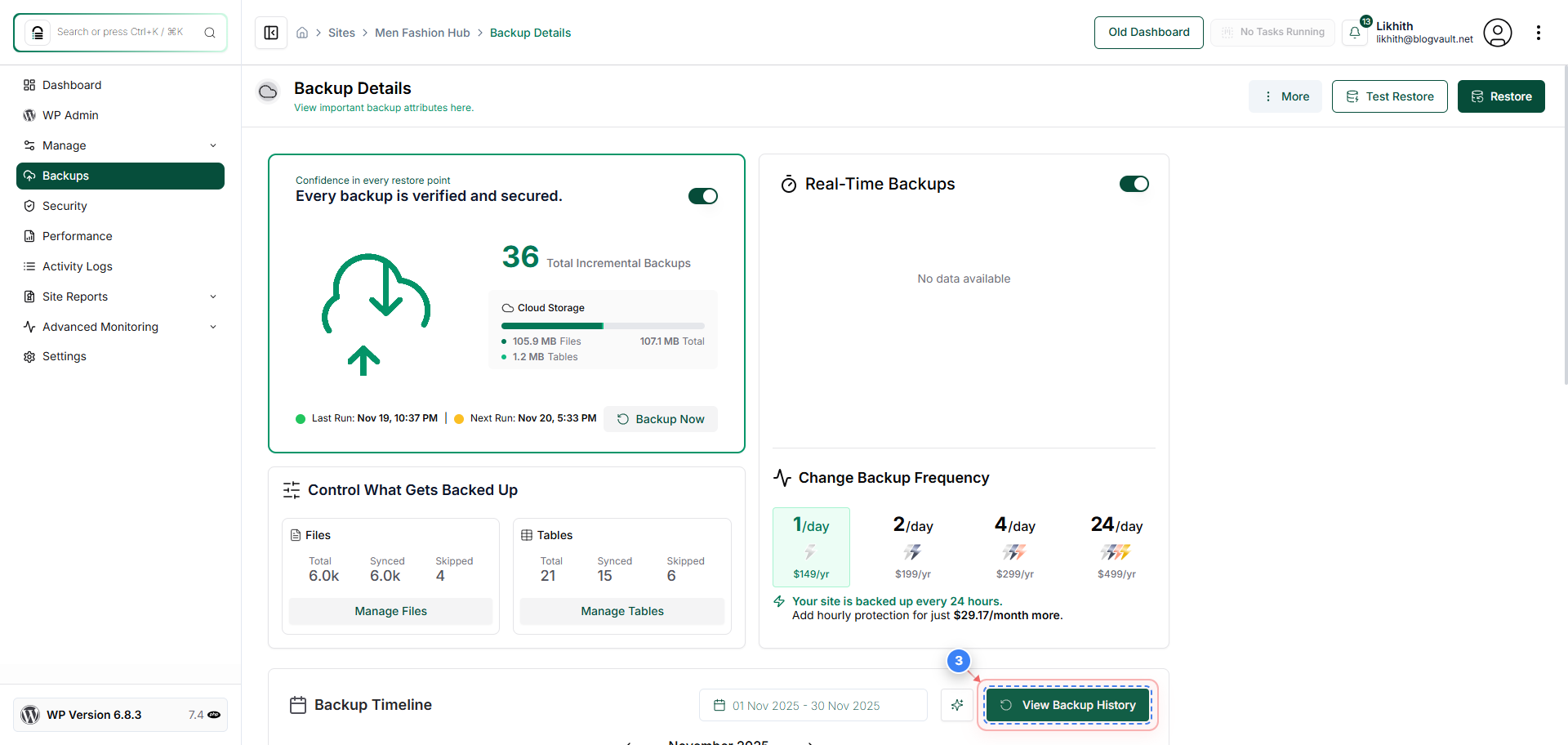
Access Backup Timeline
Click the **View Backup History** button to open the Backup Timeline page.
Note: This page displays a chronological list of all available backups.
Step 4 of 6
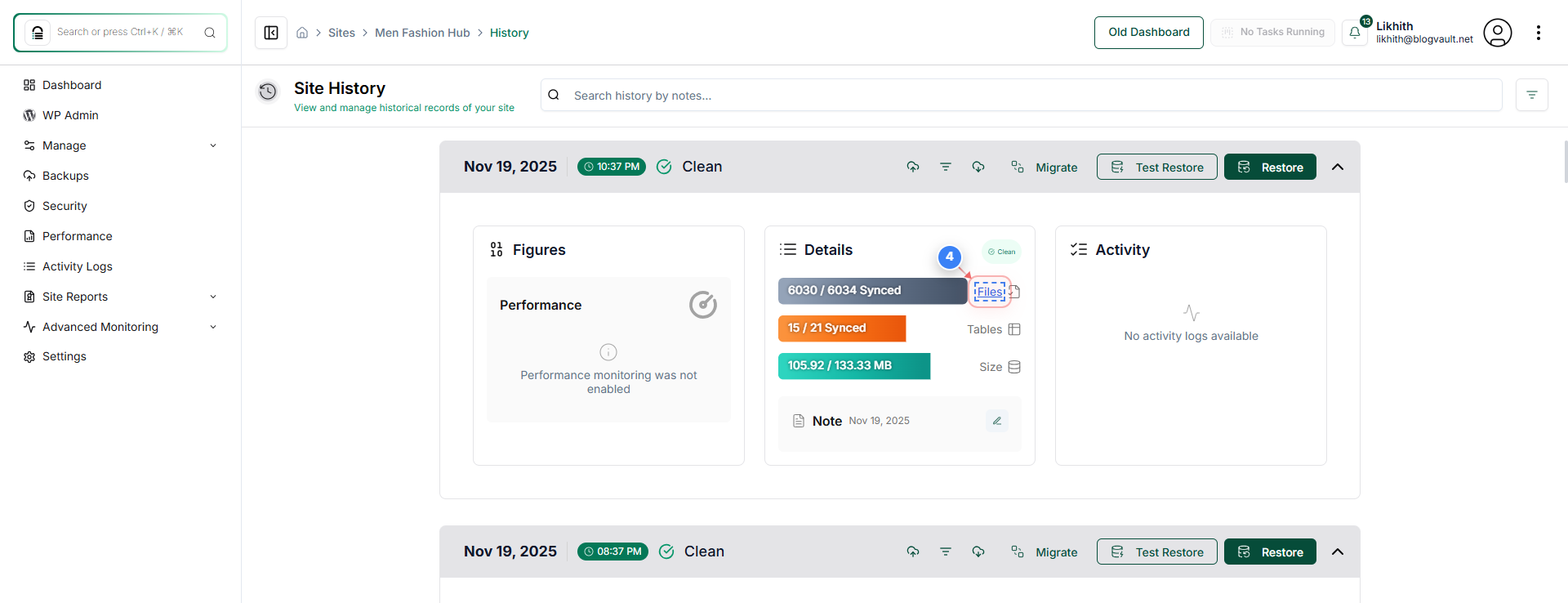
View File Sync Status
On the Backup History page, click on the **"Files"** progress bar/link to see the sync status and details of the files included in the backup.
Note: The progress bar indicates how many files are currently synced.
Step 5 of 6
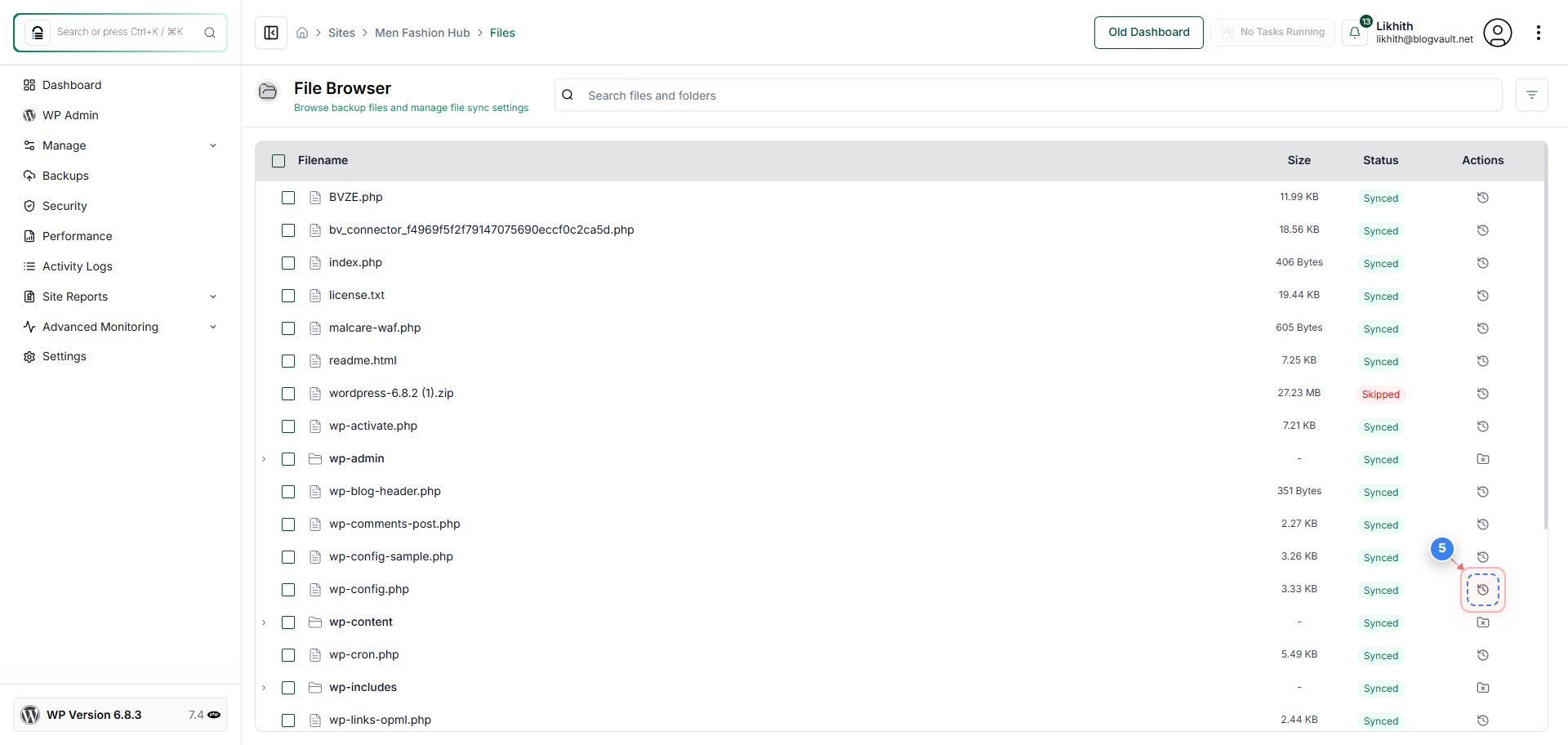
Review File History
Locate a file in the list and click the **history icon button** in the corresponding row to open a detailed history of that specific file.
Note: This history shows previous versions and changes for the selected file.
Step 6 of 6
Download a File Version
Within the file history view, click the **download icon button** next to a specific version to download that file version to your local machine.