How do I change or update my email address linked to my account?
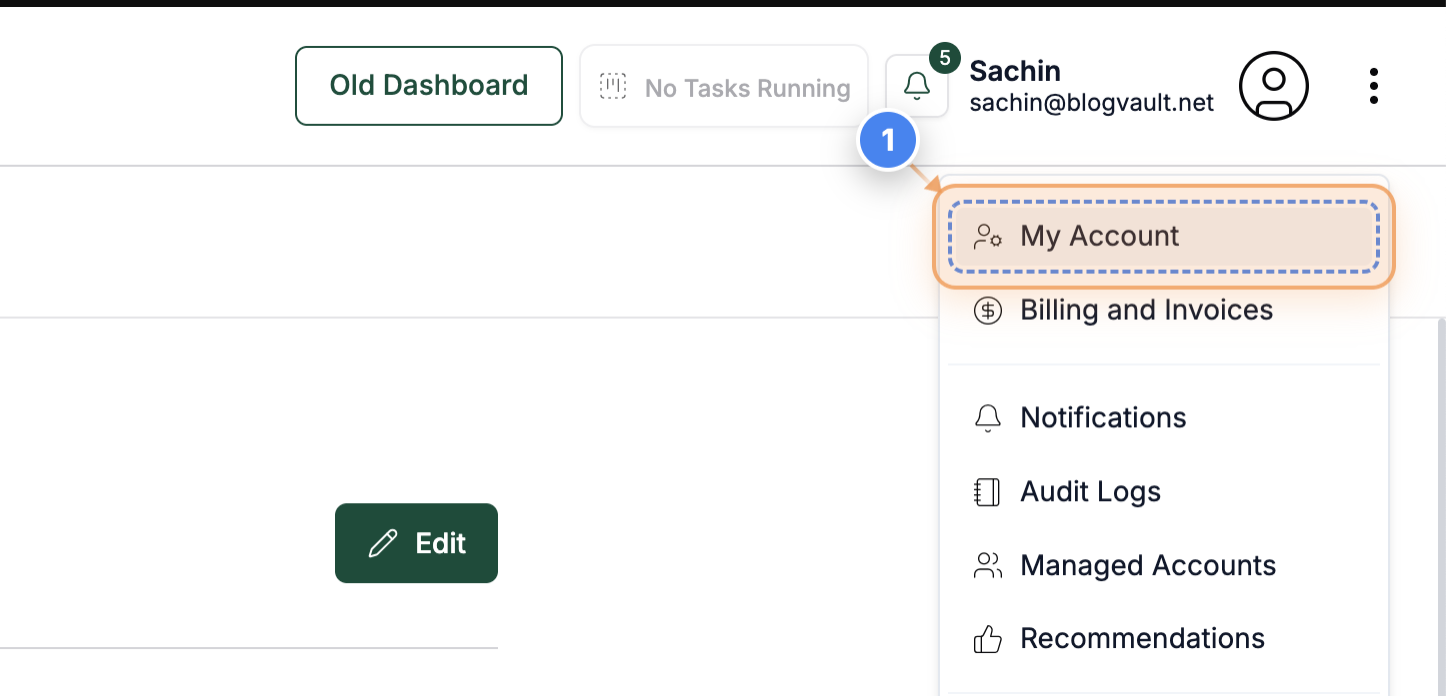
Step 1 of 4
Open Your Account Settings
Click on the "My Account" link in the top-right corner of your site dashboard to open your account settings page.
Note: You can also access this section anytime from your profile menu at the top of the screen.
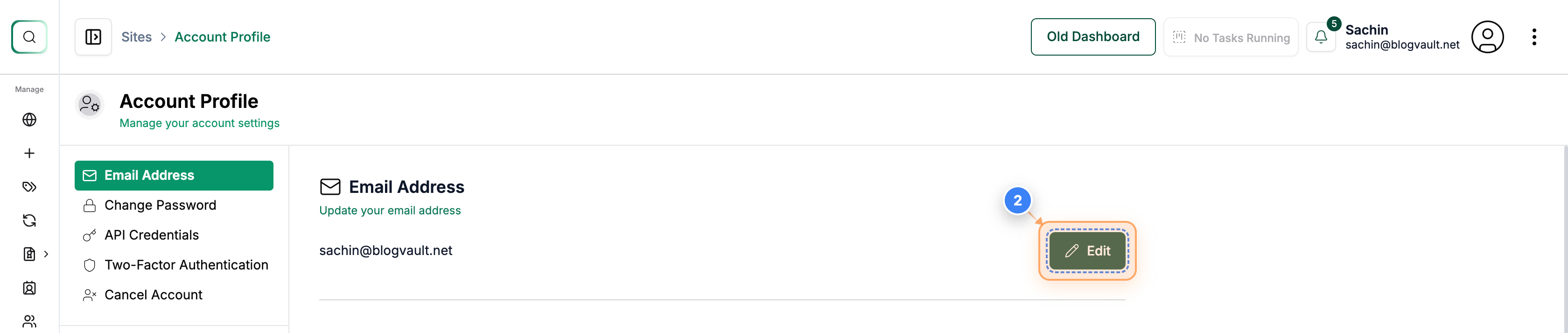
Step 2 of 4
Start Editing Your Email
Click the Edit icon in the Email Address section to begin updating your registered email address.
Note: This section shows your current email and allows you to make changes directly.
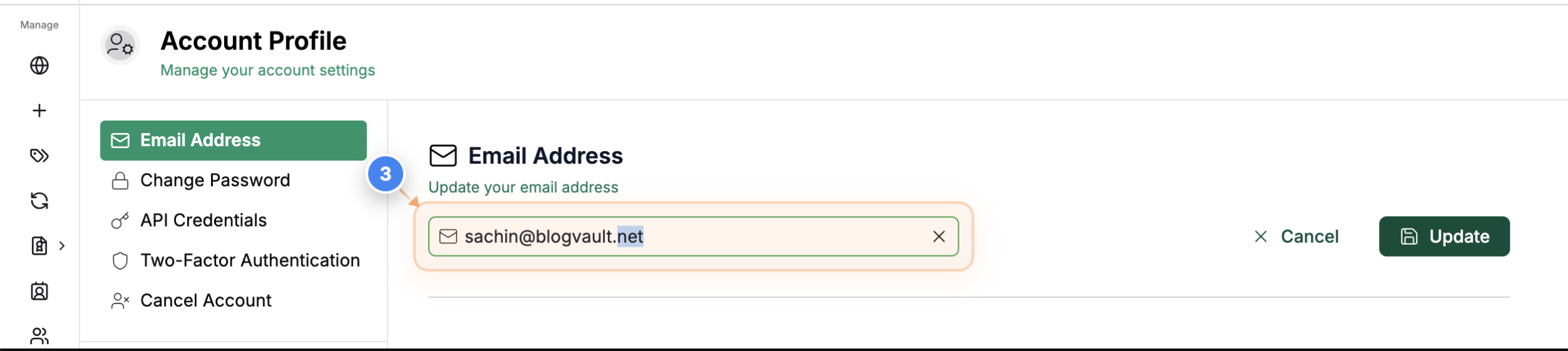
Step 3 of 4
Enter New Email Address
See the email input field and type your new email address to replace the existing one.
Note: Ensure you use a valid and accessible email address for account verification and notifications.
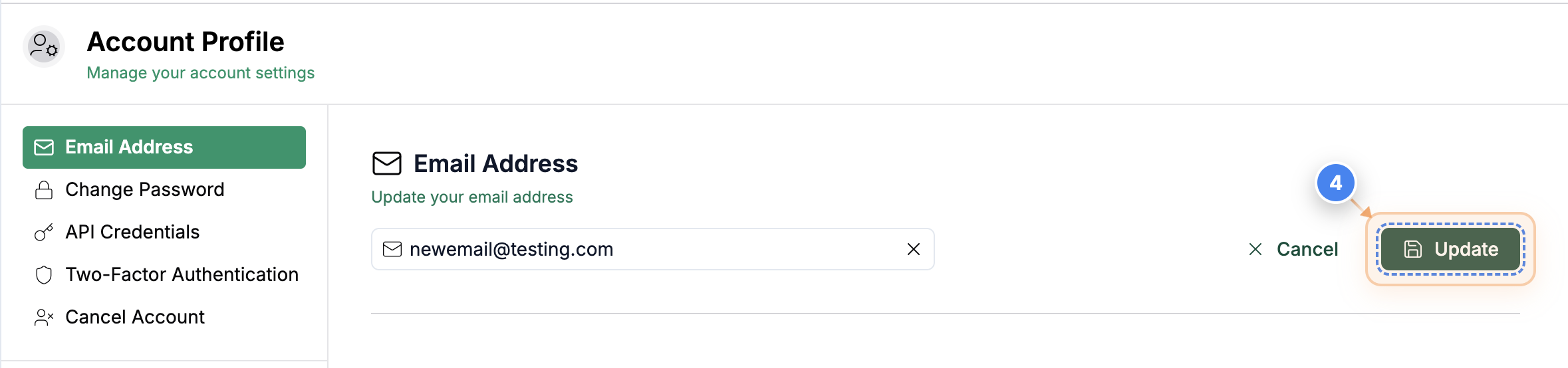
Step 4 of 4
Save Updated Email
Click the Update button below the input field to save your new email address to your account.
Note: After saving, you will receive a confirmation email to verify the change. Confirm the new email validation.